
RevenueCat Google Play 連携の概要
0:03:00RevenueCatのGoogle Play連携コードラボへようこそ!
このコードラボでは、以下のことを学びます:
Google Playで商品を適切に設定する方法 RevenueCatダッシュボードのセットアップとGoogle Play商品との連携 Product、Offering、Package、Entitlementの理解 ペイウォールエディターを使用したペイウォールの作成
このコードラボを終える頃には、Androidアプリにアプリ内課金とペイウォールをシームレスに実装するために必要なGoogle PlayとRevenueCatダッシュボードの設定がすべて完了します。
なぜRevenueCat?
世界をリードするアプリがRevenueCatを使用して、アプリ内課金、サブスクリプション、ペイウォールを実装し、顧客データを管理し、iOS、Android、Webで収益を拡大しています。年間80億ドル以上のアプリ内課金を処理し、OpenAI(ChatGPT)、Notion、Buffer、Goodnotesなどのトップ企業から信頼されています。
なぜ多くの開発者がRevenueCatを選ぶのか?
RevenueCatは、分析のための統一された情報源を提供しながら、クロスプラットフォームのアプリ内課金を簡素化します。ライフタイムバリュー(LTV)、収益トレンド、ユーザー行動をより深く理解し、よりスマートな収益化と迅速な成長を可能にします。主なメリットは以下の通りです:
統一されたユーザーID:購入をあなた独自のユーザーIDに確実にリンクし、アプリレベルとストアレベルのアカウント間の断絶を解決します。 効率的なサブスクリプション管理:プラットフォーム固有の制限を抽象化し、直接制御が制限されている場合(例:iOS)でも一貫したサブスクリプション動作を提供します。 クロスプラットフォーム分析:AppleやGoogleコンソールからの遅延データよりも明確で実用的な、標準化されたリアルタイムインサイトを取得できます。 正確な価格インサイト:ネイティブフレームワークでは不十分な場合でも、すべてのロケールとストアでユーザーが支払った金額を正確に把握できます。
RevenueCatを使用すれば、アプリの収益化がよりシンプルで、スマートで、スケーラブルになります。

Google Play商品の設定
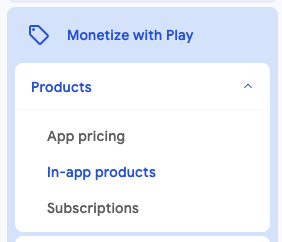
0:05:00まず、Google Play Consoleにログインし、アプリケーションを選択してから、サイドバーの収益化 > 商品に移動し、下の画像のようにアプリ内アイテムまたは定期購入をクリックします。
お勧めの流れ(ちょっとした裏ワザ): サブスクリプションや一回限りの購入を含むアプリをリリースするなら、RevenueCat SDK だけを組み込んだほぼ空のシェル AAB をまず Internal testing にアップロードします。この非公開ビルドが一つあれば設定全体が進められます。すぐに商品を作成し、RevenueCat 連携を仕上げられます。その後アプリ開発を続け、準備ができたら Closed testing → Open(Beta) testing → Production の順に昇格させてください。
- 月額または年額(継続課金) → Subscriptions で基本プランとして作成します。
- 買い切り(永久的な一回限りのアンロック)(例:「Pro 永久版」、広告の永久削除) → In-app products で非消費型(non-consumable)として作成します。
- 消費型(繰り返し購入できるコインやジェムのパック) → 同じく In-app products で消費型(consumable)として作成します。
基本的に、Google Playで作成できる商品にはアプリ内アイテムと定期購入の2種類があります。
下の画像のように、まだAPKをアップロードしていない場合は、商品を設定する前にAPKをアップロードする必要があります。サイドバーのリリースセクションに移動してAPKをアップロードできます。
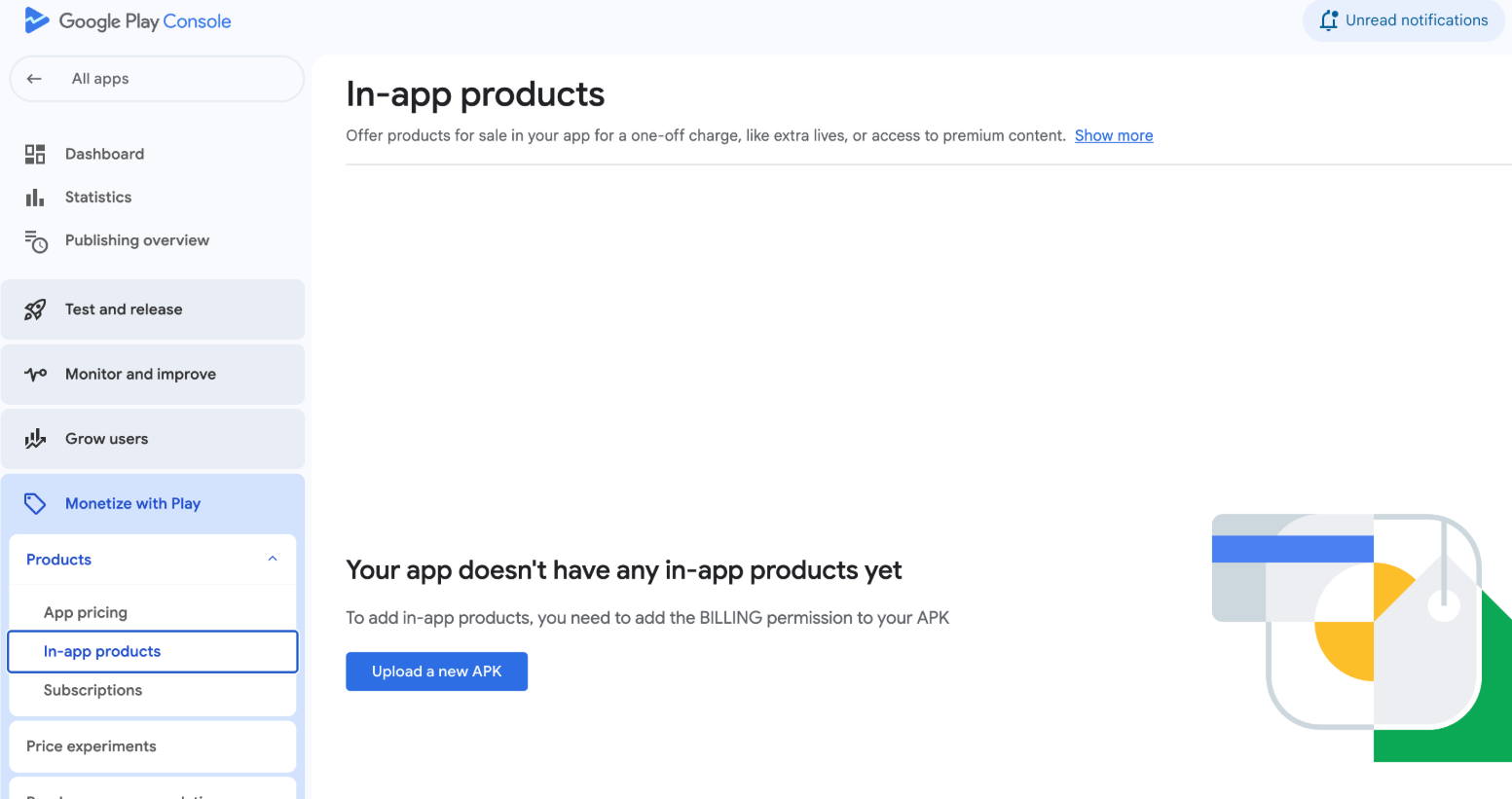
アプリ内アイテム
これらは、機能やコンテンツを永続的にロック解除する1回限りの購入です。例として、広告の削除、プレミアム機能のロック解除、ゲーム内通貨の購入などがあります。
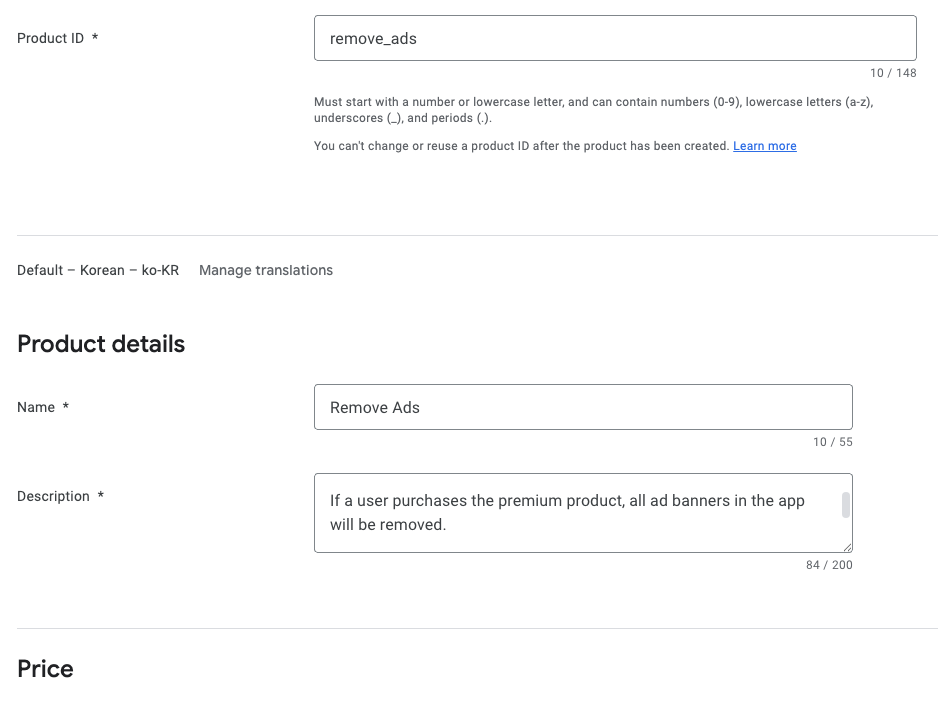
サイドバーのアプリ内アイテムをクリックすると、上記の画面が表示され、ユーザーが購入できる新しいアプリ内アイテムを作成できます。
定期購入
これらは、月額、年額、またはカスタム期間で繰り返し料金を支払うことで、コンテンツや機能へのアクセスを提供します。ストリーミングコンテンツ、プレミアムアプリアクセス、定期的に更新される機能などのサービスに最適です。
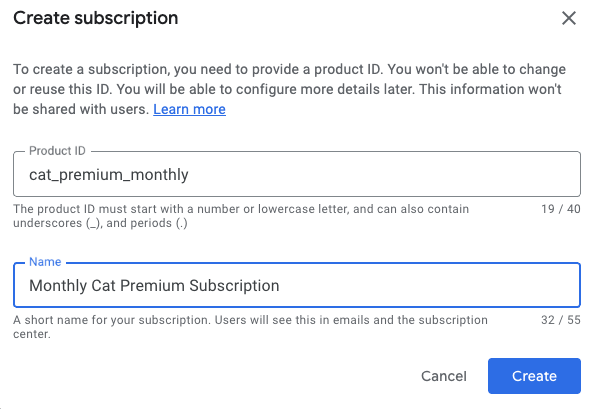
定期購入商品を作成する際、サブスクリプション特典の追加、基本プランの設定、オファー(無料トライアルや導入価格など)の設定、そして最終的に商品の有効化によってさらにカスタマイズできます。
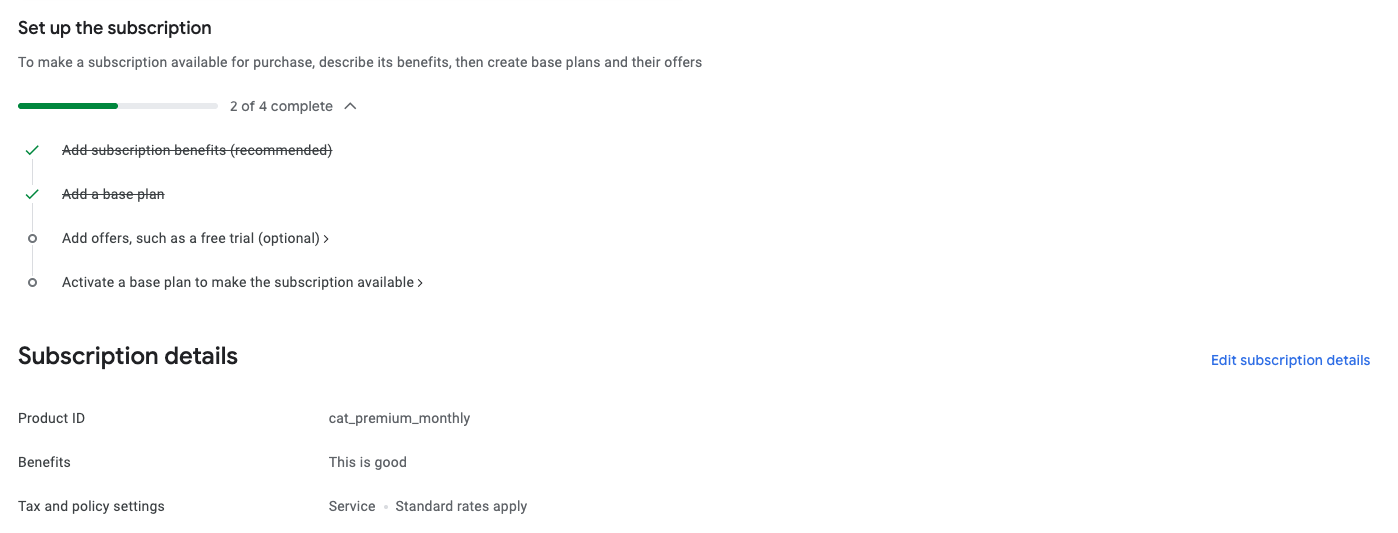
Google Playでの商品設定が完了したら、準備完了です!アプリ内アイテムや定期購入の作成、信頼性の高い商品IDの作成、基本プランとオファーの設定、非消費型アイテムの追加についてさらに詳しく知りたい場合は、Google Play商品セットアップガイドで詳細な手順とベストプラクティスを確認してください。
Google PlayをRevenueCatに接続
0:15:00次に、商品、収益化、統計などを管理するためのRevenueCatアカウントを設定する必要があります。必要なのはメールアドレスだけです。
RevenueCatでアカウントを作成した後、Google Play Storeサービス認証情報ガイドで提供されている手順に従って、Google Play Storeサービス認証情報を設定します。
この設定により、RevenueCatがGoogle Play商品と連携し、ストア商品をRevenueCatダッシュボードにシームレスにインポートし、購入アクティビティを追跡し、LTVレポートを分析し、ユーザー購入通知を取得し、リアルタイムのデータインサイトを使用して成長戦略を立てられます。
開始するには、以下の手順に従ってください:
1. Google Developer、Reporting、Pub/Sub API の有効化
Google CloudプロジェクトでGoogle Play Developer API、Developer Reporting API、Cloud Pub/Sub API を有効にするには、以下の手順に従います:
- Google Cloud Consoleを開きます。
- ドロップダウンから既存のプロジェクトを選択するか、新しいプロジェクトを開始します。
- Google Play Android Developer API、Google Play Developer Reporting API、Cloud Pub/Sub API のページにアクセスします。
- 各ページで有効にするボタンをクリックします(すでに有効な場合は管理と表示されます)。
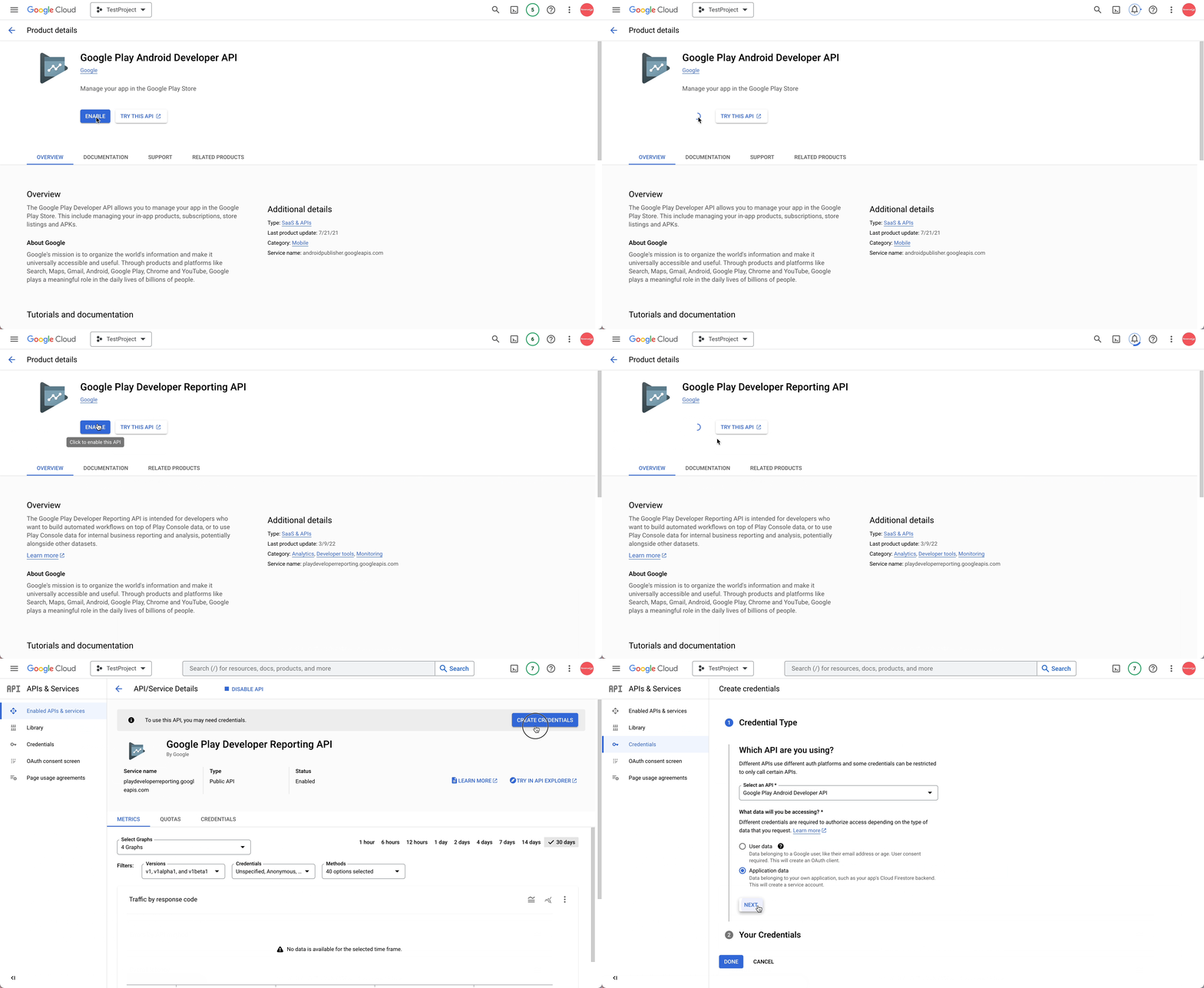
APIが有効になると、プロジェクトのAPIダッシュボードに移動します。認証情報がまだ設定されていない場合は、作成を求められます。認証情報がGoogle Play Android Developer APIで使用するためのものであることを必ず指定してください。このステップは、プロジェクトオーナーまたはGoogle Play Consoleから適切なAPIアクセス権を付与されたチームメンバーが完了する必要があります。
2. サービスアカウントの作成
Google Cloud Consoleのサービスアカウントセクションに移動し、正しいプロジェクト内で作業していることを確認してください。
そこから、RevenueCatがGoogleサービスと連携するために使用できるサービスアカウントを生成する必要があります。サービスアカウントを作成をクリックし、意味のある名前を付けて、作成して続行を選択して進みます。
ロールを割り当てるよう求められたら、以下を含めてください:
- Pub/Sub 管理者: Googleのリアルタイムサーバー通知を処理するために必要です。
- Monitoring 閲覧者: キューのメトリクスとパフォーマンスを可視化します。
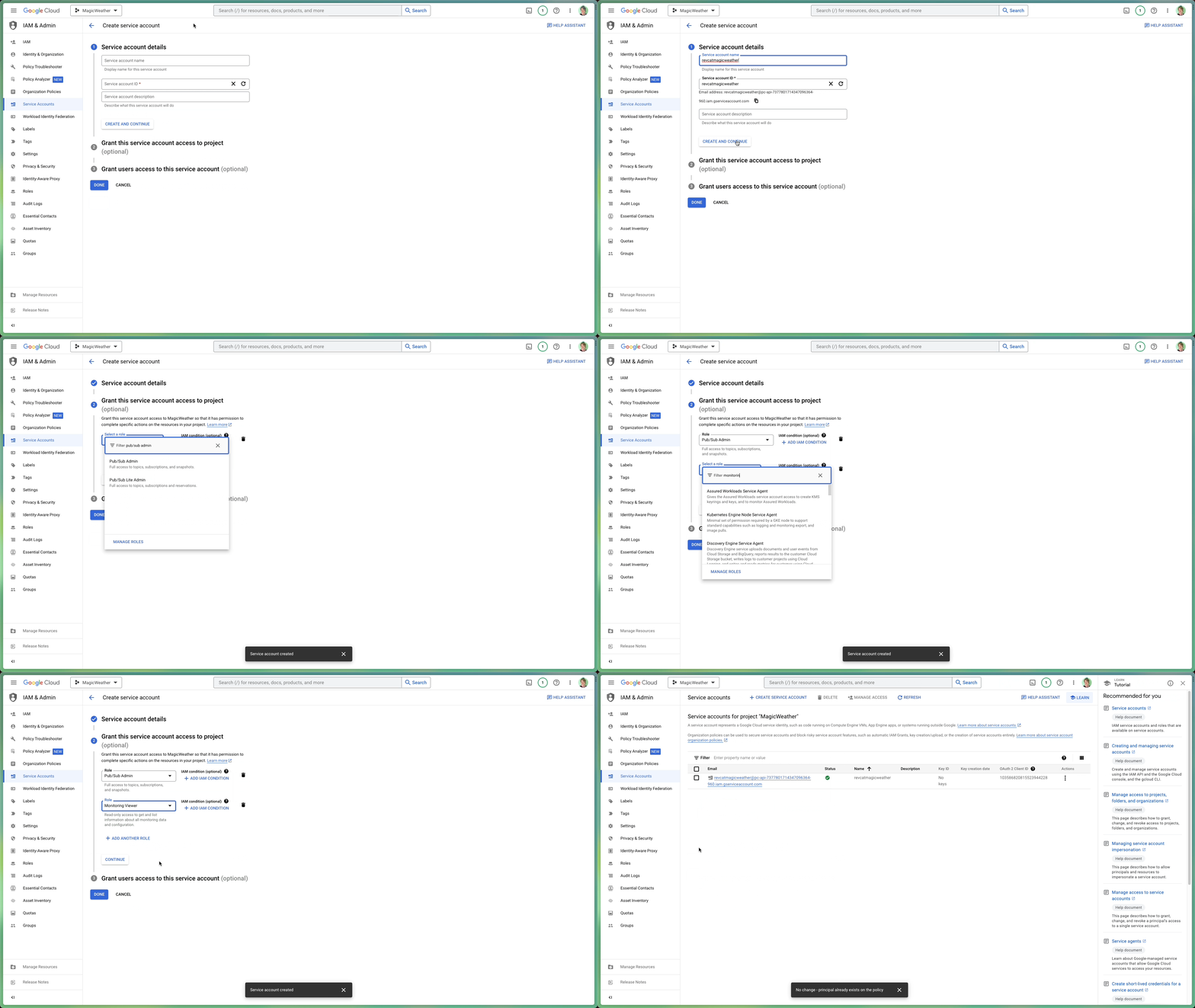
次は、秘密鍵ファイルを生成します。
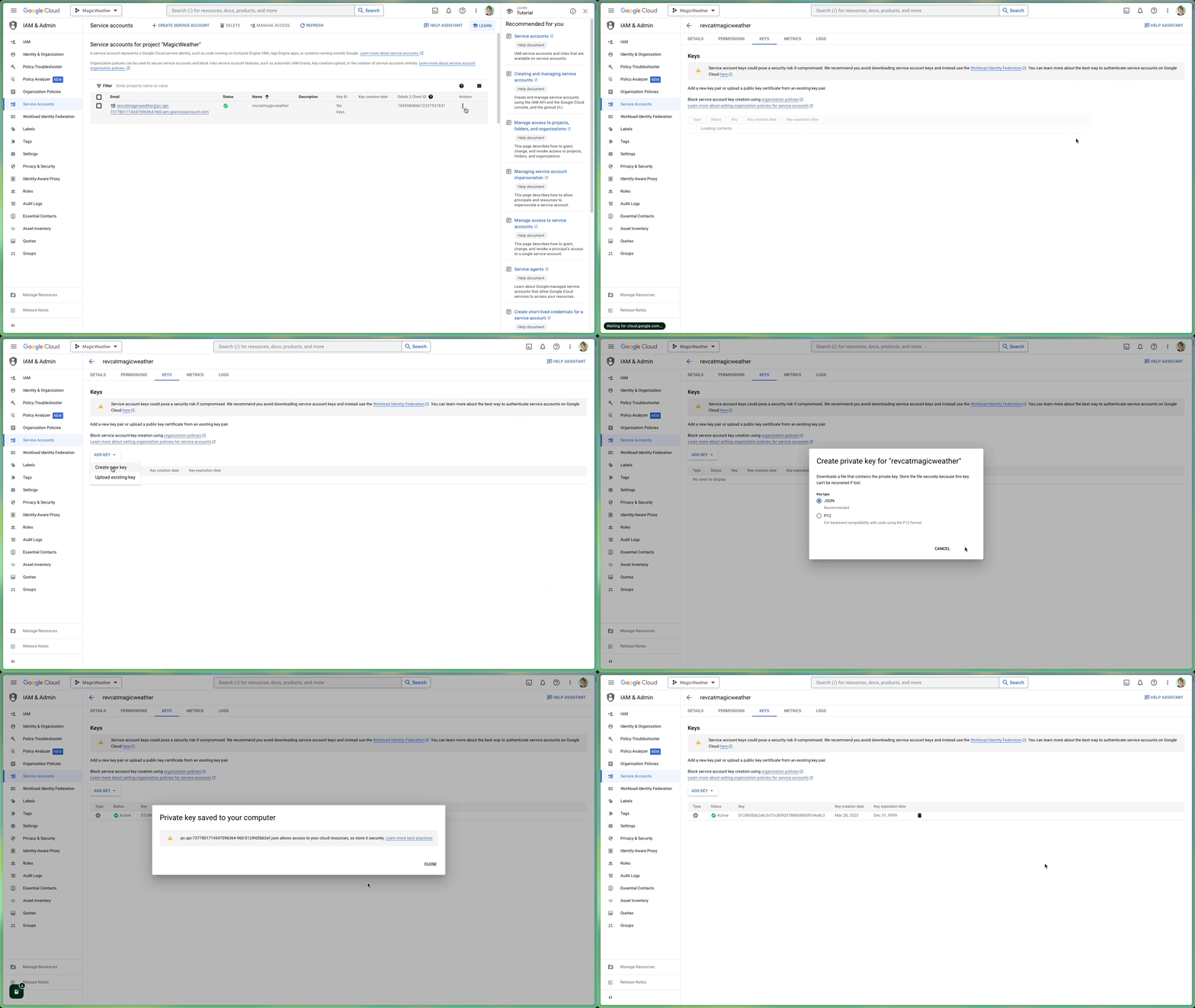
Google Cloud Consoleのサービスアカウントパネルで、作成したサービスアカウントを見つけます。「アクション」列の下にある3点アイコンをクリックし、鍵を管理を選択します。
そこから、鍵を追加をクリックし、新しい鍵を作成を選択します。ダイアログが表示されたら、進む前に必ずJSON形式を選択してください。ファイルをダウンロードしてください。このJSON鍵は、セットアップの後半で必要になります。
iam.managed.disableServiceAccountKeyCreation)を有効にし、RevenueCat が必ず必要とする JSON キーの作成をブロックします。解決するには IAM & Admin > Organization policies でそのポリシーを見つけ、プロジェクトのスコープで Not enforced に設定します(これには Organization Policy Administrator ロールが必要で、プロジェクトの Owner には既定でありません)。最速の回避策は、組織のない個人の @gmail.com プロジェクトでサービスアカウントと JSON キーを作成し(そこにはポリシーがありません)、そのサービスアカウントのメールを Play Console に招待することです。アカウントが異なっても動作します。
3. RevenueCatに財務アクセスを付与
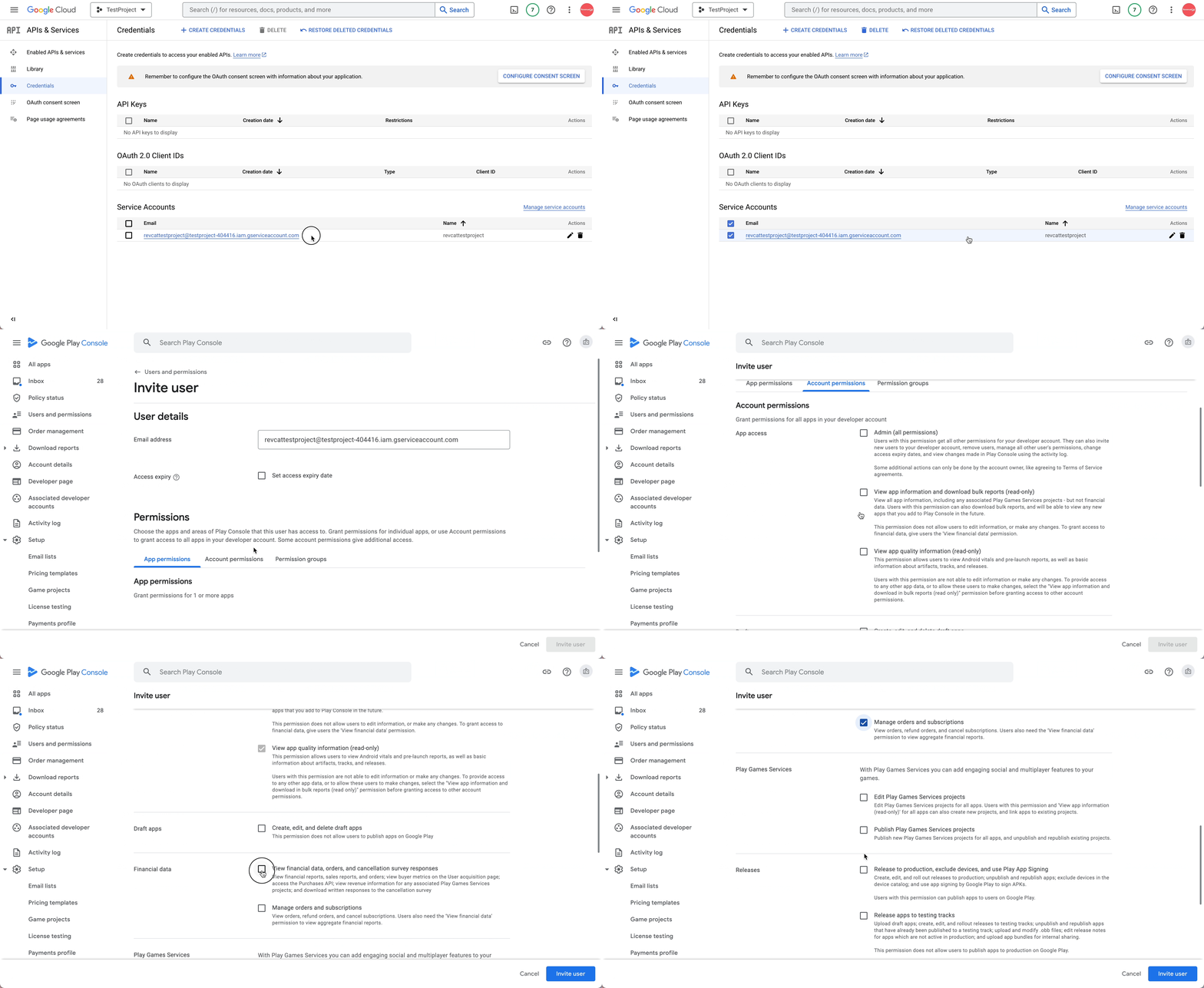
Google Play Consoleのユーザーと権限セクションに移動します。そこで、ユーザーを招待をクリックして、先ほど作成したサービスアカウントのメールアドレス(ステップ2)を追加します。
次に、アプリの権限で、RevenueCatにアクセスさせたい特定のアプリを選択していることを確認してください。その後、アカウントの権限エリアまでスクロールします。ここで、すべてがスムーズに動作するために必要なアクセスを付与します。
以下の権限がチェックされていることを確認してください:
- アプリの詳細を読み取り、一括レポートのダウンロードにアクセス
- 財務データ、注文履歴、およびキャンセルフィードバックにアクセス
- サブスクリプションと顧客の注文を管理
すべてが正しく見えたら、一番下までスクロールして招待を送信をクリックします。送信後、ユーザーと権限の概要に戻り、受け入れられるとサービスアカウントがアクティブステータスでリストに表示されます。
4. 認証情報JSONをRevenueCatに登録
最後に、RevenueCatダッシュボードに移動してプロジェクト設定を開きます。先ほど保存したJSON認証情報ファイル(ステップ2から)を見つけ、セットアップエリアにドラッグアンドドロップするか、ファイルピッカーを使用して手動で参照します。
アップロードしたら、保存をクリックして変更を適用することを忘れないでください。RevenueCatが認証情報の検証を開始し、約36時間以内に、連携を通じてGoogle Play購入の処理を開始する準備が整います。
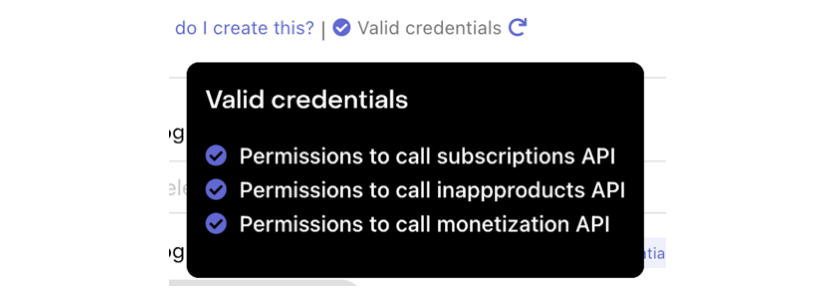
以下のように「認証情報を検証」ボタンをクリックして認証情報を確認できます:

検証結果を表示し、Google認証情報の現在のステータスについてのインサイトを提供するサマリーが表示されます。すべてが正しく設定されている場合、アップロードしたJSONファイルの下に「有効な認証情報」メッセージとすべての必要な権限のチェックリストが表示されます。
5. 署名済みAPKまたはAndroid App Bundleをアップロード
前の手順を完了したら、すべてが正しく接続されていることを確認するための最終チェックがいくつかあります:
- 署名済みAPKまたはApp BundleがGoogle Play Consoleに正常にアップロードされていることを確認します。
- リリースがすべての必要なレビューと承認ステップを通過していることを確認します。
- アプリがクローズドまたはオープンテストトラックで利用可能であり、少なくとも1つのテスターアカウントを追加していることを確認します。
- 定期購入商品がPlay Consoleで有効としてマークされていることを再確認します。
- 最後に、RevenueCatで使用しているパッケージ名がGoogle Playに登録されているものと完全に一致することを確認します。
これらの最終検証は、セットアップの問題を回避し、RevenueCatがGoogle Playデータとシームレスに同期できるようにするために不可欠です。
お疲れ様でした!難しい部分を乗り越えましたね 🎉
Product、Offering、Package、Entitlement
0:6:00この時点で、複雑なセットアップのほとんどは完了しています。次は、収益化戦略を設定する前に理解する必要があるRevenueCatの4つの重要な概念に慣れる時間です:Product、Offering、Package、Entitlement。
それぞれがプラットフォーム間でアプリ内課金を定義、提示、管理する方法において独自の役割を果たします。
🧩 Product(商品)
Productは、Google Play、Apple App Store、Webといったストアプラットフォームで直接作成・管理される個別のアプリ内課金アイテムです。これは収益化の基本単位で、月額サブスクリプション、ライフタイムアクセス、1回限りの購入などが該当します。各商品には、ストアによって定義された独自の識別子、価格、期間設定があります。
> 例:Google Playで設定されたcom.app.pro_monthlyのような月額サブスクリプション商品。
🎯 Offering(オファリング)
Offeringは、アプリでペイウォール体験として提示するためにグループ化された商品のコレクションです。OfferingはRevenueCatダッシュボードで設定され、A/Bテスト、価格実験、地域やユーザーセグメント別のペイウォールを柔軟に管理でき、すべてアプリの更新なしで実現できます。
> 例:defaultという名前のOfferingには、ユーザーに表示する月額、年額、ライフタイムといった複数のパッケージを含められます。
📦 Package(パッケージ)
Packageは、異なるプラットフォーム(例:iOS、Android、Web)間で同等の商品のラッパーとして機能します。これにより、各ストアの特定の商品IDにリンクしながら、1つの価格オプション(月額サブスクリプションなど)を一貫してプラットフォーム間で提示できます。
各パッケージにはOffering内で一意の識別子(例:monthly、annual)があり、RevenueCatがユーザーのプラットフォームに基づいて正しい商品を解決するのに役立ちます。
> 例:monthlyパッケージはiOSではcom.app.pro_monthly_iosに、Androidではcom.app.pro_monthly_androidにマッピングされる場合があります。
🏷️ Entitlement(権限)
Entitlementは、購入が成功した後にユーザーがアクセスできるものを定義します。これはロック解除される機能やコンテンツを表し、基礎となる商品やパッケージの識別子を抽象化します。Entitlementを使用すると、商品IDをアプリにハードコーディングせずにユーザーアクセスロジック(例:「プレミアムアクセスを持っている」)を管理できます。
また、RevenueCatがデバイスやプラットフォーム間で購入を追跡および復元する方法の中心でもあります。
> 例:premiumというEntitlementは、そのアクセスレベルに関連付けられた任意の商品(月額または年額サブスクリプションなど)を購入したユーザーに付与される場合があります。
チートシート
これら4つの要素がどのように連携するかを理解することで、クロスプラットフォームサブスクリプションの管理、価格戦略の実験、シームレスなアプリ内課金体験の提供が容易になります。
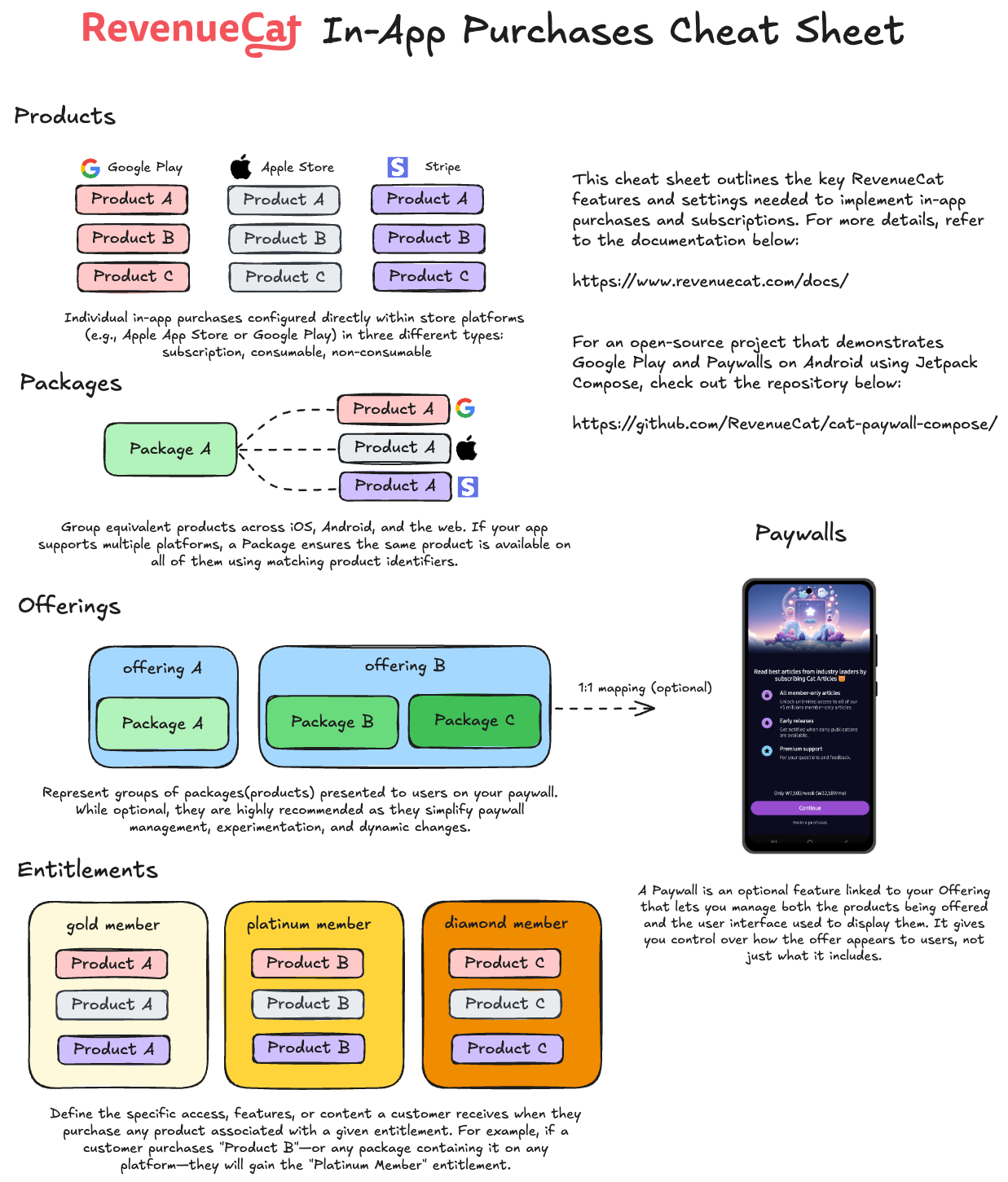
理解を深めるために、以下のRevenueCatアプリ内課金チートシートの視覚的な図を参照できます:
ストア商品のインポート
0:3:00なぜ商品をインポートするのか?
前のステップでは、Google Play Console で商品を直接作成しました。しかし、RevenueCat が購入を管理し、レシートを検証し、サブスクリプションを追跡するには、それらの商品を把握している必要があります。RevenueCat に商品をインポートすることで、ストアの設定と RevenueCat プラットフォームの間のギャップが埋まります。
インポートすると、RevenueCat は次のことができます。
- 購入の検証:Google Play と通信して、トランザクションが正当かどうかを検証します。
- サブスクリプション状態の追跡:更新、有効期限切れ、解約を自動的に監視します。
- 統一された分析の提供:収益、サブスクライバー、商品パフォーマンスをひとつのダッシュボードで確認できます。
- Entitlement と Offering の実現:商品を Entitlement にリンクし、ペイウォール用の Offering にまとめます。
インポートの手順
RevenueCat ダッシュボードを開き、プロジェクトに移動して、Product Catalog の下にある Products タブを開きます。
右上の + New ボタンをクリックし、ドロップダウンメニューから Import Products を選択します。RevenueCat が、接続済みの Google Play ストアアカウントから利用可能なアプリ内商品の一覧を自動的に取得して表示します。
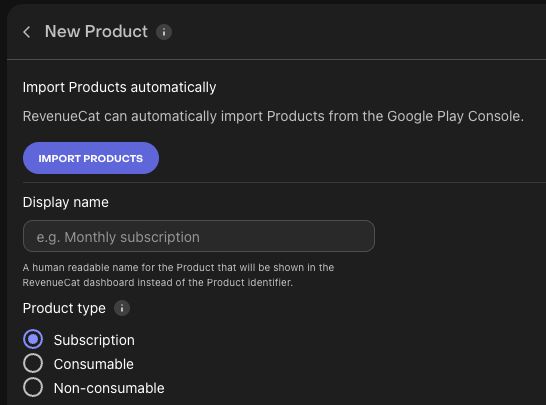
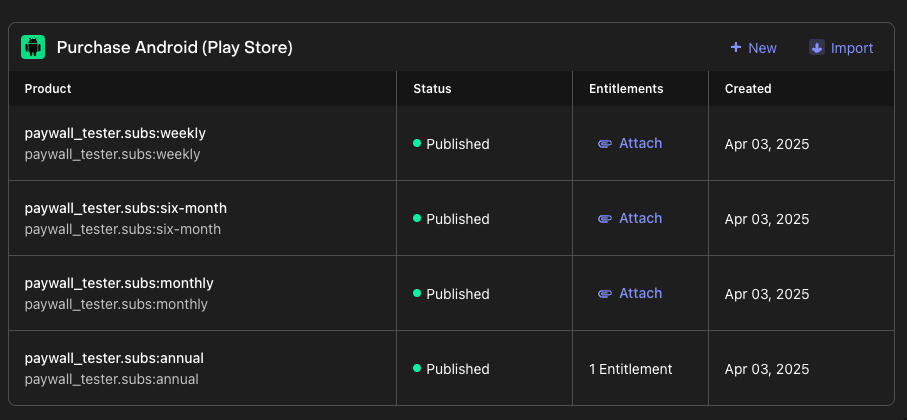
商品のインポートが完了すると、アプリ内課金アイテムが RevenueCat プロジェクトに正常に追加されたことを確認できます。インポートされたこれらの商品は、次のステップで Entitlement にアタッチしたり Offering にまとめたりする準備が整った状態です。
Entitlementの作成
0:5:00商品をインポートまたは作成したので、次はEntitlementを設定します。 学んだように、Entitlementは購入が成功した後にユーザーがアクセスできるものを定義します。「購入」とは、ユーザーがサービスにアクセスするために行う任意のタイプのアプリ内トランザクション(1回限りの購入やサブスクリプションなど)を指すことがあります。
通常、機能アクセス階層(例:"has_premium_access")に基づいて1つ以上のEntitlementを作成したいでしょう。これらのEntitlementを使用すると、アプリ内のゲート付き機能やコンテンツへのアクセスを制御できます。
新しいEntitlementを作成するには:
- プロジェクトダッシュボードの左メニューで商品カタログに移動します。
- Entitlementsタブをクリックします。
- ➕ 新規Entitlementを選択します。
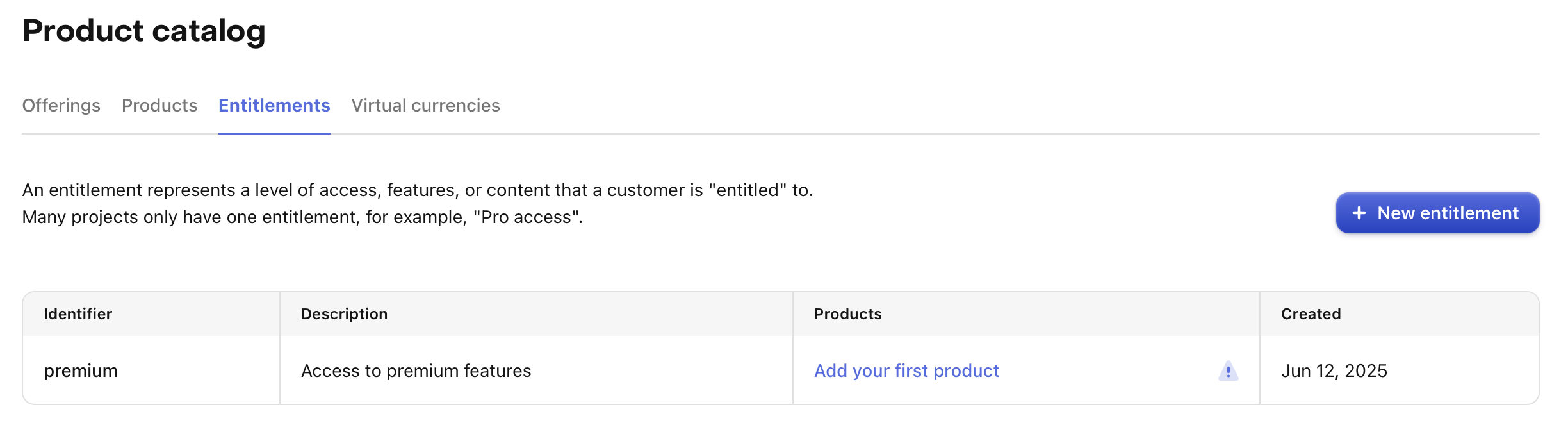
Entitlementの一意の識別子(例:"pro")を入力するよう求められます。これは後でアプリでユーザーのアクセスレベルを確認するために参照します。
ほとんどのアプリは単一のEntitlementで済みますが、必要に応じて複数作成できます。たとえばナビゲーションアプリでは、フルアクセス用のサブスクリプション("pro")を提供しつつ、特定のマップ地域をロック解除する1回限りの購入も販売する場合があります。その場合は、1つの"pro" Entitlementに加えて、各地域用の追加のEntitlement(例:"map_north_america"、"map_europe")を用意することになります。
商品をEntitlementにアタッチ
次は商品をEntitlementにアタッチする時です。これにより、アプリ内課金とそれがロック解除するアクセスがリンクされます。この設定により、ユーザーが商品を購入すると、対応するEntitlementが付与され、アプリ内の特定の機能やコンテンツへのアクセスが可能になります。
たとえば、ユーザーが特定のEntitlementを持っているかどうかを確認する単純なif文で、ゲート付き機能を簡単に実装できます。
商品をEntitlementにアタッチするには:
- RevenueCatダッシュボードでEntitlementsタブを開きます。
- 設定したいEntitlementをクリックします。
- アタッチボタンをクリックします。
- 商品をすでに追加している場合は、リストに表示されます。リンクしたいものを選択するだけです。
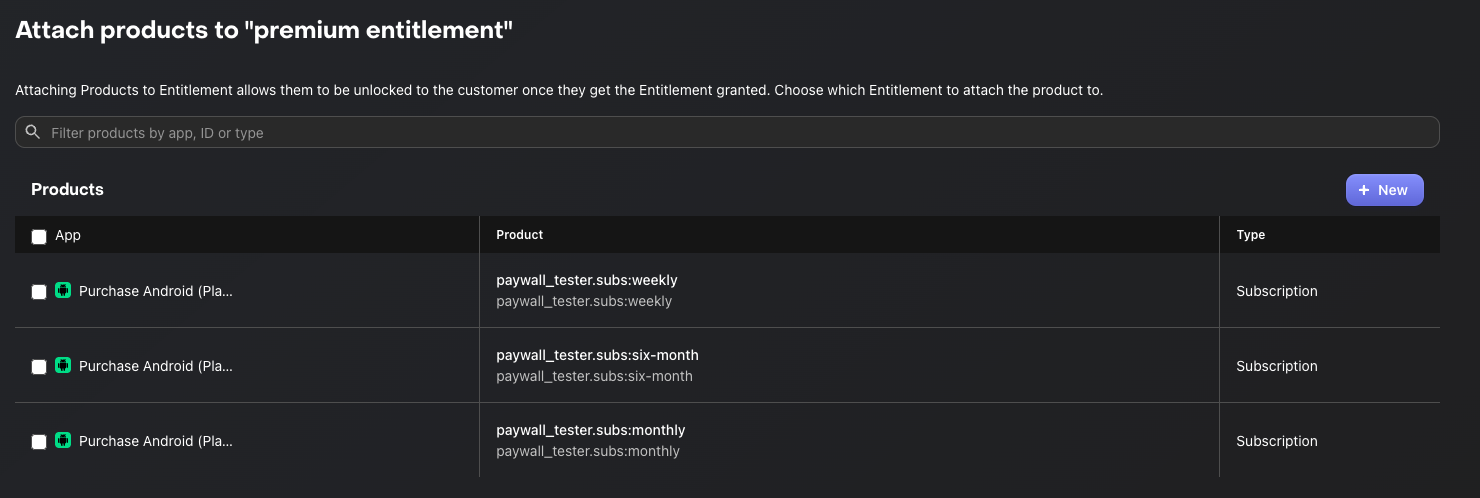
Entitlementにアタッチされた商品が購入されると、Entitlementはその商品の期間中アクティブになります。
サブスクリプション商品の場合、Entitlementはサブスクリプション期間の長さだけアクティブのままです。 非消費型または消費型購入(Entitlementにアタッチされている場合)の場合、Entitlementは通常永続的にコンテンツをロック解除します。
このメカニズムにより、アプリで複雑なロジックを処理することなく、購入タイプに基づいて機能アクセスを管理できます。
アプリにペイウォールを実装する予定がない場合は、まとめセクションにスキップできます。それ以外の場合は、次のステップに進んでOfferingの作成方法を学びましょう。
Offeringの作成
0:7:00アプリにペイウォールを導入したい場合、最初のステップはOfferingの作成です。Offeringは、ペイウォールでユーザーに提示する商品のまとまりを表します。
Offeringの作成
新しいOfferingを作成するには、RevenueCatダッシュボードで Product Catalog → Offerings に移動し、+ New ボタンをクリックします。
次のフィールドの入力を求められます。
- Identifier:コード内でこのOfferingを参照するための一意のキーです(例:
default)。あとから変更できないため、意味のある名前を選んでください。 - Display Name:ダッシュボードでこのOfferingを識別しやすくするための、人が読める名前です(例:「Default Offering」)。
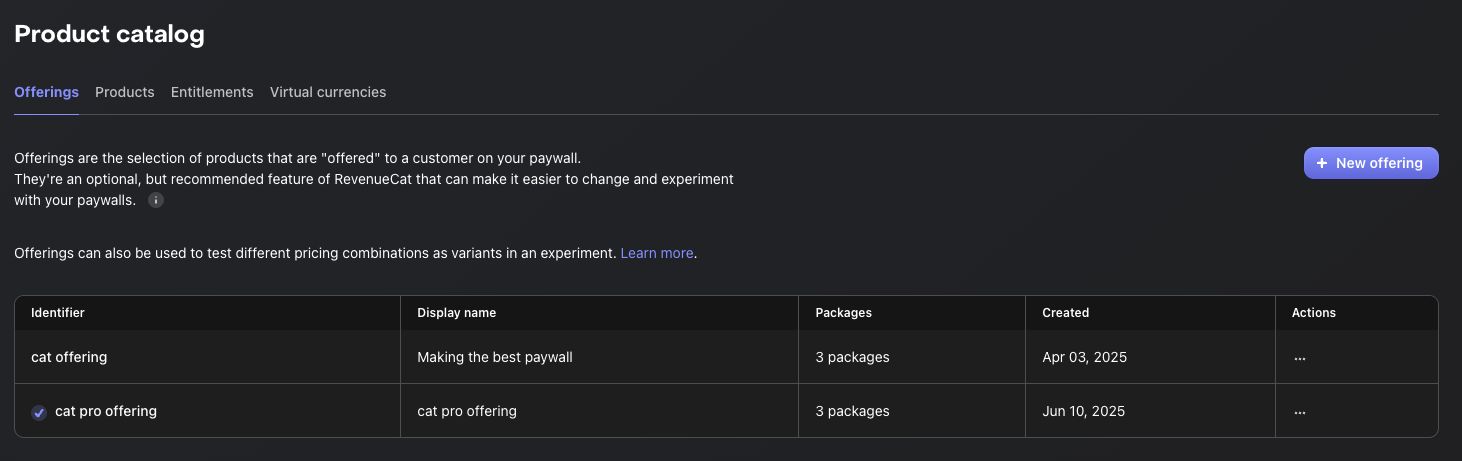
詳細を入力したら、Create をクリックして新しいOfferingを保存します。作成したOfferingが、Offeringの一覧に表示されます。
なお、RevenueCatはプロジェクトに 「Default」Offering を自動的に作成します。このデフォルトのOfferingをそのまま使うこともできますし、異なるペイウォール構成、A/Bテスト、地域別の価格戦略に対応するために追加のOfferingを作成することもできます。
パッケージの追加
Packageは、異なるプラットフォーム(例:iOS、Android、Web)間で同等の商品をまとめるラッパーとして機能します。これにより、プラットフォームをまたいで商品の信頼できる唯一の情報源が得られます。
たとえば、ユーザーがAndroidで商品を購入した場合でも、同じアカウントでログインしていれば、iOSデバイスで同じEntitlementにアクセスできます。
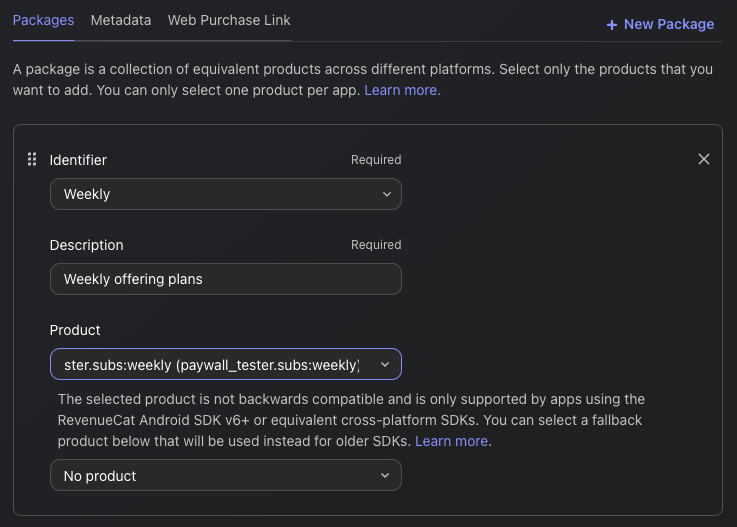
パッケージを作成するには、作成した Offering に移動し、Edit ボタンをクリックして詳細を設定します。続いて Packages セクションの + New Package をクリックすると、パッケージを追加できます。
そこから、次の手順で設定します。
- ドロップダウンから、パッケージの期間をもっともよく表す Identifier を選びます(例:monthly、annual)。
- 消費型の購入など、あらかじめ定義された期間のいずれも当てはまらない場合は、代わりに カスタム識別子 を選択できます。
- パッケージの目的や内容がわかりやすくなるように、説明を追加します。
- 選んだ期間に一致する 関連商品をアタッチ します(例:iOSとAndroidの月額商品)。
- Save をクリックしてパッケージを作成します。
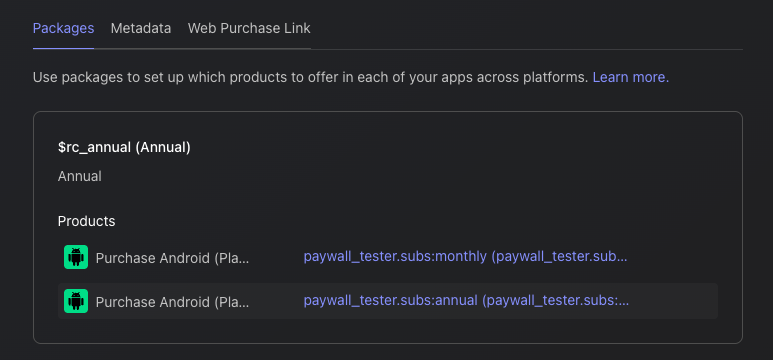
すべてのパッケージをOfferingに追加すると、次のように結果が表示されます。
OfferingとPackageの関係
このように、1つのOfferingは複数のPackageを含められるため、ユーザーにさまざまな選択肢を「提示(offer)」できます。つまり、月額、年額、ライフタイムといった複数のプランを、次の図のように1つのOfferingの中でまとめて提示できます。
Offering(例:「proプラン」)
                    |
       --------------------------------
       |              |              |
   Package A      Package B      Package C
   ("monthly")    ("annual")    ("lifetime")
       |              |              |
 Product A1      Product B1      Product C1
 (iOS/Android)   (iOS/Android)   (iOS/Android)
さあ、素晴らしいペイウォールを作成しましょう!
ペイウォールの作成
0:7:00ペイウォールは、ユーザーに商品の購入を促す画面です。RevenueCatのペイウォールシステムはサーバー駆動UI(server-driven UI)で構築されているため、新しいアプリバージョンをリリースしなくても、Paywall Editor でレイアウトを即座に更新できます。

これにより、チームはアプリ更新の遅延に悩まされることなく、A/Bテスト、Offeringの改善、メッセージの最適化に集中してサブスクリプションを伸ばせます。サーバー駆動UIのアプローチをさらに深く知りたい場合は、Server-driven UI SDK on Android: how RevenueCat enables remote paywalls without app updates をお読みください。
前提条件:Offeringのセットアップ
ペイウォールを作成する前に、パッケージを設定した Offering が少なくとも1つ必要です。ペイウォールはOfferingにリンクされ、そのOffering内のパッケージによって、ユーザーに表示される商品が決まります。
ペイウォールとOfferingのつながり
ペイウォールとOfferingの関係を理解しておくことが重要です。
- Offering=パッケージ(商品)を保持するコンテナ
- Paywall=それらのパッケージを表示する見た目の表現レイヤー
- 1つのOfferingが同時に持てるアクティブなペイウォールは1つです
- ペイウォールにOfferingを選択すると、そのOffering内のすべてのパッケージに自動的にアクセスできます
新しいペイウォールの作成
作成を始めるには、プロジェクトの Paywalls ページを開き、+ New Paywall をクリックします。

開始方法を選ぶ
開始方法は3つあります。
- Pre-built Templates(推奨):プロがデザインしたテンプレートから始めて、カスタマイズします。
- Start from Scratch:空白のキャンバスからペイウォールを作成します。
- Import from Figma:Figmaからデザインを直接インポートします。
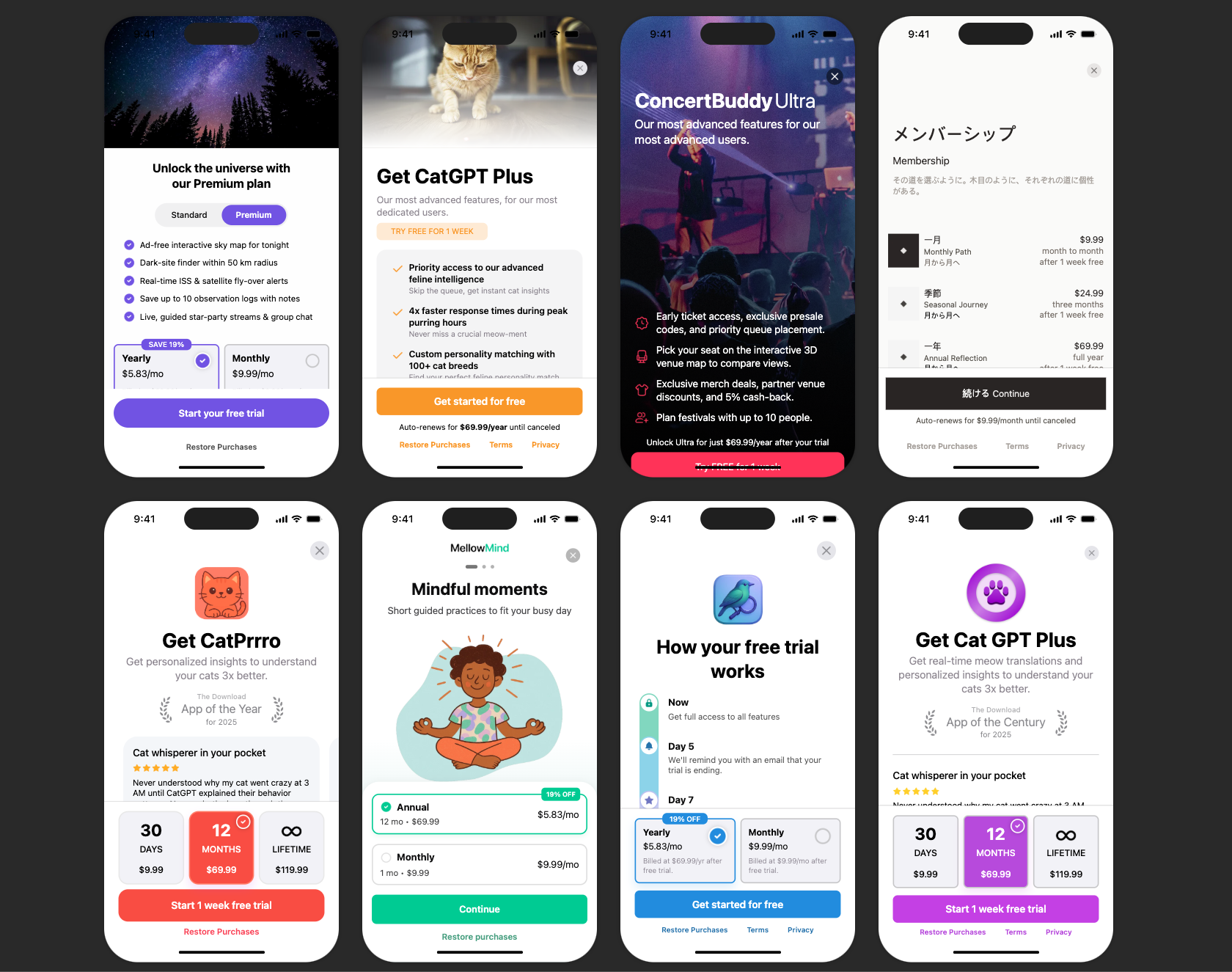
Paywall Editorの使い方
Paywall Editorは、主に3つのエリアで構成されています。
- 左サイドバー:コンポーネントの追加、レイヤー階層の表示、ブランディングやメディアアセットを管理します。
- 中央プレビュー:ペイウォールをリアルタイムに可視化します。
- 右パネル:選択したコンポーネントのプロパティ(サイズ、スタイル、挙動)を設定します。
主な設定手順
- ペイウォール名の設定:ペイウォールにわかりやすい名前を付けます(例:「Main Subscription Paywall」)。
- Offeringの選択:このペイウォールで表示するOfferingを選びます。識別子によってペイウォールとOfferingがリンクされます。
- コンポーネントの設定:テキスト、画像、アイコン、パッケージセレクター、購入ボタンを追加して配置します。
- デザインのスタイリング:アプリのブランディングに合わせて、色、フォント、余白、画像をカスタマイズします。
- 購入ボタンの設定:選択したパッケージのチェックアウトを起動するよう、購入ボタンが接続されていることを確認します。
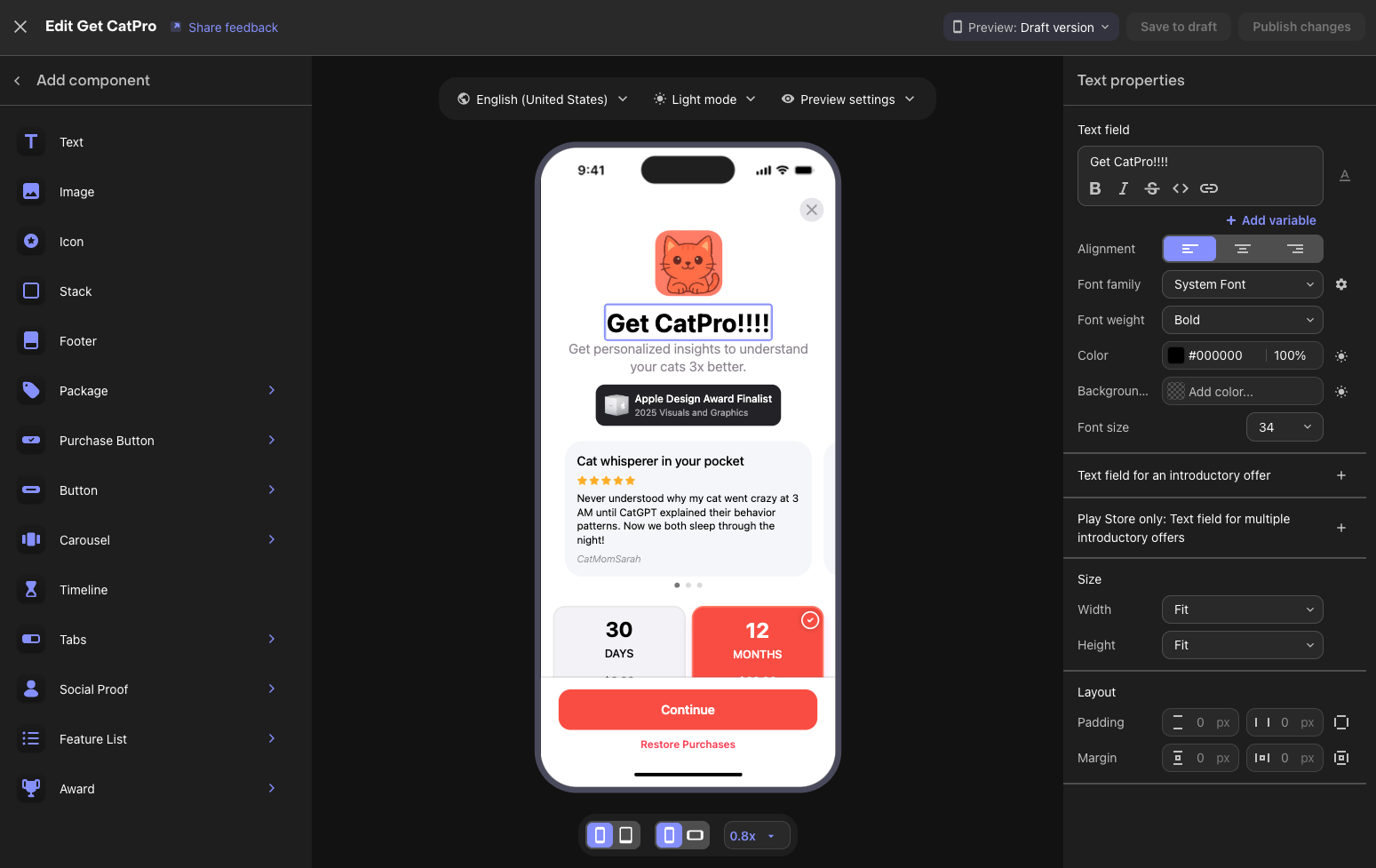
利用できるコンポーネント
RevenueCatは、ペイウォール向けにさまざまな構成要素を用意しています。
- テキストと画像:見出し、説明、機能リスト、ビジュアルアセット。
- パッケージセレクター:リンクされたOfferingのサブスクリプションオプションを表示します。
- 購入ボタン:選択したパッケージの購入フローを起動します。
- フッター:利用規約、プライバシーポリシー、購入の復元リンク。
- スタックとコンテナ:他の要素を整理するためのレイアウトコンポーネント。
- カルーセル:スワイプできるコンテンツセクション。
プレビューのオプション
エディターのプレビュー機能を使って、ペイウォールをテストできます。
- ライトモードとダークモードを切り替える
- さまざまなデバイスサイズを切り替える
- ローカライズしたコンテンツがある場合は、さまざまなロケールをプレビューする
ドラフトと公開済み
ペイウォールには2つの状態があります。
| 状態 | 説明 | ユーザーに表示 |
|---|---|---|
| ドラフト | 作業中。保存済みだが未アクティブ | いいえ |
| 公開済み | 公開中で、SDKを通じてユーザーに配信される | はい |
ワークフロー:
- 変更を加えたら 「Save to draft」 をクリックし、公開中のユーザーに影響を与えずに作業を保存します
- 準備ができたら 「Publish changes」 をクリックして、ペイウォールを公開します
- 公開済みのペイウォールは、いつでも非アクティブ状態に戻せます
Google Play商品とRevenueCatダッシュボードのセットアップに必要な設定手順がすべて完了しました!次は、アプリ内課金をテストする方法を見ていきましょう。
アプリ内課金のテスト(任意)
0:05:00アプリを本番環境にリリースする前に、購入フロー全体をテストしておきましょう。アプリ内課金のテストには2つのアプローチがあります。特別なアカウント設定なしで高速かつ確定的にテストできる RevenueCat Test Store と、Googleのインフラを使ってエンドツーエンドでテストする Google Play License Testing です。
RevenueCat Test Store
Test Store は、Google Playに接続せずにアプリ内課金フローをテストできる、RevenueCat 組み込みのテスト環境です。すべての RevenueCat プロジェクトに自動的に用意され、購入結果を完全に制御できます。
Test Store を使う主なメリットは次のとおりです。
- 確定的な結果:購入が成功するか、失敗するか、キャンセルされるかを制御できます。不安定なサンドボックスの挙動に悩まされることはありません。
- 特別なアカウントが不要:ライセンステスター用アカウントを作成・管理する手間を省けます。
- 高速なフィードバック:購入フローを数分ではなく数秒でテストできます。
- CI/CD で動作:どの環境でも安定して動作する、購入ロジックの自動テストを記述できます。
Test Store を使い始めるには、RevenueCat ダッシュボードを開き、Apps & providers に移動して Test Store を有効にします。test_ で始まる Test Store API キーが発行され、開発やテストの際に本番用 API キーの代わりに使用できます。
Google Play License Testing
Google は、実際に課金されることなく Google Play のインフラを使って購入をシミュレートできる ライセンステスト を提供しています。
ライセンステストを設定するには、次の操作を行います。
- Google Play Console を開きます。
- Settings → License testing に移動します。
- テスターの Google アカウントのメールアドレスを追加します。
- 標準的なテストの場合は、ライセンスレスポンスを RESPOND_NORMALLY に設定します。
ライセンステスターとして追加した Google アカウントを使い、実機でテストすると、購入は 「Test order」 と表示され、実際の課金は発生しません。これにより、Google の実際の課金インフラを使ってエンドツーエンドのテストができます。
テスト方法の準備が整えば、自信を持ってリリースできます!最後に、まとめで締めくくりましょう。
まとめ
このコードラボでは、Google Play商品の設定方法、Google PlayアカウントをRevenueCatダッシュボードに接続する方法、そして商品、オファリング、Entitlement、ペイウォールの設定方法を学びました。すべての設定が完了したので、RevenueCat SDKをプロジェクトに統合する準備ができました!
次のステップ:
- RevenueCat Android SDKのアプリ内課金とペイウォール統合:完全に機能する収益化フローに向けた次のステップです。
- RevenueCat Kotlin Multiplatform SDKのアプリ内課金とペイウォール統合:KMP/CMPプロジェクト向けの、完全に機能する収益化フローに向けた次のステップです。
- RevenueCat Flutter SDKのアプリ内課金とペイウォール統合:Flutterプロジェクト向けの、完全に機能する収益化フローに向けた次のステップです。
- 製品チュートリアル:RevenueCatを始めて最大限に活用するためのビデオチュートリアル。