
RevenueCat Google Play 연동 개요
0:03:00RevenueCat의 Google Play 연동 Codelab에 오신 것을 환영합니다!
이 Codelab에서는 다음을 배우게 됩니다.
Google Play에서 상품을 올바르게 구성하는 방법. RevenueCat 대시보드를 설정하고 Google Play 상품에 연결하는 방법. Product, Offering, Package, Entitlement 이해하기. Paywall Editor를 사용하여 페이월(Paywall)을 생성하는 방법.
이 Codelab을 마치면 Android 앱에서 인앱 결제와 페이월을 원활하게 구현하기 전에 필요한 모든 Google Play 및 RevenueCat 대시보드 설정을 완료할 수 있습니다.
왜 RevenueCat인가요?
세계 최고의 앱들은 RevenueCat을 사용하여 iOS, Android 및 웹에서 인앱 결제, 구독 및 페이월을 관리하고 고객 데이터를 관리하며 수익을 늘립니다. 연간 80억 달러 이상의 인앱 결제를 처리하는 RevenueCat은 OpenAI(ChatGPT), Notion, Buffer, Goodnotes와 같은 최고의 기업들로부터 신뢰받고 있습니다.
왜 많은 개발자들이 RevenueCat을 선택할까요?
RevenueCat은 크로스 플랫폼 인앱 결제를 단순화하면서 분석을 위한 통합된 정보 소스를 제공합니다. 이렇게 하면 생애가치(LTV), 수익 추세, 사용자 행동을 더 잘 이해할 수 있어, 더 스마트한 수익화와 더 빠른 성장으로 이어집니다. 주요 이점은 다음과 같습니다.
통합된 사용자 식별: 구매를 사용자 ID에 안정적으로 연결하여 앱 수준과 스토어 수준 계정 간의 단절을 해결합니다. 간소화된 구독 관리: 플랫폼별 제한 사항을 추상화하여 직접 제어가 제한적인 경우(예: iOS)에도 일관된 구독 동작을 제공합니다. 크로스 플랫폼 분석: Apple 및 Google 콘솔의 지연된 데이터보다 더 명확하고 실행 가능한 표준화된 실시간 인사이트를 얻을 수 있습니다. 정확한 가격 인사이트: 네이티브 프레임워크가 부족한 경우에도 모든 지역 및 스토어에서 사용자가 지불한 정확한 금액을 이해할 수 있습니다.
RevenueCat을 사용하면 앱 수익화가 더 간단하고 스마트하며 확장 가능해집니다.

Google Play 상품 설정하기
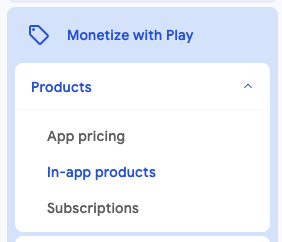
0:05:00먼저, Google Play Console에 로그인하고, 애플리케이션을 선택한 다음, 사이드바에서 Monetize with Play > Products로 이동하여 아래 이미지에 표시된 대로 In-app products 또는 Subscriptions를 클릭하세요.
권장 흐름(유용한 편법): 구독과 일회성 결제를 포함한 앱을 출시할 계획이라면, RevenueCat SDK만 연결한 거의 빈 껍데기 AAB를 먼저 Internal testing에 업로드하세요. 이 비공개 빌드 하나면 전체 설정이 풀립니다. 바로 상품을 만들고 RevenueCat 연동을 마무리할 수 있습니다. 그다음 앱 개발을 이어 가고, 준비가 되면 Closed testing → Open(Beta) testing → Production 순서로 승격하세요.
- 월간 또는 연간(반복 결제) → Subscriptions에서 기본 요금제로 만듭니다.
- 평생 이용권이나 영구적인 일회성 잠금 해제(예: "평생 Pro", 광고 영구 제거) → In-app products에서 비소모성(non-consumable)으로 만듭니다.
- 소모성(다시 살 수 있는 코인이나 잼 팩) → 마찬가지로 In-app products에서 소모성(consumable)으로 만듭니다.
기본적으로 Google Play에서 만들 수 있는 상품 유형은 두 가지입니다. 바로 In-app products와 Subscriptions입니다.
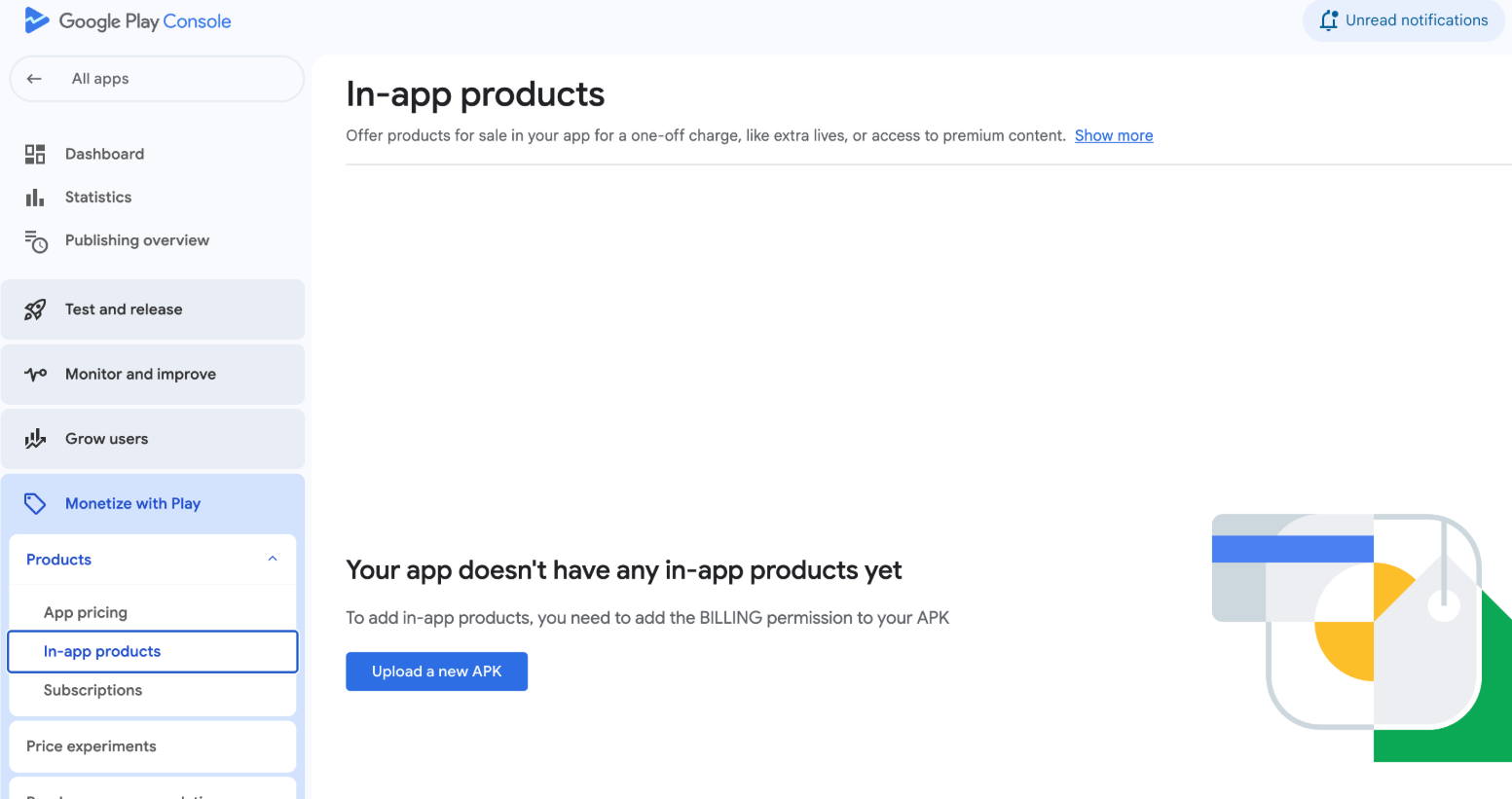
아래 이미지처럼 아직 APK를 업로드하지 않았다면 상품을 설정하기 전에 먼저 APK를 업로드해야 합니다. 사이드바의 Release 섹션으로 이동하여 APK를 업로드할 수 있습니다.
인앱 상품
일회성 구매로 기능이나 콘텐츠를 영구적으로 잠금 해제합니다. 예를 들어 광고 제거, 프리미엄 기능 잠금 해제 또는 게임 내 화폐 구매 등이 있습니다.
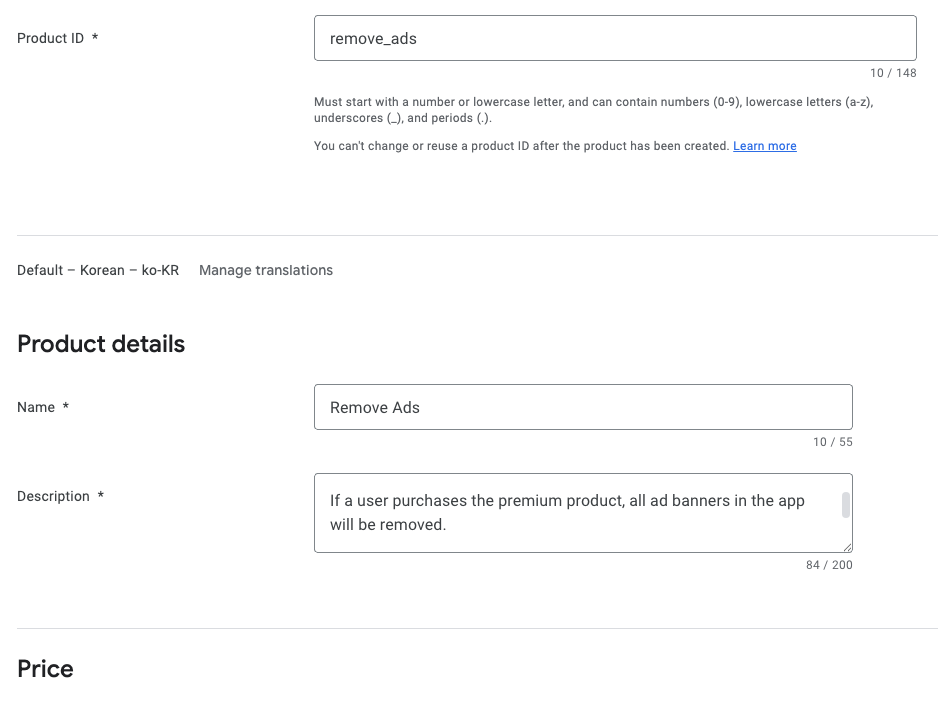
사이드바에서 In-app products를 클릭하면 위의 화면이 표시되며, 사용자가 구매할 수 있는 새로운 인앱 상품을 만들 수 있습니다.
구독
월별, 연간 또는 맞춤 기간 동안 정기적인 요금으로 콘텐츠나 기능에 대한 액세스를 제공합니다. 스트리밍 콘텐츠, 프리미엄 앱 액세스 또는 정기적으로 업데이트되는 기능과 같은 서비스에 이상적입니다.
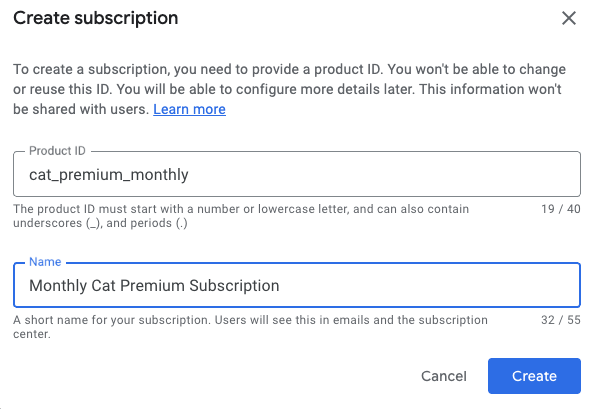
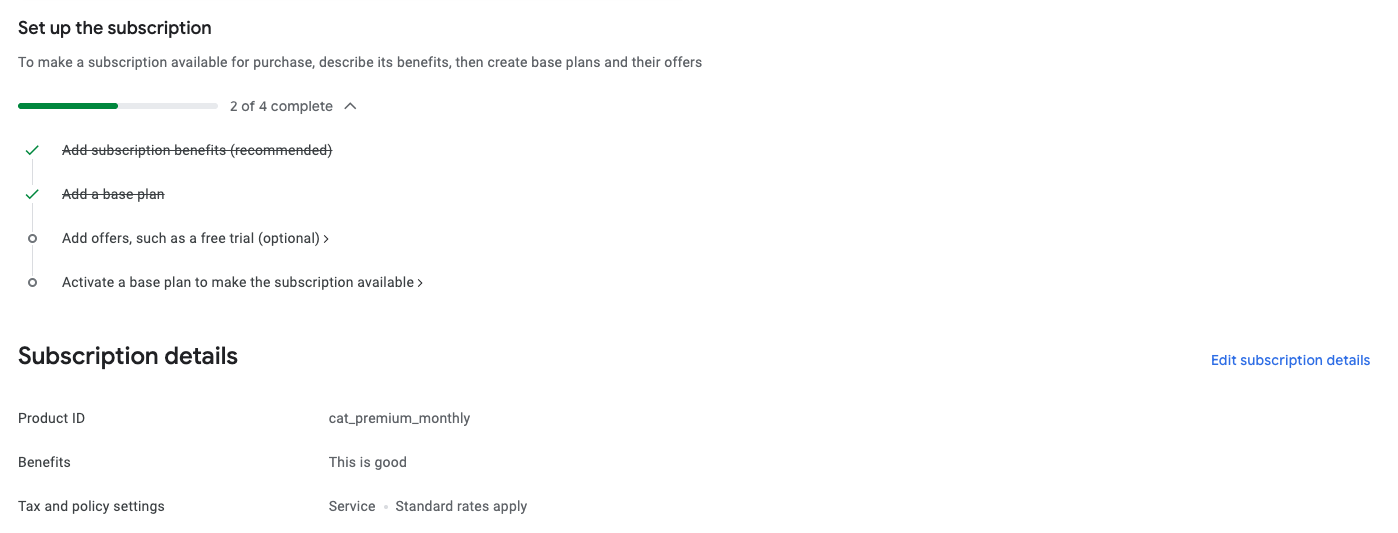
구독 상품을 생성할 때 구독 혜택을 추가하고, 기본 플랜을 구성하고, 오퍼(무료 체험 또는 프로모션 가격 등)를 설정한 다음 최종적으로 상품을 활성화하여 추가로 사용자 지정할 수 있습니다.
한국 개발자를 위한 참고: 결제 프로필과 개인정보 노출
RevenueCat 연동과 직접 관련은 없지만, 수익화 앱을 출시하기 전에 Google Play 결제 프로필과 계정 유형을 미리 정리해 두면 나중에 되돌리기 어려운 문제를 피할 수 있습니다.
Google Play에서 상품 설정을 완료하면 모든 준비가 완료됩니다! 인앱 상품이나 구독 생성, 신뢰할 수 있는 상품 ID 작성, 기본 플랜 및 오퍼 설정, 또는 비소모성 항목 추가에 대해 더 자세히 알아보려면 자세한 지침과 모범 사례를 확인하기 위해 Google Play 상품 설정 가이드를 확인하세요.
Google Play를 RevenueCat에 연결하기
0:15:00다음으로, 상품, 수익화, 통계 등을 관리하기 위해 RevenueCat 계정을 설정해야 합니다. 필요한 것은 이메일 주소뿐입니다.
RevenueCat에서 계정을 만든 후, Google Play Store 서비스 자격 증명 가이드에 제공된 지침에 따라 Google Play Store 서비스 자격 증명 세트를 구성하세요.
이 설정을 통해 RevenueCat이 Google Play 상품과 통합되어 스토어 상품을 RevenueCat 대시보드로 원활하게 가져오고, 구매 활동을 추적하고, LTV 보고서를 분석하고, 사용자 구매 알림을 받고, 실시간 데이터 인사이트를 사용하여 성장 전략을 개발할 수 있습니다.
시작하려면 아래 단계를 따르세요:
1. Google Developer, Reporting, Pub/Sub API 활성화
Google Cloud 프로젝트에서 Google Play Developer API, Developer Reporting API, Cloud Pub/Sub API를 활성화하려면 다음 단계를 따르세요:
- Google Cloud Console을 엽니다.
- 드롭다운에서 기존 프로젝트를 선택하거나 새 프로젝트를 시작합니다.
- Google Play Android Developer API, Google Play Developer Reporting API, Cloud Pub/Sub API 페이지를 방문합니다.
- 각 페이지에서 Enable 버튼을 클릭합니다(이미 활성화된 경우 Manage로 표시됩니다).
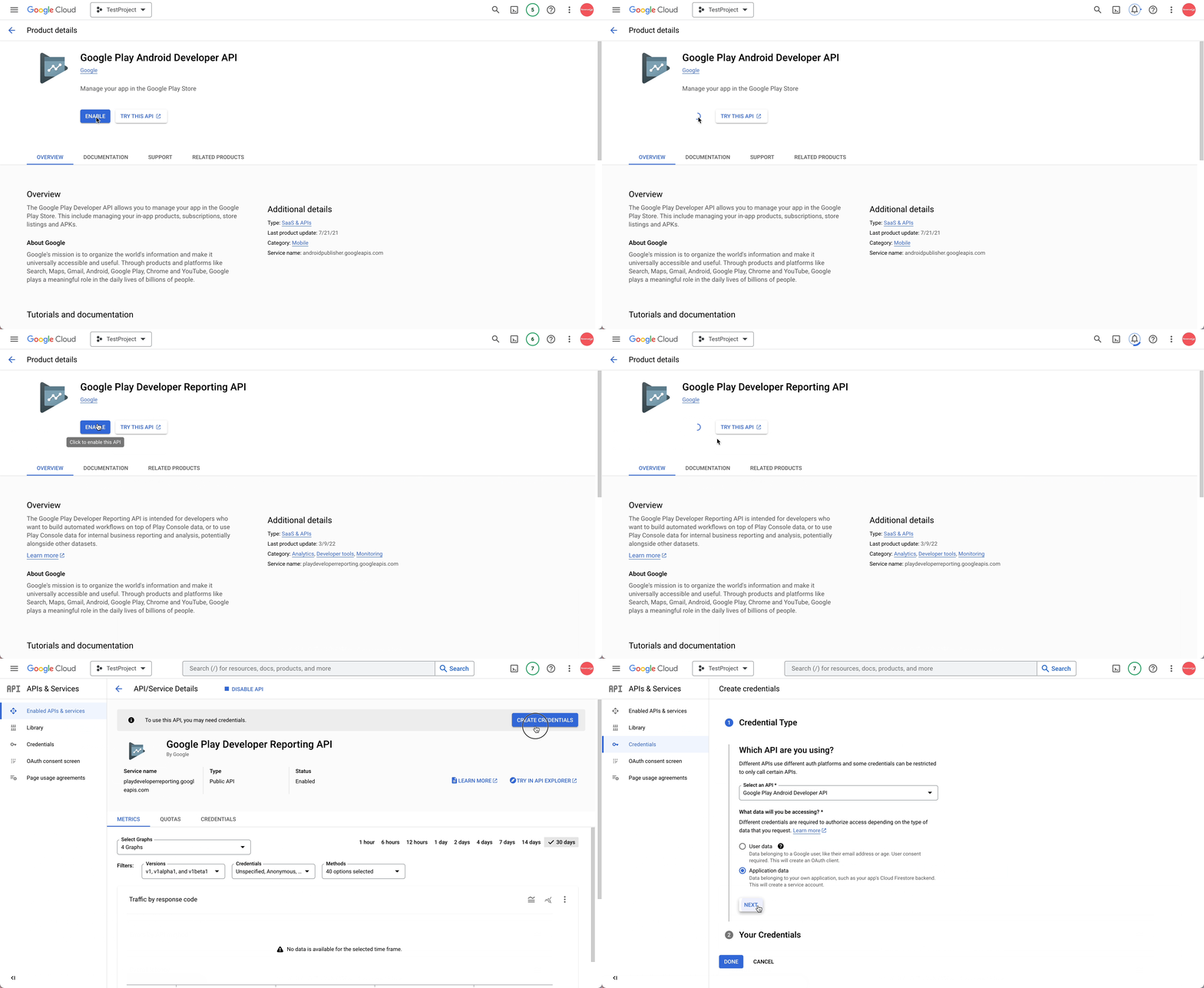
API가 활성화되면 프로젝트의 API 대시보드로 이동합니다. 아직 자격 증명이 구성되지 않은 경우 자격 증명을 만들라는 메시지가 표시됩니다. 자격 증명이 Google Play Android Developer API와 함께 사용하기 위한 것임을 지정해야 합니다. 이 단계는 프로젝트 소유자 또는 Google Play Console에서 적절한 API 액세스 권한을 부여받은 팀원이 완료해야 합니다.
2. 서비스 계정 생성
Google Cloud Console의 Service Accounts 섹션으로 이동하여 올바른 프로젝트 내에서 작업하고 있는지 확인하세요.
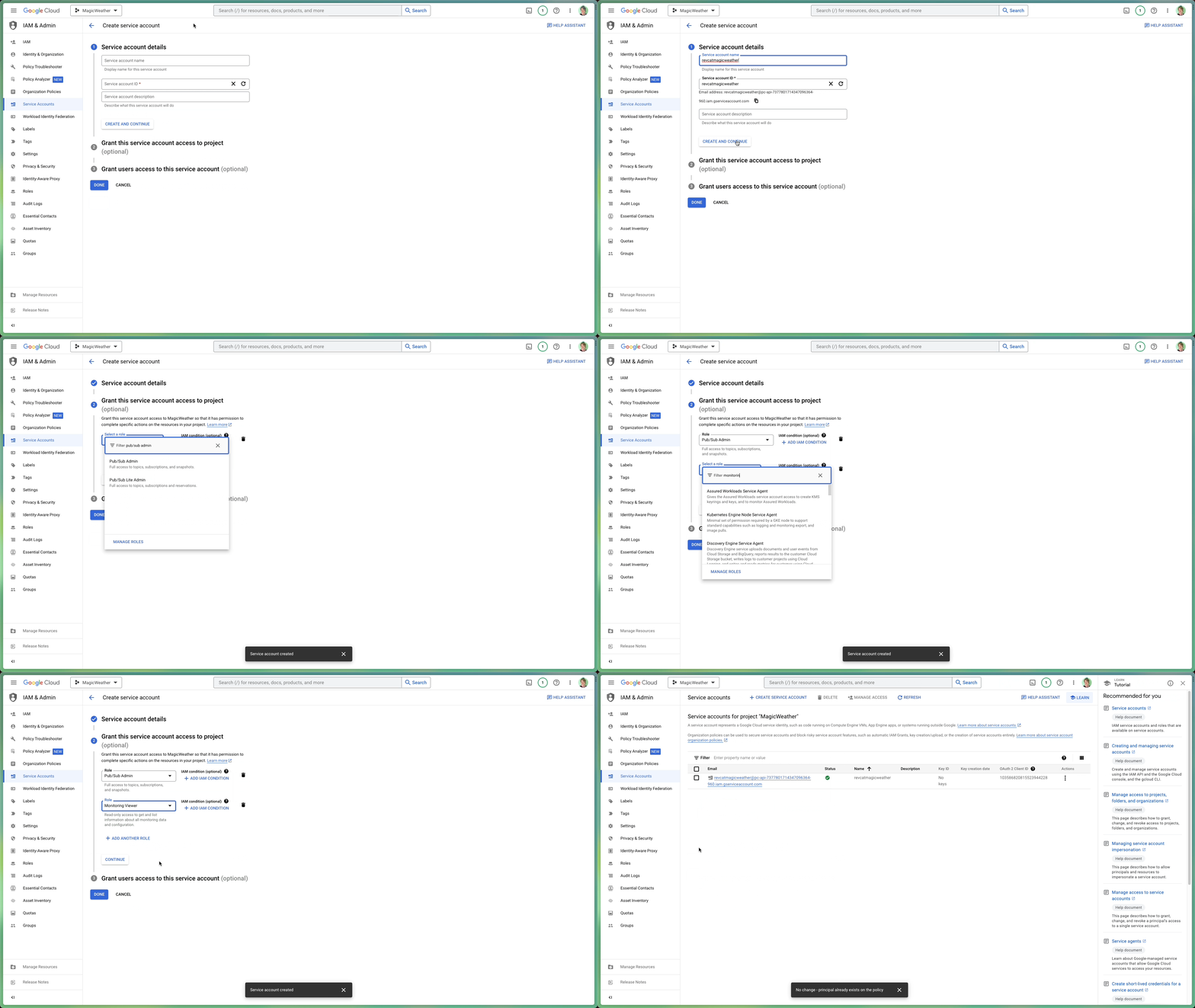
여기에서 RevenueCat이 Google 서비스와 인터페이스하는 데 사용할 수 있는 서비스 계정을 생성해야 합니다. Create Service Account를 클릭하고 의미 있는 이름을 지정한 다음 Create and continue를 선택하여 진행하세요.
역할을 할당하라는 메시지가 표시되면 다음을 포함해야 합니다.
- Pub/Sub Admin: Google의 실시간 서버 알림 처리에 필요합니다.
- Monitoring Viewer: 큐 메트릭 및 성능에 대한 가시성을 제공합니다.
이제 개인 키 파일을 생성할 차례입니다.
Google Cloud Console의 Service Accounts 패널에서 방금 생성한 서비스 계정을 찾으세요. "Actions" 열 아래의 세 점 아이콘을 클릭하고 Manage Keys를 선택합니다.
거기에서 Add Key를 누른 다음 Create new key를 선택합니다. 대화 상자가 나타나면 진행하기 전에 JSON 형식을 선택해야 합니다. 파일을 다운로드하세요. 이 JSON 키는 나중에 설정 프로세스에서 필요합니다.
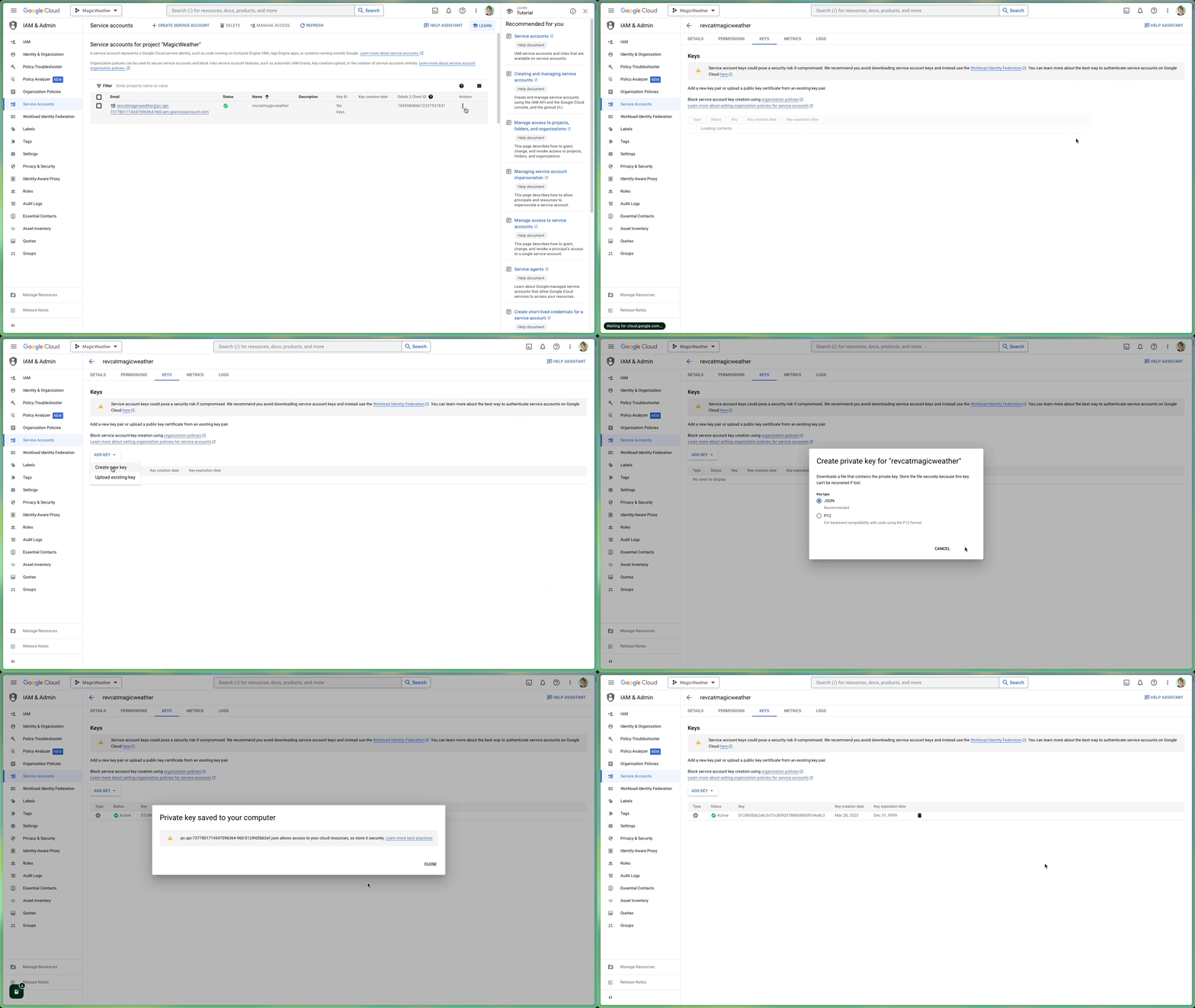
iam.managed.disableServiceAccountKeyCreation)을 켜서, RevenueCat이 반드시 필요로 하는 JSON 키 생성을 막습니다. 해결하려면 IAM & Admin > Organization policies에서 그 정책을 찾아 프로젝트 범위에서 Not enforced로 설정합니다(이때 Organization Policy Administrator 역할이 필요하며, 프로젝트 Owner에게는 기본으로 없습니다). 가장 빠른 우회는 조직이 없는 개인 @gmail.com 프로젝트에서 서비스 계정과 JSON 키를 만든 뒤(거기엔 정책이 없습니다), 그 서비스 계정 이메일을 Play Console에 초대하는 것입니다. 계정이 달라도 동작합니다.
3. RevenueCat에 재정 액세스 권한 부여
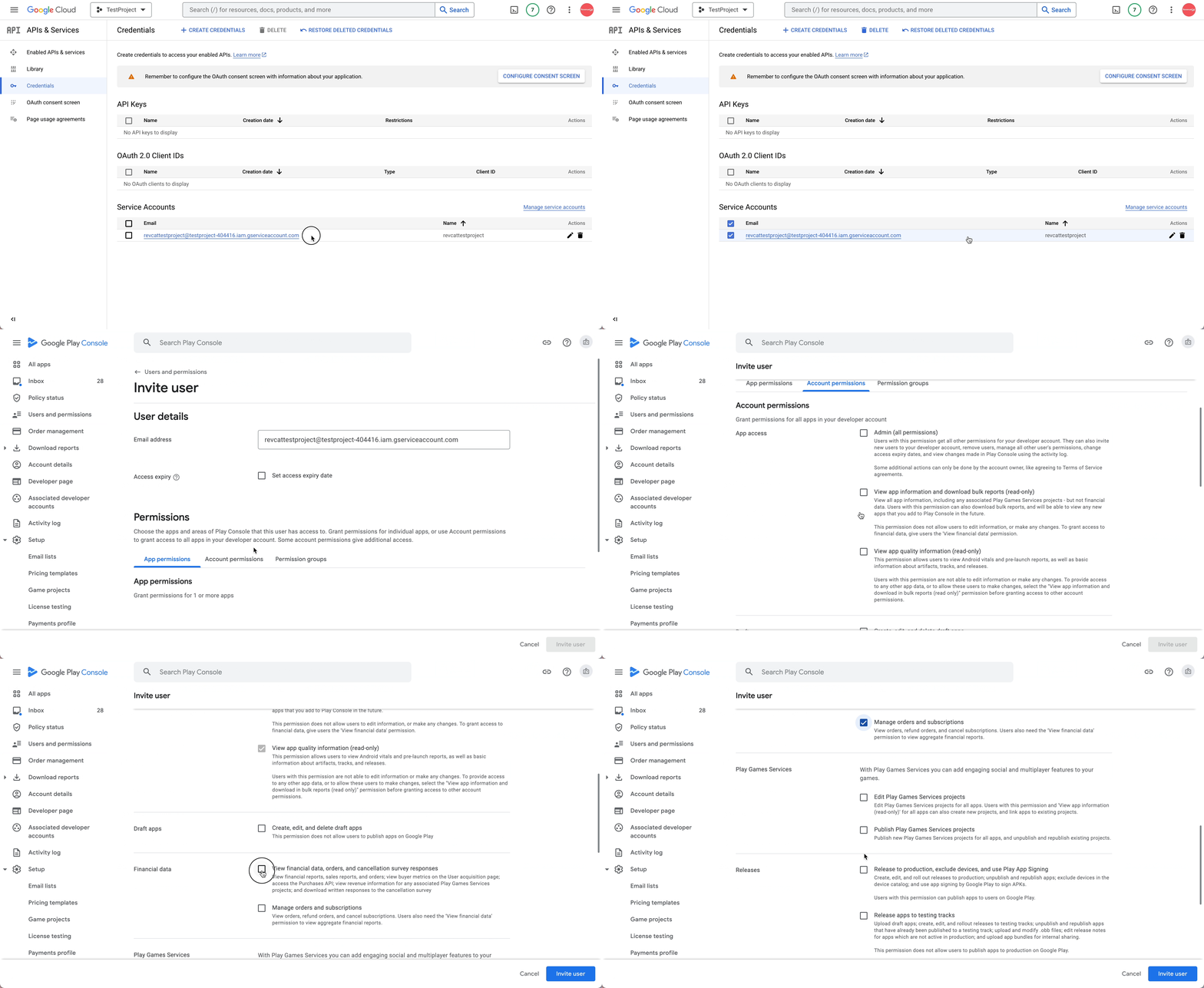
Google Play Console의 Users and Permissions 섹션으로 이동합니다. 거기에서 Invite user를 클릭하여 이전에 생성한 서비스 계정 이메일(2단계)을 추가하세요.
다음으로 App permissions에서 RevenueCat이 액세스할 특정 앱을 선택해야 합니다. 그런 다음 Account permissions 영역으로 스크롤하세요. 여기에서 모든 것이 원활하게 실행되는 데 필요한 액세스 권한을 부여합니다.
다음 권한이 선택되어 있는지 확인하세요:
- 앱 세부정보 읽기 및 대량 보고서 다운로드 액세스
- 재무 데이터, 주문 기록 및 취소 피드백에 액세스
- 구독 및 고객 주문 관리
모든 것이 올바르게 보이면 하단으로 스크롤하여 Send invite를 클릭하세요. 보낸 후에는 Users and Permissions 개요로 돌아갑니다. 여기서 수락된 후 서비스 계정이 활성 상태로 나열되어야 합니다.
4. RevenueCat에 자격 증명 JSON 등록
마무리하려면 RevenueCat 대시보드로 이동하여 프로젝트 설정을 엽니다. 이전에 저장한 JSON 자격 증명 파일(2단계에서)을 찾아서 설정 영역으로 끌어다 놓거나 파일 선택기를 사용하여 수동으로 찾으세요.
업로드한 후에는 Save를 눌러 변경 사항을 적용하는 것을 잊지 마세요. RevenueCat은 자격 증명 확인을 시작하며, 약 36시간 이내에 Google Play 구매를 통합을 통해 처리할 수 있습니다.
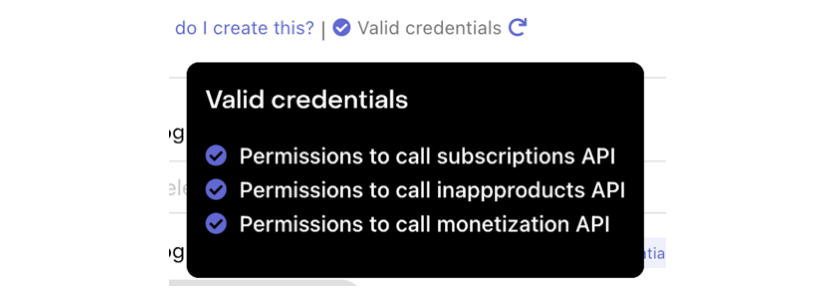
아래와 같이 "Validate Credentials" 버튼을 클릭하여 자격 증명을 확인할 수 있습니다.

요약이 표시되어 유효성 검사 결과를 보여주고 Google 자격 증명의 현재 상태에 대한 인사이트를 제공합니다. 모든 것이 올바르게 설정되면 업로드한 JSON 파일 아래에 "Valid credentials" 메시지와 함께 필요한 모든 권한의 체크리스트가 표시됩니다.
5. 서명된 APK 또는 Android App Bundle 업로드
이전 단계를 완료한 후에는 모든 것이 올바르게 연결되었는지 확인하기 위한 몇 가지 최종 확인 사항이 있습니다.
- 서명된 APK 또는 App Bundle이 Google Play Console에 성공적으로 업로드되었는지 확인합니다.
- 릴리스가 필요한 모든 검토 및 승인 단계를 거쳤는지 확인합니다.
- 앱이 Closed 또는 Open 테스트 트랙에서 사용 가능하고 적어도 하나의 테스터 계정을 추가했는지 확인합니다.
- 구독 상품이 Play Console에서 Active로 표시되어 있는지 다시 확인합니다.
- 마지막으로 RevenueCat에서 사용하는 package name이 Google Play에 등록된 것과 문자 하나하나 정확히 일치하는지 확인합니다.
이러한 최종 유효성 검사는 설정 문제를 방지하고 RevenueCat이 Google Play 데이터와 원활하게 동기화될 수 있도록 하는 데 필수적입니다.
휴, 축하합니다! 까다로운 부분을 통과하셨습니다!
Product, Offering, Package, Entitlement
0:6:00이 시점에서 복잡한 설정의 대부분은 완료되었습니다. 이제 수익화 전략을 구성하기 전에 이해해야 하는 RevenueCat의 네 가지 필수 개념인 Product, Offering, Package, Entitlement에 익숙해질 시간입니다.
각각은 플랫폼 간에 인앱 결제를 정의하고, 표시하고, 관리하는 방법에서 고유한 역할을 합니다.
🧩 Product
Product는 Google Play, Apple App Store 또는 웹과 같은 스토어 플랫폼에서 직접 생성되고 관리되는 개별 인앱 결제 항목입니다. 이것이 수익화의 기본 단위입니다. 월간 구독, 평생 액세스 또는 일회성 구매를 생각해 보세요. 각 상품에는 스토어에서 정의한 고유한 식별자, 가격 및 기간 설정이 있습니다.
> 예: Google Play에서 구성된 com.app.pro_monthly와 같은 월간 구독 상품.
🎯 Offering
Offering은 앱에서 페이월(Paywall) 경험으로 제공되도록 함께 그룹화된 상품 모음입니다. Offering은 RevenueCat 대시보드에서 구성되며 앱 업데이트 없이도 A/B 테스트, 가격 실험 및 지역별 또는 사용자 세그먼트별 페이월을 관리할 수 있는 유연성을 제공합니다.
> 예: default라는 이름의 Offering에는 사용자에게 표시되는 월간, 연간 및 평생 옵션과 같은 여러 패키지가 포함될 수 있습니다.
📦 Package
Package는 다양한 플랫폼(예: iOS, Android, Web)에서 동등한 상품에 대한 래퍼 역할을 합니다. 이를 통해 하나의 가격 옵션(예: 월간 구독)을 플랫폼 간에 일관되게 제시하면서 각 스토어의 특정 상품 ID에 연결할 수 있습니다.
각 패키지에는 Offering 내에서 고유한 식별자(예: monthly, annual)가 있으며, RevenueCat이 사용자의 플랫폼에 따라 올바른 상품을 확인하는 데 도움이 됩니다.
> 예: monthly 패키지는 iOS의 com.app.pro_monthly_ios와 Android의 com.app.pro_monthly_android에 매핑될 수 있습니다.
🏷️ Entitlement
Entitlement는 성공적인 구매 후 사용자가 액세스할 수 있는 것을 정의합니다. 잠금 해제된 기능이나 콘텐츠를 나타내며, 기본 상품 또는 패키지 식별자를 추상화합니다. Entitlement를 사용하면 상품 ID를 앱에 하드코딩하지 않고도 사용자 액세스 로직(예: "프리미엄 액세스 권한")을 관리할 수 있습니다.
또한 RevenueCat이 장치 및 플랫폼 간에 구매를 추적하고 복원하는 방법의 중심입니다.
> 예: premium이라는 Entitlement는 월간 또는 연간 구독과 같은 해당 액세스 수준과 관련된 상품을 구매한 사용자에게 부여될 수 있습니다.
치트 시트
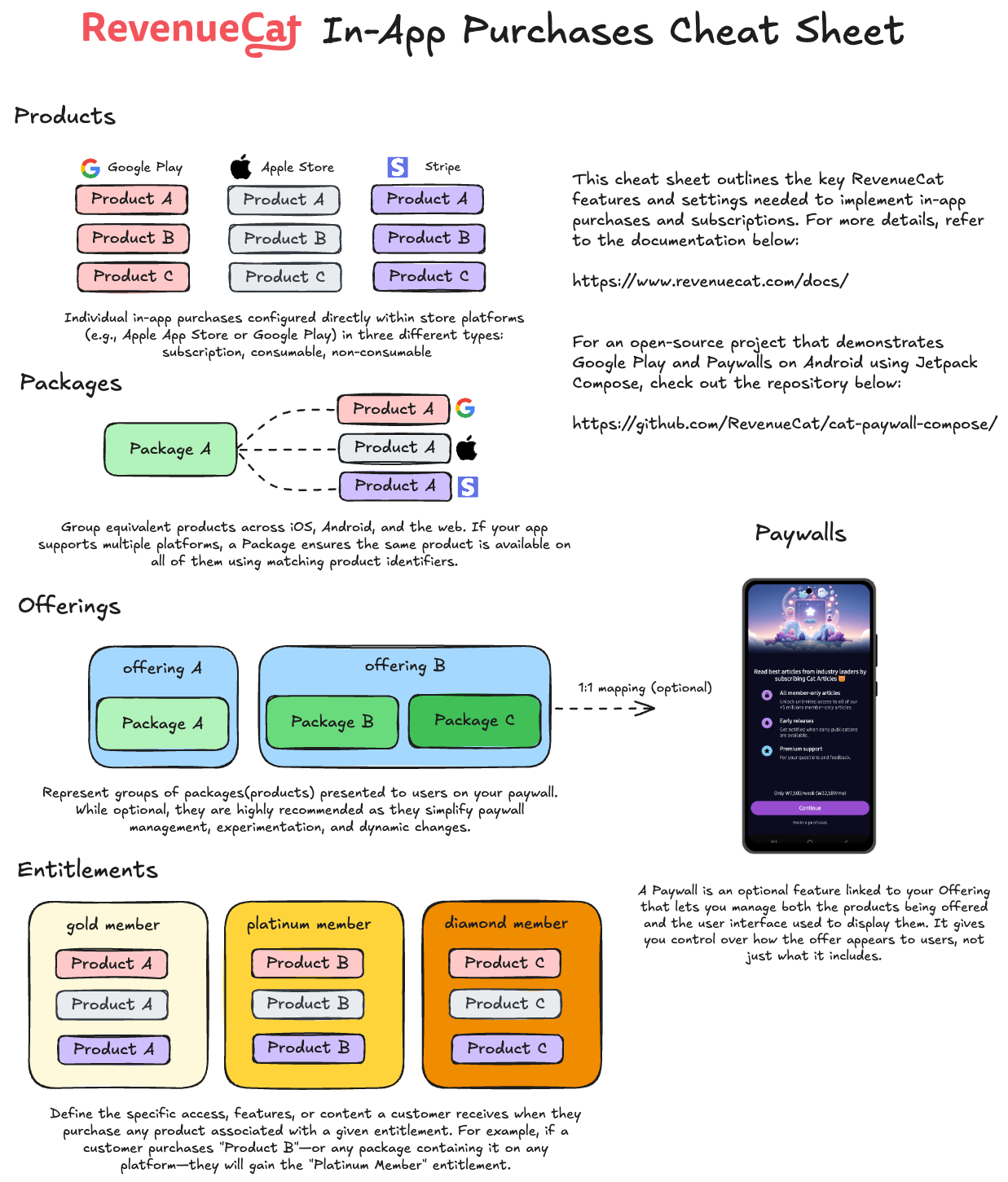
이 네 가지 요소가 함께 작동하는 방식을 이해하면 크로스 플랫폼 구독을 관리하고, 가격 전략을 실험하고, 원활한 인앱 결제 경험을 제공하는 것이 더 쉬워집니다.
더 쉽게 이해하려면 아래의 RevenueCat In-App Purchases Cheat Sheet에서 시각적 다이어그램을 참조하세요:
스토어 상품 가져오기
0:3:00상품을 가져오는 이유
이전 단계에서는 Google Play Console에서 상품을 직접 만들었습니다. 하지만 RevenueCat이 구매를 관리하고 영수증을 검증하며 구독을 대신 추적하려면, 그 상품들의 존재를 알고 있어야 합니다. RevenueCat으로 상품을 가져오면 스토어 설정과 RevenueCat 플랫폼 사이의 간극이 메워집니다.
상품을 가져오면 RevenueCat은 다음을 할 수 있습니다.
- 구매 검증: Google Play와 통신해 거래가 정상인지 확인합니다.
- 구독 상태 추적: 갱신, 만료, 해지를 자동으로 모니터링합니다.
- 통합 분석 제공: 매출, 구독자, 상품 성과를 하나의 대시보드에 모아 줍니다.
- Entitlement과 Offering 구동: 상품을 Entitlement에 연결하고 페이월용 Offering으로 묶습니다.
가져오는 방법
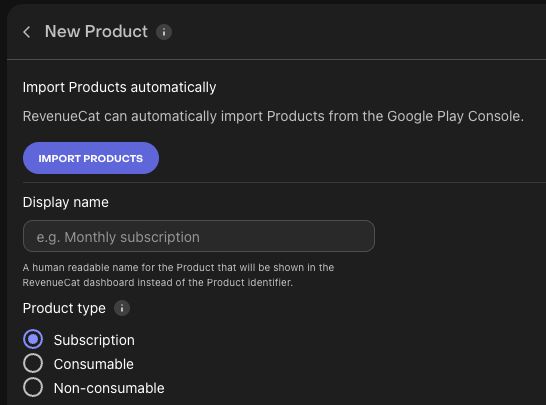
RevenueCat 대시보드에서 프로젝트로 이동한 뒤, Product Catalog 아래의 Products 탭을 엽니다.
오른쪽 위의 + New 버튼을 클릭하고 드롭다운에서 Import Products를 선택하세요. 그러면 RevenueCat이 연결된 Google Play 스토어 계정에서 사용 가능한 인앱 상품 목록을 자동으로 가져와 표시합니다.
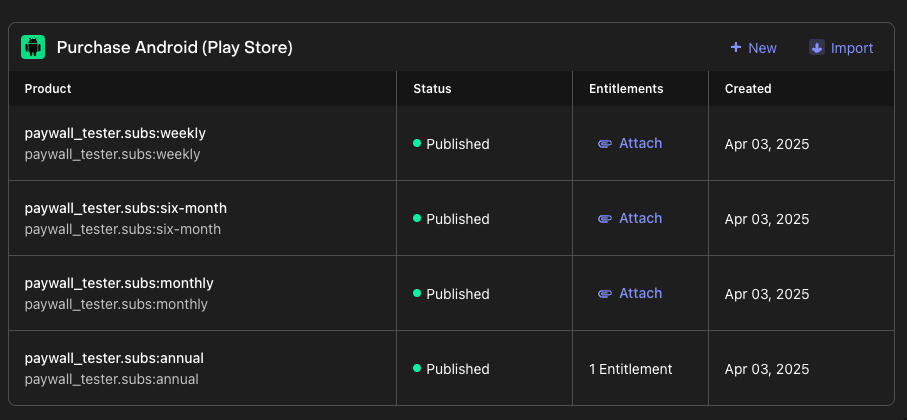
상품을 가져오고 나면 인앱 구매 항목이 RevenueCat 프로젝트에 성공적으로 추가된 것을 확인할 수 있습니다. 이렇게 가져온 상품은 다음 단계에서 Entitlement에 연결하고 Offering으로 묶을 준비가 된 상태입니다.
Entitlement 생성하기
0:05:00이제 상품을 가져오거나 생성했으므로 Entitlement를 설정할 차례입니다. 배운 것처럼 Entitlement는 성공적인 구매 후 사용자가 액세스할 수 있는 것을 정의합니다. "구매"는 사용자가 서비스에 액세스하기 위해 수행하는 일회성 구매 또는 구독과 같은 모든 유형의 인앱 거래를 나타낼 수 있습니다.
일반적으로 기능 액세스 계층을 기반으로 하나 이상의 Entitlement를 생성하려고 할 것입니다(예: "has_premium_access"). 이러한 Entitlement를 통해 앱 내에서 제한된 기능이나 콘텐츠에 대한 액세스를 제어할 수 있습니다.
새 Entitlement를 생성하려면:
- 프로젝트 대시보드의 왼쪽 메뉴에서 Product Catalog로 이동합니다.
- Entitlements 탭을 클릭합니다.
- ➕ New Entitlement를 선택합니다.
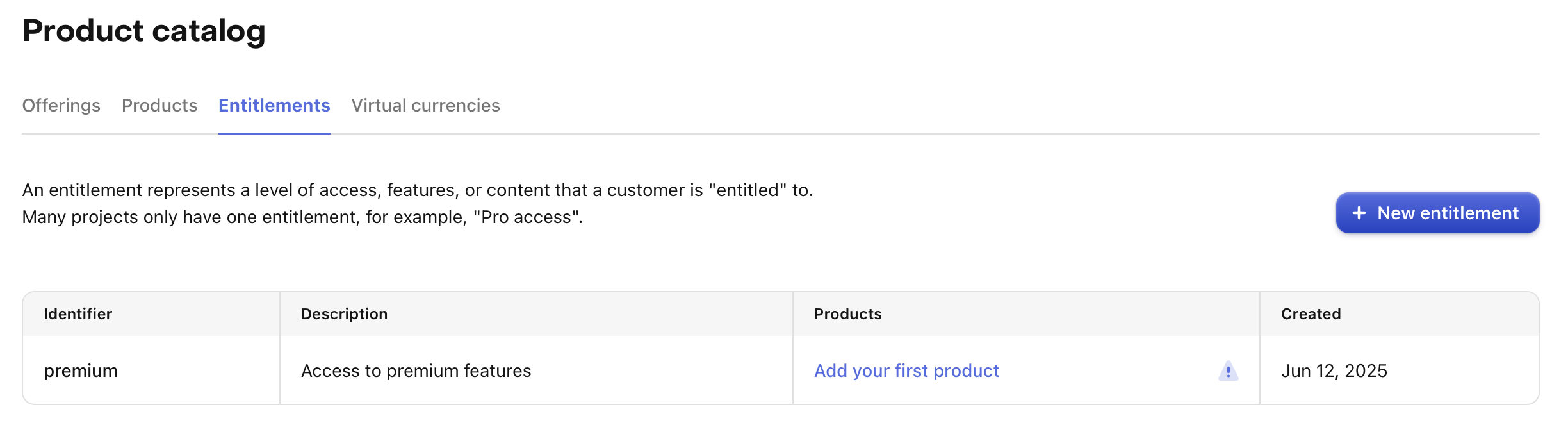
Entitlement에 대한 고유 식별자를 입력하라는 메시지가 표시됩니다(예: "pro"). 이 식별자는 나중에 앱에서 사용자의 액세스 수준을 확인하기 위해 참조하게 됩니다.
대부분의 앱은 단일 Entitlement를 사용하지만 필요한 경우 여러 개를 만들 수 있습니다. 예를 들어, 내비게이션 앱은 전체 액세스에 대한 구독("pro")을 제공하고 특정 지도 지역을 잠금 해제하기 위한 일회성 구매도 판매할 수 있습니다. 이 경우 하나의 "pro" Entitlement와 함께 각 지역에 대한 추가 Entitlement(예: "map_north_america", "map_europe")가 있을 것입니다.
Entitlement에 상품 연결하기
이제 Entitlement에 상품을 연결할 차례입니다. 이는 인앱 결제를 잠금 해제하는 액세스에 연결합니다. 이 설정을 통해 사용자가 상품을 구매하면 해당 Entitlement가 부여되어 앱의 특정 기능이나 콘텐츠에 액세스할 수 있습니다.
예를 들어, 사용자에게 주어진 Entitlement가 있는지 확인하는 간단한 if 문을 사용하여 제한된 기능을 쉽게 구현할 수 있습니다.
Entitlement에 상품을 연결하려면:
- RevenueCat 대시보드에서 Entitlements 탭을 엽니다.
- 구성하려는 Entitlement를 클릭합니다.
- Attach 버튼을 클릭합니다.
- 이미 상품을 추가한 경우 목록에 표시됩니다. 연결하려는 상품을 선택하기만 하면 됩니다.
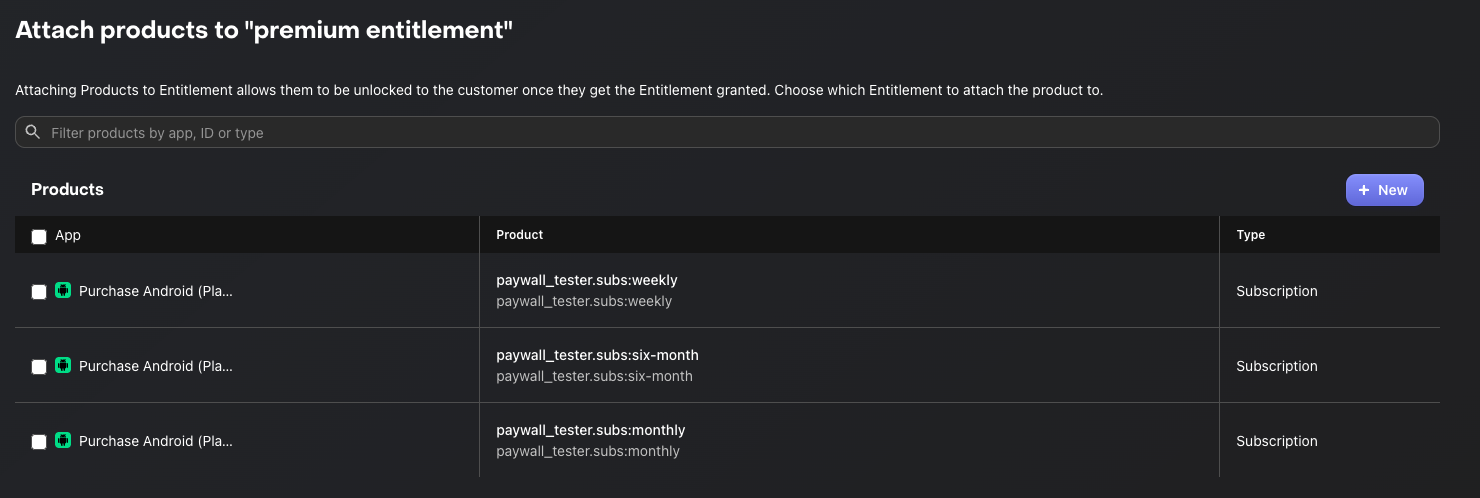
Entitlement에 연결된 상품을 구매하면 해당 상품의 기간 동안 Entitlement가 활성화됩니다.
구독 상품의 경우 Entitlement는 구독 기간 동안 활성 상태로 유지됩니다. 비소모성 또는 소모성 구매(Entitlement에 연결된 경우)의 경우, Entitlement는 일반적으로 콘텐츠를 영구적으로 잠금 해제합니다.
이 메커니즘을 사용하면 앱에서 복잡한 로직을 처리하지 않고도 구매 유형에 따라 기능 액세스를 관리할 수 있습니다.
앱에서 Paywall을 구현할 계획이 없다면 마무리 섹션으로 건너뛸 수 있습니다. 그렇지 않으면 Offering 생성 방법을 배우기 위해 다음 단계로 계속하세요.
Offering 생성하기
0:7:00앱에 페이월을 도입하려면 가장 먼저 Offering을 만들어야 합니다. Offering은 페이월에서 사용자에게 제시할 상품들의 묶음을 나타냅니다.
Offering 만들기
새 Offering을 만들려면 RevenueCat 대시보드에서 Product Catalog → Offerings로 이동한 뒤 + New 버튼을 클릭하세요.
다음 항목을 입력하게 됩니다.
- Identifier: 코드에서 이 Offering을 참조할 때 쓰는 고유 키입니다(예:
default). 나중에 바꿀 수 없으니 의미 있는 이름을 고르세요. - Display Name: 대시보드에서 이 Offering을 알아보기 쉬운, 사람이 읽기 좋은 이름입니다(예: "Default Offering").
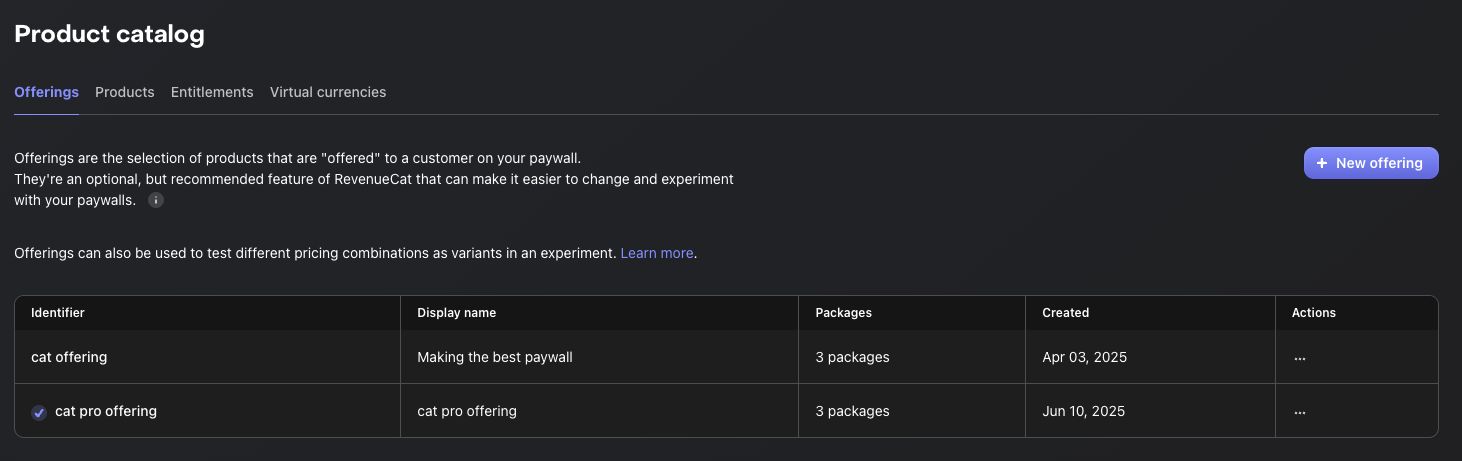
세부 정보를 입력했으면 Create를 클릭해 새 Offering을 저장하세요. 새로 만든 Offering이 Offerings 목록에 나타납니다.
참고로 RevenueCat은 프로젝트에 "Default" Offering을 자동으로 만들어 둡니다. 이 기본 Offering을 그대로 쓰거나, 서로 다른 페이월 구성, A/B 테스트, 지역별 가격 전략에 맞춰 추가로 만들 수도 있습니다.
Package 추가하기
Package는 여러 플랫폼(예: iOS, Android, Web)에 걸쳐 동일한 상품을 감싸는 래퍼 역할을 합니다. 그래서 플랫폼 전반에서 상품에 대한 단일 진실 소스를 갖게 됩니다.
예를 들어 사용자가 Android에서 상품을 구매했더라도, 같은 계정으로 로그인했다면 iOS 기기에서도 동일한 Entitlement에 접근할 수 있습니다.
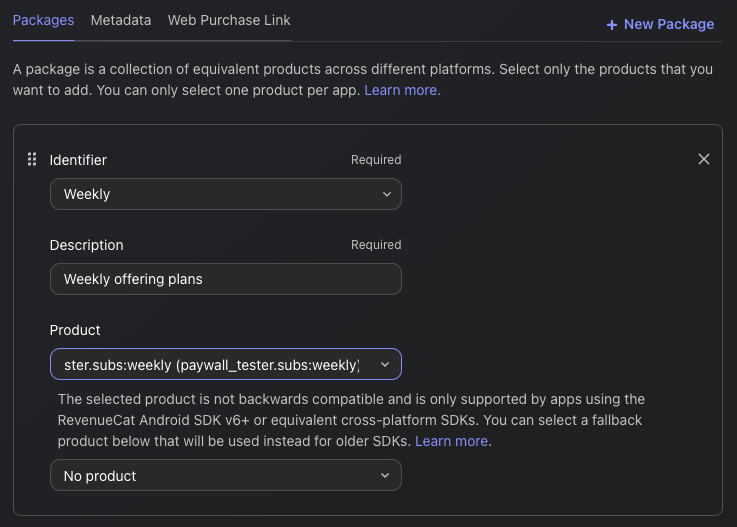
Package를 만들려면 새로 만든 Offering으로 이동해 Edit 버튼을 클릭하고, Packages 섹션에서 + New Package를 클릭하면 됩니다.
그다음 단계는 다음과 같습니다.
- 드롭다운에서 Package 기간을 가장 잘 나타내는 Identifier를 선택하세요(예: monthly, annual).
- 미리 정의된 기간이 맞지 않으면(예: 소모성 구매의 경우) 커스텀 식별자를 대신 선택할 수 있습니다.
- Package의 목적이나 내용을 명확히 하도록 설명을 추가하세요.
- 선택한 기간에 맞는 관련 상품을 연결하세요(예: iOS와 Android의 월간 상품).
- Save를 클릭해 Package를 만듭니다.
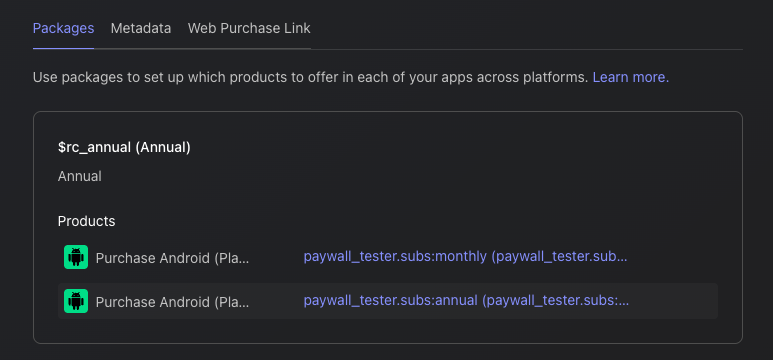
Offering에 모든 Package를 추가하면 아래와 같이 결과가 표시됩니다.
Offering과 Package의 관계
이처럼 하나의 Offering은 여러 Package를 담을 수 있어 사용자에게 다양한 옵션을 "제안(offer)"할 수 있습니다. 아래 그림처럼 월간, 연간, 평생 플랜 같은 여러 선택지를 하나의 Offering 안에서 함께 제시할 수 있습니다.
Offering (e.g. "pro plan")
                    |
       --------------------------------
       |              |              |
   Package A      Package B      Package C
   ("monthly")    ("annual")    ("lifetime")
       |              |              |
 Product A1      Product B1      Product C1
 (iOS/Android)   (iOS/Android)   (iOS/Android)
좋습니다. 이제 멋진 페이월을 만들 차례입니다!
페이월 생성하기
0:7:00페이월은 사용자가 상품을 구매하도록 유도하는 화면입니다. RevenueCat의 페이월 시스템은 서버 주도 UI(server-driven UI) 위에 만들어져 있어, 새 앱 버전을 출시하지 않고도 페이월 에디터로 레이아웃을 즉시 업데이트할 수 있습니다.

그래서 팀은 앱 업데이트를 기다리지 않고 A/B 테스트, Offering 다듬기, 메시지 최적화에 집중해 구독을 늘릴 수 있습니다. 서버 주도 UI 방식을 더 깊이 알아보고 싶다면 Server-driven UI SDK on Android: how RevenueCat enables remote paywalls without app updates를 읽어 보세요.
사전 준비: Offering 설정
페이월을 만들기 전에 Package가 구성된 Offering이 최소 하나는 있어야 합니다. 페이월은 Offering에 연결되며, 그 Offering 안의 Package가 사용자에게 어떤 상품을 보여 줄지 결정합니다.
페이월과 Offering의 연결 방식
페이월과 Offering의 관계를 이해하는 것이 중요합니다.
- Offering = Package(상품)를 담는 컨테이너
- 페이월 = 그 Package들을 화면에 표현하는 계층
- 하나의 Offering은 한 번에 하나의 활성 페이월을 가질 수 있습니다
- 페이월에 Offering을 선택하면 그 Offering 안의 모든 Package에 자동으로 접근합니다
새 페이월 만들기
만들기를 시작하려면 프로젝트의 Paywalls 페이지로 이동해 + New Paywall을 클릭하세요.

시작점 선택하기
시작하는 방법은 세 가지입니다.
- 사전 제작 템플릿(권장): 전문적으로 디자인된 템플릿으로 시작해 원하는 대로 수정합니다.
- 처음부터 만들기: 빈 캔버스에서 페이월을 직접 만듭니다.
- Figma에서 가져오기: Figma 디자인을 바로 가져옵니다.
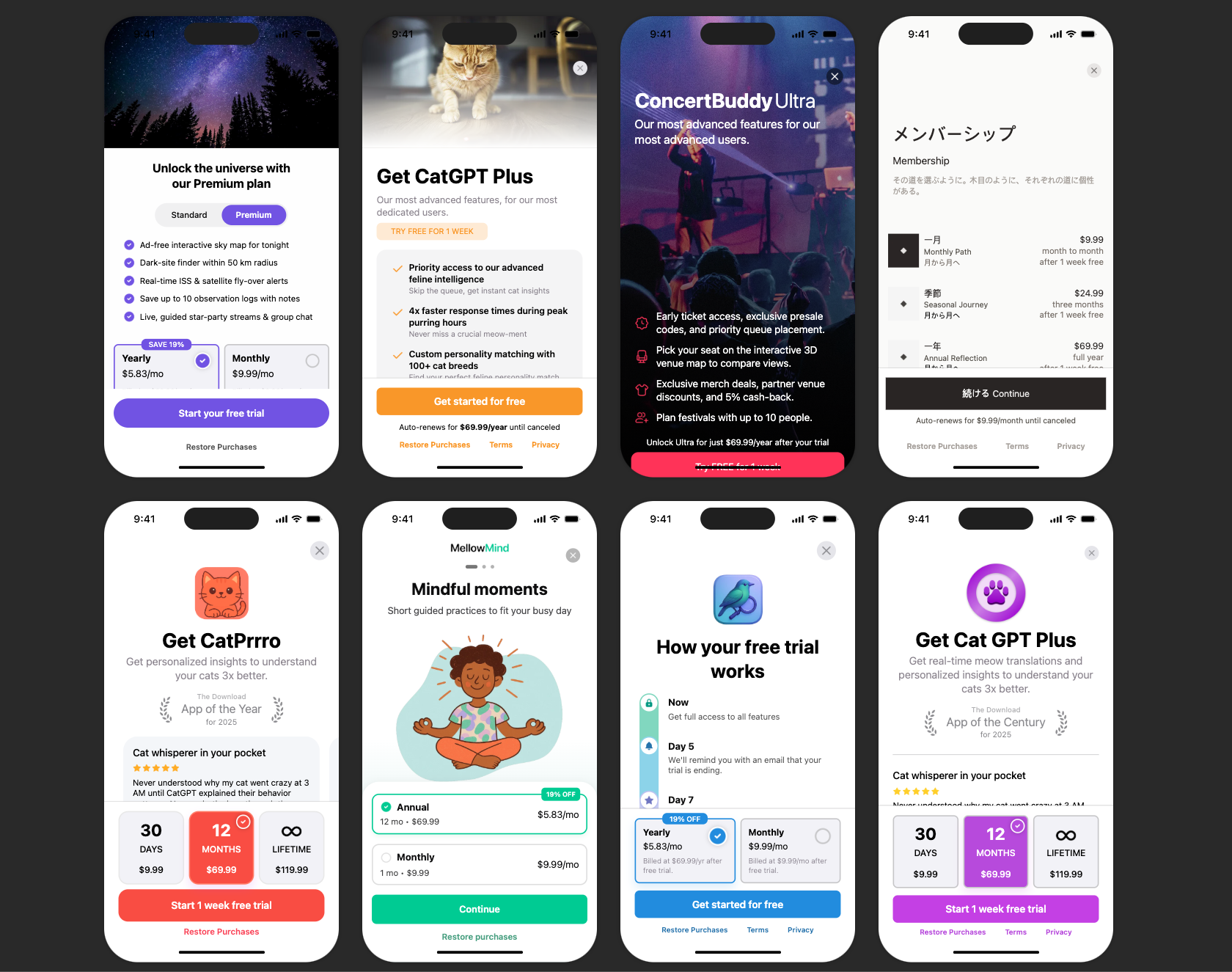
페이월 에디터 사용하기
페이월 에디터는 세 영역으로 이루어져 있습니다.
- 왼쪽 사이드바: 컴포넌트를 추가하고, 레이어 계층을 보고, 브랜딩과 미디어 자산을 관리합니다.
- 가운데 미리보기: 페이월을 실시간으로 시각화합니다.
- 오른쪽 패널: 선택한 컴포넌트의 속성(크기, 스타일, 동작)을 설정합니다.
핵심 설정 단계
- 페이월 이름 설정: 페이월에 알아보기 쉬운 이름을 붙이세요(예: "Main Subscription Paywall").
- Offering 선택: 이 페이월에 표시할 Offering을 고릅니다. 식별자가 페이월을 Offering에 연결합니다.
- 컴포넌트 구성: 텍스트, 이미지, 아이콘, Package 선택기, 구매 버튼을 추가하고 배치합니다.
- 디자인 스타일링: 색상, 글꼴, 간격, 이미지를 앱 브랜딩에 맞게 커스터마이즈합니다.
- 구매 버튼 설정: 구매 버튼이 선택한 Package의 결제를 트리거하도록 연결돼 있는지 확인하세요.
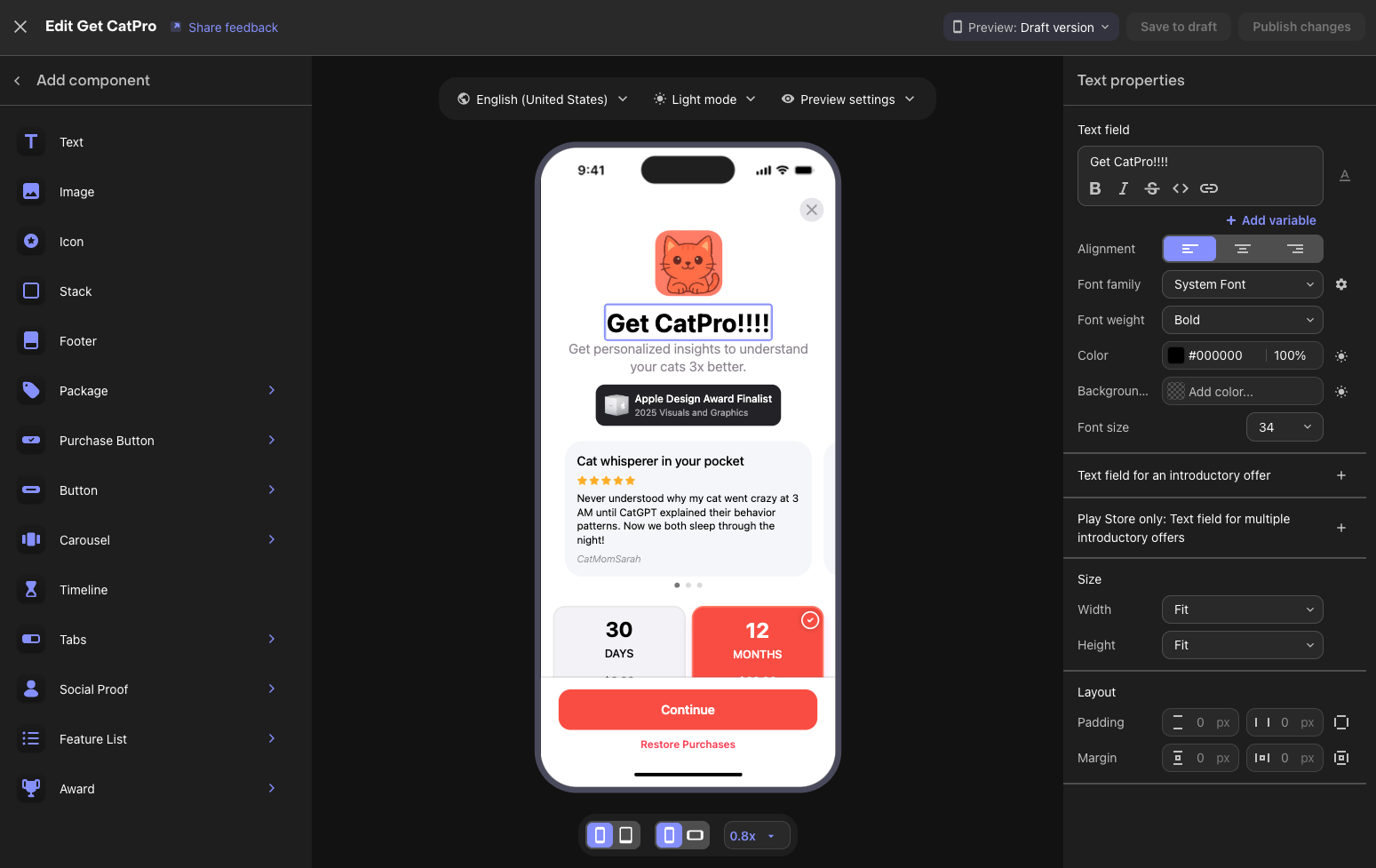
사용 가능한 컴포넌트
RevenueCat은 페이월을 위한 다양한 구성 요소를 제공합니다.
- 텍스트와 이미지: 헤드라인, 설명, 기능 목록, 시각 자산.
- Package 선택기: 연결된 Offering의 구독 옵션을 보여 줍니다.
- 구매 버튼: 선택한 Package의 구매 흐름을 시작합니다.
- 푸터: 서비스 약관, 개인정보처리방침, 구매 복원 링크.
- 스택과 컨테이너: 다른 요소를 정리하는 레이아웃 컴포넌트.
- 캐러셀: 좌우로 넘기는 콘텐츠 영역.
미리보기 옵션
에디터의 미리보기 컨트롤로 페이월을 테스트해 보세요.
- 라이트 모드와 다크 모드를 전환합니다
- 여러 기기 크기를 바꿔 봅니다
- 현지화된 콘텐츠가 있으면 여러 로케일을 미리 봅니다
초안(Draft)과 게시(Published)
페이월에는 두 가지 상태가 있습니다.
| 상태 | 설명 | 사용자에게 표시 |
|---|---|---|
| Draft | 작업 중이며 저장됐지만 활성화되지 않음 | 아니요 |
| Published | SDK로 사용자에게 제공되는 라이브 상태 | 예 |
작업 흐름:
- 변경한 뒤 "Save to draft"를 클릭하면 라이브 사용자에게 영향을 주지 않고 작업을 저장합니다
- 준비가 되면 "Publish changes"를 클릭해 페이월을 라이브로 전환합니다
- 게시된 페이월은 언제든 다시 비활성 상태로 되돌릴 수 있습니다
Google Play 상품과 RevenueCat 대시보드 설정에 필요한 모든 단계를 마쳤습니다! 다음으로 인앱 구매를 테스트하는 방법을 살펴보겠습니다.
인앱 구매 테스트 (선택)
0:05:00앱을 프로덕션에 출시하기 전에 전체 구매 흐름을 테스트하는 것이 좋습니다. 인앱 구매를 테스트하는 방법은 두 가지입니다. 특별한 계정 설정 없이 빠르고 결정적으로 테스트하는 RevenueCat Test Store, 그리고 구글 인프라로 종단 간(end-to-end) 테스트하는 Google Play License Testing입니다.
RevenueCat Test Store
Test Store는 Google Play에 연결하지 않고도 인앱 구매 흐름을 테스트할 수 있는 RevenueCat 내장 테스트 환경입니다. 모든 RevenueCat 프로젝트에 자동으로 마련되며, 구매 결과를 완전히 제어할 수 있습니다.
Test Store를 쓰면 좋은 점은 다음과 같습니다.
- 결정적 결과: 구매가 성공할지, 실패할지, 취소될지 직접 제어할 수 있어 불안정한 샌드박스 동작이 사라집니다.
- 특별한 계정 불필요: 라이선스 테스터 계정을 만들고 관리하는 번거로움을 건너뜁니다.
- 빠른 피드백: 구매 흐름을 몇 분이 아니라 몇 초 만에 테스트합니다.
- CI/CD에서 동작: 어떤 환경에서도 안정적으로 도는 구매 로직 자동화 테스트를 작성할 수 있습니다.
Test Store를 시작하려면 RevenueCat 대시보드에서 Apps & providers로 이동해 Test Store를 활성화하세요. test_로 시작하는 Test Store API 키를 받게 되며, 개발과 테스트 중에는 프로덕션 API 키 대신 이 키를 쓸 수 있습니다.
Google Play License Testing
구글은 실제 비용을 청구하지 않고 Google Play 인프라로 구매를 시뮬레이션할 수 있는 라이선스 테스트를 제공합니다.
라이선스 테스트를 설정하려면 다음과 같이 합니다.
- Google Play Console로 이동합니다.
- Settings → License testing으로 이동합니다.
- 테스터의 Google 계정 이메일 주소를 추가합니다.
- 표준 테스트라면 라이선스 응답을 RESPOND_NORMALLY로 설정합니다.
라이선스 테스터로 추가된 Google 계정이 있는 실제 기기에서 테스트하면, 구매가 "Test order"로 표시되고 실제 청구는 발생하지 않습니다. 그래서 구글의 실제 결제 인프라로 종단 간 테스트를 할 수 있습니다.
테스트 방법을 설정했으니 이제 자신 있게 출시할 준비가 됐습니다! 마무리로 넘어가겠습니다.
마무리
이 Codelab에서는 Google Play 상품을 구성하고, Google Play 계정을 RevenueCat 대시보드에 연결하고, 상품, Offering, Entitlement 및 페이월을 설정하는 방법을 배웠습니다. 이제 모든 것이 구성되었으므로 RevenueCat SDK를 프로젝트에 통합할 준비가 되었습니다!
다음 단계:
- 인앱 결제 및 페이월을 위한 RevenueCat Android SDK 통합: 완전히 작동하는 수익화 흐름을 향한 다음 단계입니다.
- 인앱 결제 및 페이월을 위한 RevenueCat Kotlin Multiplatform SDK 통합: KMP/CMP 프로젝트를 위한 완전히 작동하는 수익화 흐름을 향한 다음 단계입니다.
- 인앱 결제 및 페이월을 위한 RevenueCat Flutter SDK 통합: Flutter 프로젝트를 위한 완전히 작동하는 수익화 흐름을 향한 다음 단계입니다.
- Product Tutorials: RevenueCat을 시작하고 최대한 활용하는 데 도움이 되는 비디오 튜토리얼.