
Why the Test Store is not the finish line
You probably already test purchases during development with the RevenueCat Test Store. It is fast, gives deterministic outcomes, and needs no Google Play setup, which makes it the right tool while you build. But the Test Store is a store that RevenueCat runs for you. It does not exercise your real Google Play credentials, your real public API key, your real product and base plan configuration, or the actual Google Play Billing flow on a device.
Before you ship, you need to confirm the real path works from end to end: that your service account credentials are connected correctly, that the products you created in Google Play map to the offering users will see, and that a real purchase on a real device behaves the way you expect. You do that in Google Play's sandbox, on a Closed testing track, with a license tester account. This is a separate exercise from the Test Store, and it is the one that tells you the integration is actually ready for production.
In this codelab you will:
- Decide when to use the Test Store and when to use the Google Play sandbox.
- Add a license tester and create a Closed testing track.
- Make a real sandbox purchase on a device, with no real charge.
- Verify the transaction in RevenueCat with sandbox data.
- Test subscription renewals on the accelerated sandbox schedule.
- Fix the common failures, including the "Something went wrong" payment error.
Test Store vs Google Play sandbox: which one, when
Both let you test purchases without spending real money, but they answer different questions.
| Aspect | RevenueCat Test Store | Google Play sandbox |
|---|---|---|
| What it tests | SDK logic, paywalls, and entitlements in isolation | Real credentials, real products, and the real Billing flow on a device |
| Setup needed | None, built into every project | Closed testing track, license tester, a signed build uploaded |
| Speed | Instant, deterministic outcomes | Real device flow plus store processing time |
| Uses your real keys | No, it is an abstracted store | Yes, your public API key and service account |
| API key | test_ key | Your production public key |
| Best for | Early development, unit tests, CI | Pre-launch verification |
The recommended flow is to build and iterate against the Test Store, then verify the real integration in the Google Play sandbox before you promote a release through Closed testing, Open testing, and Production. If the sandbox purchase works and shows up in RevenueCat, you can trust the wiring.
Prerequisites
Before you can test a real purchase, make sure the integration is in place. Most of this is covered in the RevenueCat Google Play Integration codelab.
- The RevenueCat SDK is integrated and configured with your public Google API key, not a
test_key. - Your service account credentials are connected and validated in RevenueCat.
- Your products and base plans exist in Google Play and are Active, and you have imported them into RevenueCat and attached them to an offering and an entitlement.
- You have a signed Android App Bundle or APK. The build must include the Google Play Billing Library, which the RevenueCat SDK bundles for you.
- A real device is recommended. Emulators work only if they ship Google Play services, and even then they are less reliable than a physical device.
The RevenueCat SDK already declares the billing permission, so you normally do not add it by hand. If you maintain a custom manifest, confirm it is present:
<uses-permission android:name="com.android.vending.BILLING" />Add a license tester
A license tester is a Google account that Google Play treats as a sandbox buyer. Purchases made by a license tester use test payment methods and are never charged.
- Open Play Console > Settings > License testing.
- Add the Google account email you will sign in with on your test device.
- Leave the license response on RESPOND_NORMALLY so the sandbox behaves like production.
- Save your changes.
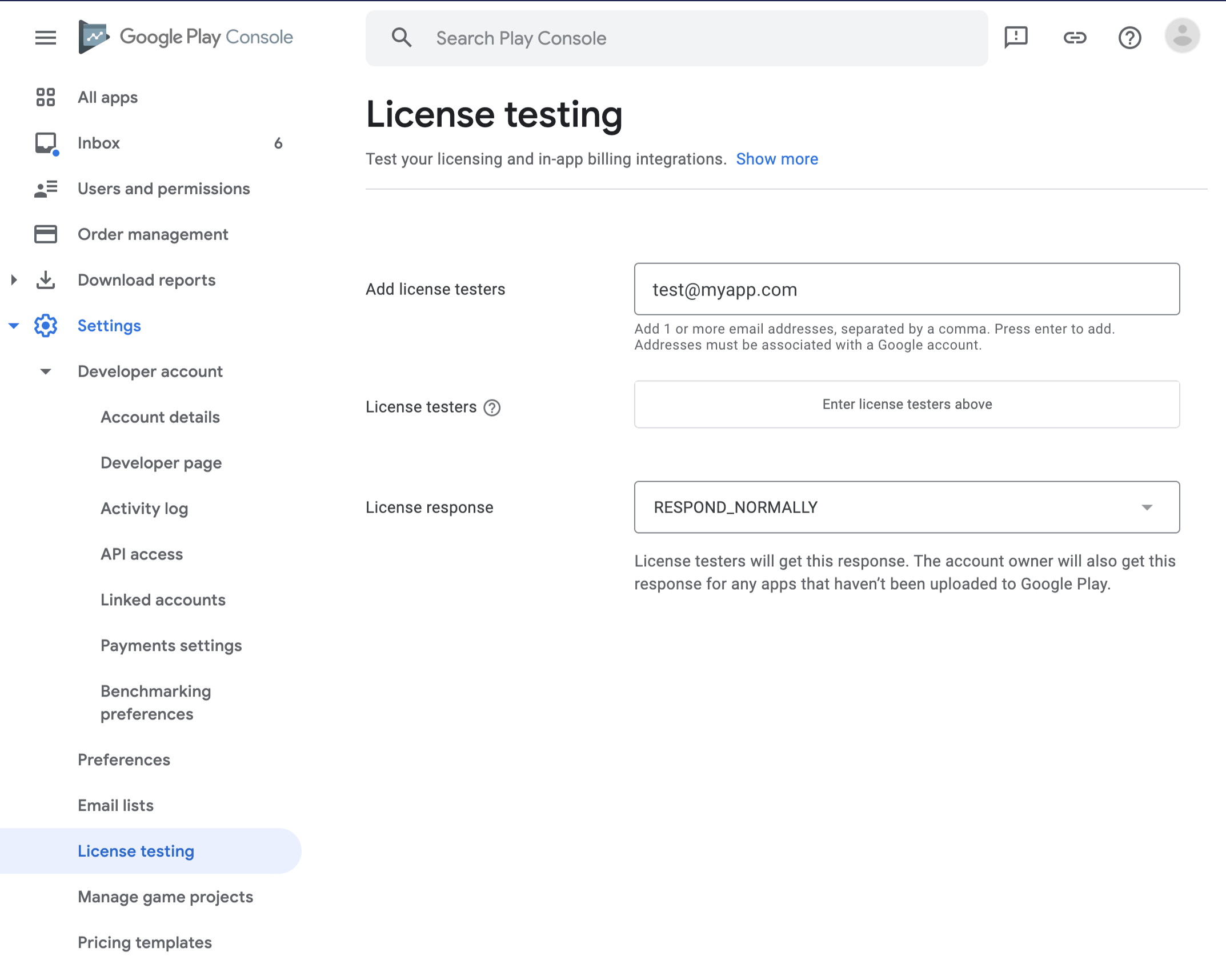
Once the account is a license tester, Google Play offers test cards, such as a card that always approves, instead of charging a real method.
Create a Closed testing track and opt in
To load and buy your products, the build has to reach the device through a testing track, and your account has to opt in to that track. A Closed testing track is the right choice for purchase testing.
- Go to Play Console > Testing > Closed testing and create a new closed track.
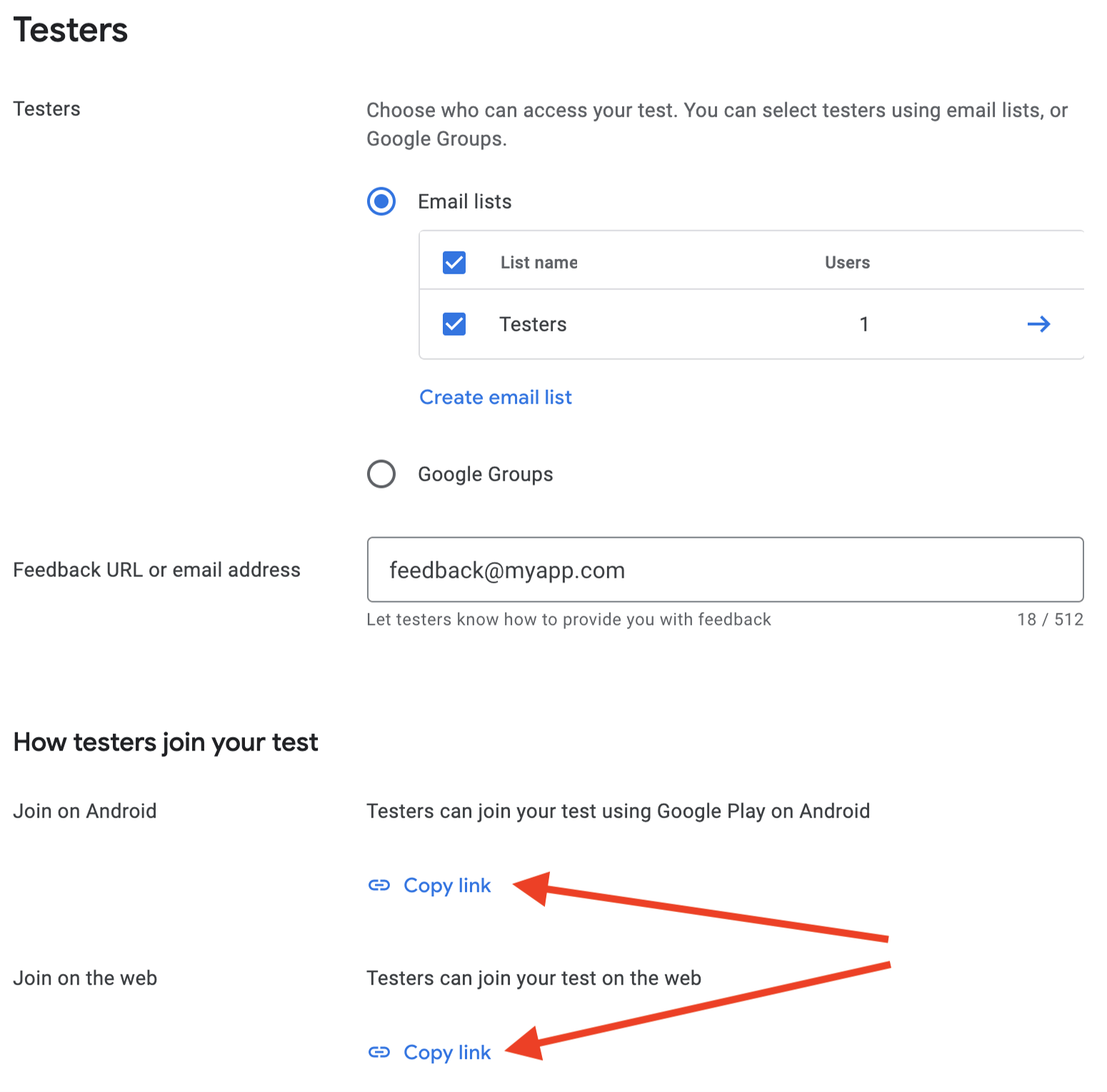
- Create a tester list, name it (for example "Testers"), and add your license tester email to it.
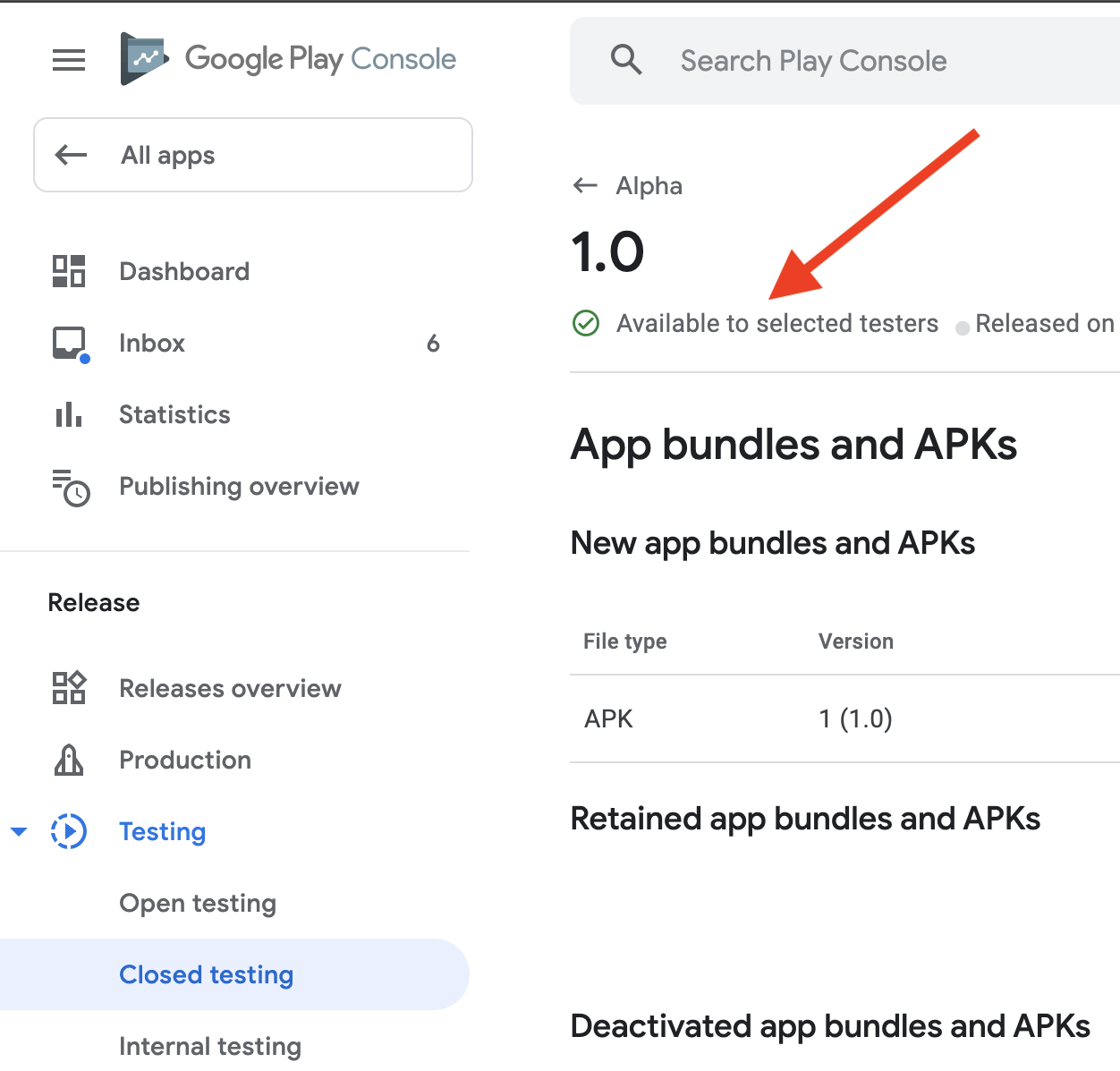
- Upload your signed App Bundle or APK to the track and save. You do not have to fully roll out the release, but the build has to be processed and available.
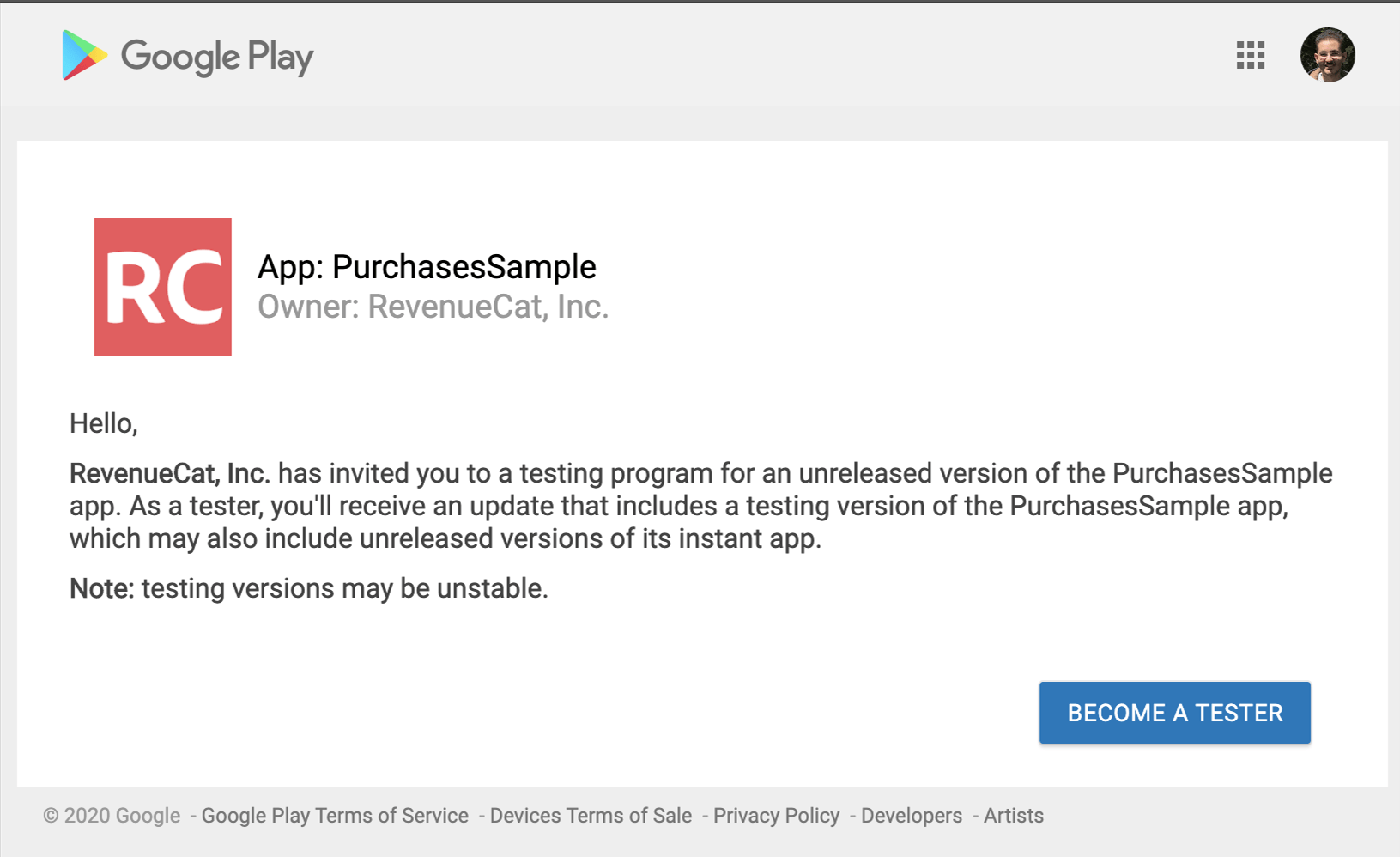
- Copy the track's opt-in URL, open it while signed in as the test account, and tap the button to become a tester.
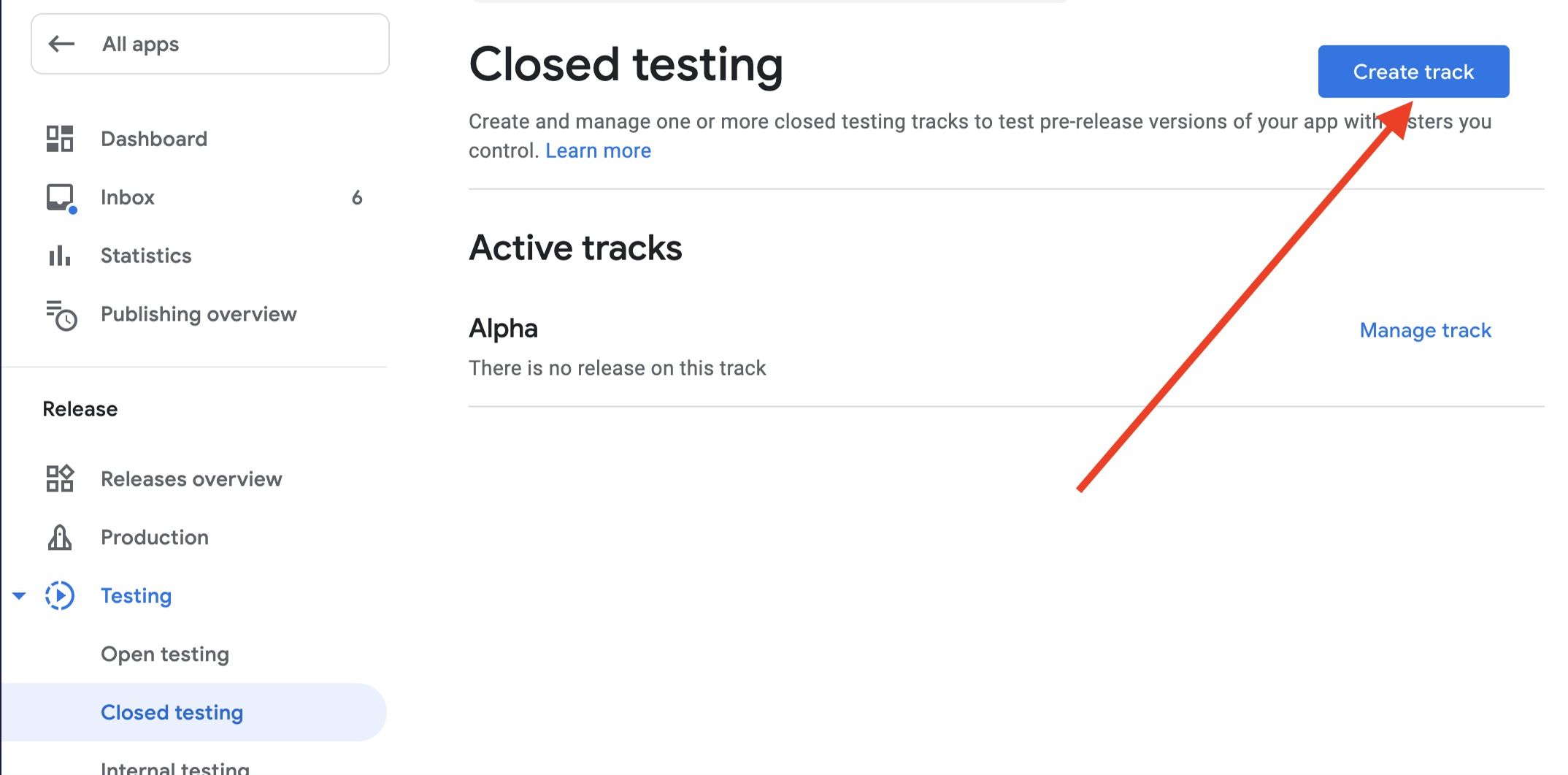
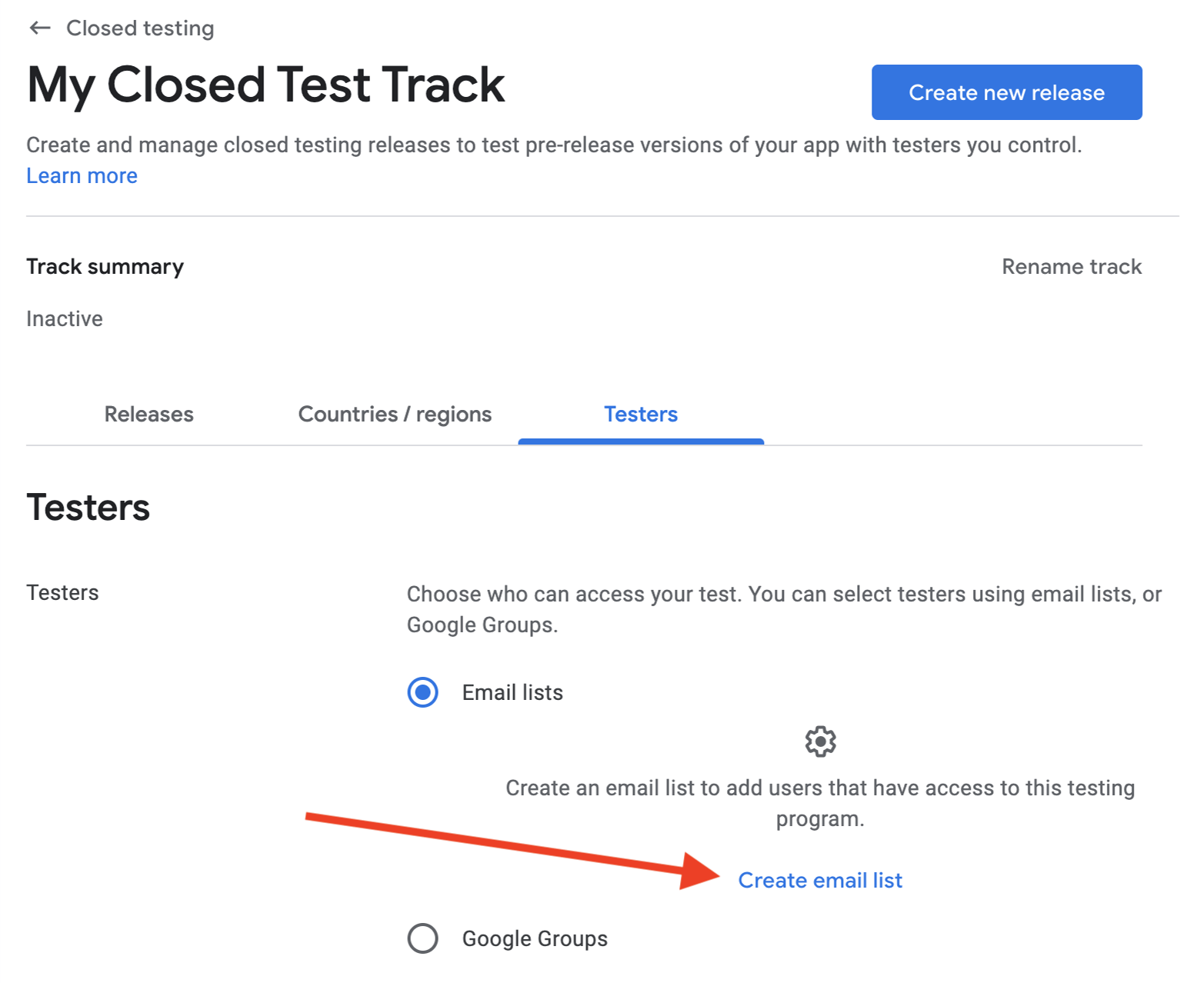
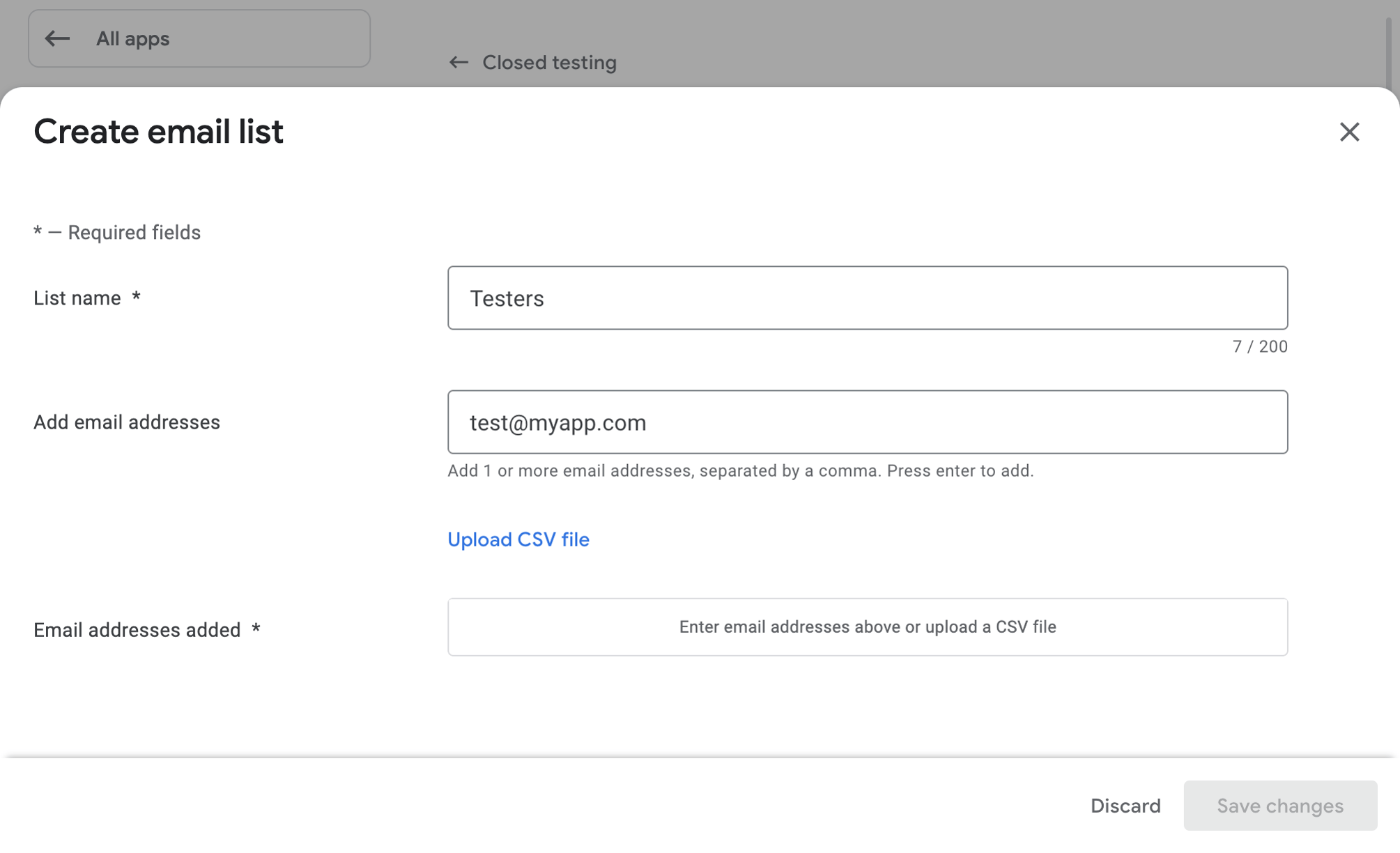
If the app is brand new, you may also need to make it available in your country or region in the closed track's settings before products appear.
Make a sandbox purchase
Install the app on your real device from the closed track, signed in as the license tester. Then trigger your paywall and buy a product.
- Launch the app and reach the screen that presents your offering.
- Start a purchase. The Google Play sheet appears with a test payment method rather than your real card.
- Complete the purchase. Google labels it a Test order, and no real money moves.
A one-time product unlocks the matching entitlement right away. A subscription starts on the accelerated renewal schedule covered in a later step.
Verify the purchase in RevenueCat
A sandbox purchase only counts if RevenueCat receives it. Confirm it in the dashboard.
- Open your customer in the RevenueCat dashboard.
- Enable the View Sandbox Data toggle. Sandbox transactions are hidden until you turn this on.
- Confirm the transaction and the active entitlement appear for that customer.
Test renewals on the accelerated schedule
You do not want to wait a month to see a subscription renew. In the sandbox, Google Play compresses renewal periods so you can watch the whole lifecycle in minutes.
| Production period | Sandbox renewal |
|---|---|
| 1 week | 5 minutes |
| 1 month | 5 minutes |
| 3 months | 10 minutes |
| 6 months | 15 minutes |
| 1 year | 30 minutes |
A sandbox subscription renews up to six times and then expires, which is enough to test renewal handling, expiration, and any grace period or billing retry logic. Note that not every renewal always shows up in the RevenueCat customer dashboard, so treat the entitlement state as the source of truth rather than counting individual renewal rows.
Troubleshooting
Most sandbox failures come from account or build configuration, not your code. Work through these.
"Something went wrong" during the purchase
This one is almost never your app. It means Google Play could not process the payment, usually because the payment method or the Google Pay account behind it has a problem. Open pay.google.com while signed in as the tester, clear any flagged issues, add or fix a payment method, and resolve anything the account asks you to verify. Then retry the purchase.
Products do not load
- You did not open the opt-in URL, or the account is not on the tester list.
- The account is not a license tester under Settings > License testing.
- The build's
applicationIddoes not match the package that owns the products. - The release is still processing, or the app is not available in your region.
A real card shows instead of a test card
The active account is not a license tester, or the wrong account is signed in. Confirm the account under Settings > License testing and that it is the only one signed in on the device.
The subscription purchase is blocked
A device with no screen lock or PIN can fail subscription purchases. Set a device PIN and try again.
The purchase does not appear in RevenueCat
Enable View Sandbox Data first. If it still does not show, recheck your service account credentials and that the product is imported and attached to an entitlement.
Recap and next steps
You verified the real Google Play integration, not just the abstraction. You added a license tester, created a Closed testing track, opted in, bought a product with a test card, confirmed it in RevenueCat with sandbox data on, and exercised renewals on the accelerated schedule.
Keep both tools in your workflow. Use the Test Store for fast, deterministic checks while you write code, and the Google Play sandbox for the real pass from end to end before release. When the sandbox purchase works and shows up in RevenueCat, promote your build through Closed testing, then Open testing, then Production.
From here:
- RevenueCat Google Play Integration if you still need to connect credentials or create products.
- Set up Test Store for Android for fast local testing.
- Google Play sandbox documentation for the full reference.