
App Store Issues
0:10:00App Store configuration issues often involve product approval, StoreKit setup, and bundle ID mismatches. This section covers the most common iOS-specific problems.
Issue 1: Products Not Approved / Available
Error Message
warning: RevenueCat SDK is configured correctly, but contains some issues you might want to address
Warnings:
• Your products are configured in RevenueCat but aren't approved in App Store Connect yet.
  This prevents users from making purchases in production.
  Please ensure all products are approved and available for sale in App Store Connect.
Common Causes
- Products Pending Review: Products submitted but not yet approved by Apple.
- Products Rejected: Products rejected during App Review.
- Missing Agreements: Paid Applications Agreement not signed.
- Banking/Tax Info Incomplete: Financial information not completed in App Store Connect.
- Product Not Available for Sale: Product exists but isn't marked as "Available for Sale".
Solution Steps
Step 1: Check Product Status in App Store Connect
- Go to App Store Connect.
- Select your app.
- Navigate to In-App Purchases (for one-time purchases) or Subscriptions.
- Check each product's status:
- Ready to Submit: Product needs to be submitted with app binary.
- Waiting for Review: Submitted, pending Apple approval.
- Approved / Ready to Sell: Good to go!
- Rejected: Check rejection reason and fix issues.
Step 2: Sign Paid Applications Agreement
- In App Store Connect.
- Click on Agreements, Tax, and Banking.
- Check for any pending agreements (red warning icon).
- Click Request next to "Paid Applications".
- Fill out and agree to the terms.
Step 3: Complete Banking and Tax Information
- In Agreements, Tax, and Banking.
- Complete Banking section (add bank account info).
- Complete Tax Forms (W-9 for US, W-8BEN for non-US).
- Wait for Apple to verify (can take 24-48 hours).
Step 4: Submit Products for Review
- Products must be submitted along with an app binary.
- Go to your app's version in App Store Connect.
- Add in-app purchases to the version.
- Submit the app for review.
- Products will be reviewed alongside your app.
Step 5: Use StoreKit Configuration for Testing (Recommended)
Instead of waiting for approval, use StoreKit Configuration File for local testing:
- In Xcode, go to File → New → File.
- Choose StoreKit Configuration File.
- Add your products with matching IDs.
- In scheme settings, enable the StoreKit configuration file.
- Products will work immediately in Simulator and on device.
Issue 2: StoreKit Configuration File Problems
Error Message
Error: Product not found in StoreKit configuration
StoreKit.Error: Unknown product identifier
Common Causes
- Product IDs Don't Match: IDs in StoreKit file don't match RevenueCat/App Store Connect.
- StoreKit File Not Enabled: Configuration file exists but isn't active in scheme.
- Using Production Instead of Sandbox: App is trying to fetch from App Store Connect instead of local file.
Solution Steps
Step 1: Verify Product IDs Match
- Open your
.storekitfile in Xcode. - Check that product IDs match exactly with:
- App Store Connect product IDs.
- RevenueCat dashboard product IDs.
- IDs are case-sensitive and must match character-for-character.
Step 2: Enable StoreKit Configuration in Scheme
- In Xcode, go to Product → Scheme → Edit Scheme.
- Select Run in the left panel.
- Go to Options tab.
- Under StoreKit Configuration, select your
.storekitfile. - Build and run again.
Step 3: Configure Product Details Properly
In your StoreKit file, ensure each product has:
- Correct Product ID.
- Appropriate Type (consumable, non-consumable, auto-renewable subscription).
- Valid Price and Locale.
- For subscriptions: Subscription Duration.
Issue 3: Bundle ID Mismatches
Error Message
Error: The bundle identifier does not match the app configured in RevenueCat
Error: Unable to fetch products for bundle ID: com.example.wrongapp
Common Causes
- Wrong Bundle ID in RevenueCat: Dashboard has incorrect bundle identifier.
- Mismatched Provisioning Profile: Using a profile for a different bundle ID.
- Multiple App Targets: Using the wrong target's bundle ID.
Solution Steps
Step 1: Verify Bundle ID in Xcode
- In Xcode, select your project in the navigator.
- Select your app target.
- Go to General tab.
- Check the Bundle Identifier field.
- Copy this value exactly.
Step 2: Verify Bundle ID in RevenueCat
- Go to RevenueCat dashboard.
- Navigate to your project.
- Go to Apps & providers → App Store.
- Verify the bundle ID matches your Xcode bundle ID exactly.
- Update if necessary.
Step 3: Check Provisioning Profile
- In Xcode, go to Signing & Capabilities tab.
- Ensure the provisioning profile matches your bundle ID.
- If using automatic signing, Xcode will handle this.
- If using manual signing, download the correct profile from Apple Developer portal.
Issue 4: Sandbox Testing Issues
Error Message
Error: Cannot connect to iTunes Store
StoreKitError: Purchase failed - Invalid sandbox account
Common Causes
- Not Signed in to Sandbox Account: No sandbox account configured on device.
- Using Production Account: Signed in with regular Apple ID instead of sandbox tester.
- Sandbox Account Not Created: No sandbox tester account exists.
- Incorrect Sandbox Configuration: Device not properly set up for sandbox testing.
Solution Steps
Step 1: Create Sandbox Tester Account
- Go to App Store Connect.
- Navigate to Users and Access.
- Click Sandbox Testers in the left sidebar.
- Click + to add a new tester.
- Fill in details (use a unique email. It doesn't need to be real).
- Save the tester.
Step 2: Sign Out of Production App Store
- On your iOS device, go to Settings.
- Tap your name at the top.
- Scroll down and tap Sign Out.
- Don't sign in to a sandbox account here. Wait for the app prompt.
Step 3: Sign In When Prompted
- Run your app in debug mode.
- Try to make a purchase.
- When prompted for Apple ID, use your sandbox tester credentials.
- The device will remember this for future test purchases.
Step 4: Use Test Store for Faster Testing (Alternative)
For more reliable testing without sandbox complications, use RevenueCat Test Store:
- No sandbox account needed.
- Deterministic purchase outcomes.
- Works in Simulator.
- No Apple server dependencies.
Issue 5: "Missing Metadata" Status Despite Having All Fields
Symptom
Your subscription products show "Missing Metadata" in App Store Connect, even though you believe every required field has been filled in. This prevents the products from being submitted for review.
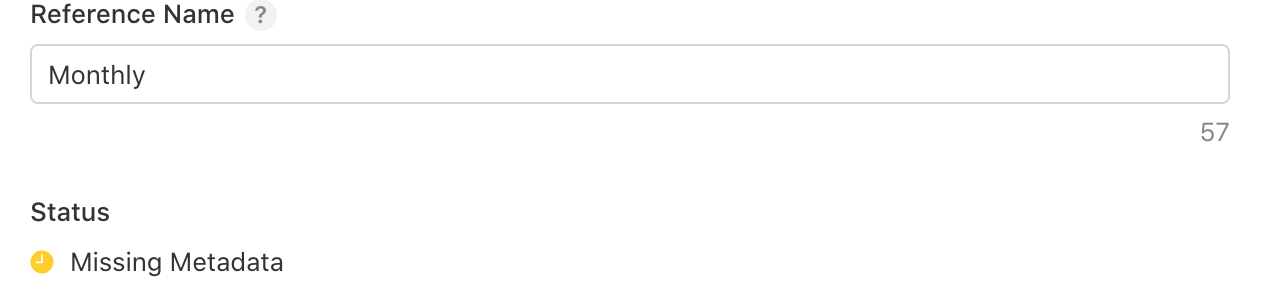
Can RevenueCat Still See Products with Missing Metadata?
It depends on the environment:
- Sandbox and StoreKit Configuration: Yes. Products with "Missing Metadata" are still available for testing in the sandbox environment and with StoreKit Configuration files.
- Production: No. Products must have an "Approved" status to be fetched in production. "Missing Metadata" products cannot be submitted for review, so they will never reach production until resolved.
Common Causes
The "Missing Metadata" status is frustratingly vague. Here are the most common causes, even when everything looks complete:
- Review screenshot still processing: This is the most common hidden cause. Your screenshot may appear visible in the UI, but App Store Connect is still processing it internally. Wait 5-10 minutes and refresh the page.
- Missing subscription localization: The subscription Display Name and Description must be added for at least one language. Go to the subscription → App Store Localization section and add a display name and description.
- Missing review screenshot: Each subscription product requires a screenshot showing the subscription in your app. This must be uploaded under the subscription's Review Information section, not the app version screenshots.
- Missing subscription group localization: The Subscription Group itself also needs a localized display name. Go to your subscription group and check the App Store Localization section.
- Missing price: Ensure at least one Subscription Price is configured for the product.
Solution Steps
Step 1: Check the review screenshot
This is the most common gotcha. Even if your screenshot is visible in App Store Connect, it may still be processing:
- Go to your subscription product in App Store Connect.
- Scroll to Review Information → Screenshot.
- If you see the screenshot, remove it and re-upload.
- Wait 5-10 minutes for processing to complete.
- Refresh the page and check if the status changes.
Step 2: Verify subscription localization
- In App Store Connect, go to your subscription product.
- Click App Store Localization and verify at least one language has:
- Display Name (the name shown to users).
- Description (what the subscription includes).
- Also check the Subscription Group level. Click on the group name and verify it has a localized Display Name and optional Custom Display Name.
Step 3: Verify all required fields
Use this checklist to ensure nothing is missing:
- ☐ Reference Name: Internal name for the product.
- ☐ Product ID: The identifier that matches RevenueCat.
- ☐ Subscription Duration: Weekly, monthly, yearly, etc.
- ☐ Subscription Price: At least one price configured.
- ☐ App Store Localization: Display name and description in at least one language.
- ☐ Subscription Group Localization: Display name for the group.
- ☐ Review Information: Screenshot uploaded and fully processed (wait 5-10 mins).
- ☐ Review Notes (optional but recommended): Brief explanation for Apple's reviewers.
Common Issues Quick Reference
| Problem | Possible Cause | Solution |
|---|---|---|
| "Missing Metadata" on subscription | Review screenshot still processing. | Remove and re-upload the screenshot under your subscription's Review Information section. Wait 5-10 minutes for Apple's processing to complete, then refresh the page. The screenshot may appear visible immediately but still be processing internally. |
| "Missing Metadata" on subscription | Missing subscription or group localization. | Check both the product-level and group-level localization. Each subscription needs a Display Name and Description under App Store Localization. The subscription group also needs its own localized Display Name. See detailed guide above. |
| Products return empty | Paid Applications Agreement not signed. | In App Store Connect → Business → Agreements, Tax, and Banking, check that "Paid Applications" shows Active status. If pending, complete all required fields and wait up to 48 hours for Apple to verify. |
| Products return empty | Products not yet submitted for review. | In-app purchase products must be submitted alongside an app binary. Add them to your app version in App Store Connect and submit for review. Until approved, use a StoreKit Configuration File for local testing. |
| Products return empty | Banking and tax information incomplete. | In App Store Connect → Business, complete the Banking section (bank account details) and Tax Forms (W-9 for US, W-8BEN for non-US). All sections must show a green checkmark. |
| Product ID mismatch | Bundle ID in RevenueCat doesn't match Xcode project. | In Xcode, go to your target → General → Bundle Identifier. Copy this value exactly into RevenueCat dashboard → Apps & providers → App Store. They must match character-for-character (case-sensitive). |
| "Cannot connect to iTunes Store" | Using production Apple ID instead of sandbox tester. | On your test device, go to Settings → App Store → sign out. When the app prompts during purchase, sign in with your sandbox tester credentials created in App Store Connect → Users and Access → Sandbox Testers. |
| "Cannot connect to iTunes Store" | Apple sandbox servers are temporarily down. | Check Apple's System Status page for sandbox outages. Apple's sandbox is known to be intermittently unreliable. Wait and retry, or use a StoreKit Configuration File for offline testing. |
| StoreKit products not loading | StoreKit Configuration File not enabled in scheme. | In Xcode → Product → Scheme → Edit Scheme → Run → Options tab. Under StoreKit Configuration, select your .storekit file. If set to "None", the app uses sandbox instead of local testing. |
| StoreKit products not loading | Product IDs in StoreKit file don't match RevenueCat. | Open your .storekit file and verify each product's Product ID matches exactly with the IDs configured in RevenueCat dashboard → Product Catalog → Products. |
| Purchases not recording in RevenueCat | Missing In-App Purchase Key (required for StoreKit 2). | In RevenueCat dashboard → Apps & providers → your iOS app, upload your SubscriptionKey_*.p8 file in the "In-app purchase key configuration" section. This is required for SDK v5.0+. |
| Purchases not recording in RevenueCat | Wrong Issuer ID configured. | In App Store Connect → Users and Access → Integrations → In-App Purchase, copy the Issuer ID displayed at the top of the page. Paste it exactly into the RevenueCat dashboard. |
| "PURCHASE_NOT_ALLOWED" error | Device restrictions or parental controls enabled. | On the test device, go to Settings → Screen Time → Content & Privacy Restrictions → iTunes & App Store Purchases → In-app Purchases. Ensure it's set to Allow. |
| Sandbox purchase loops | Sandbox account stuck in authentication loop. | Sign out of sandbox on device (Settings → App Store), then delete and reinstall the app. Create a new sandbox tester in App Store Connect and try again with fresh credentials. |
| Subscription auto-renews too fast | This is expected sandbox behavior. | In sandbox, subscription durations are accelerated: 1 week = 3 min, 1 month = 5 min, 1 year = 1 hour. Subscriptions auto-renew up to 6 times then expire. This is Apple's design for faster testing. |
| Invalid credentials error | Wrong key type uploaded to RevenueCat. | Ensure you're uploading the correct key: SubscriptionKey_*.p8 for In-App Purchase Key, AuthKey_*.p8 for App Store Connect API. Don't mix them up. The filenames indicate which type of key it is. |
| "The receipt is not valid" | StoreKit sandbox bug where receipt doesn't contain the purchased product. | This is a known Apple sandbox issue. Create a new sandbox test user in App Store Connect → Users and Access → Sandbox Testers. Sign out and back in on the device. Retry the purchase. Sandbox outages are temporary. See community discussion. |
| "STORE_PROBLEM: There was a problem with the App Store" | App Store sandbox environment stuck in unstable state. | Log out and re-login to the sandbox Apple account on the device. Restart the device to clear temporary state. Reinstall the app. If the problem persists, create a new sandbox test user. See community discussion. |
| "You are not authorised to make purchases in Sandbox" | Sandbox tester created under the wrong Apple Developer account. | Create sandbox test users under the correct Apple Developer account (the one that owns the app) in App Store Connect → Users and Access → Sandbox Testers. If the issue persists, create a new sandbox user and delete/reinstall the app. See community discussion. |
| App Store review rejection | In-app purchase products not submitted for review with the app binary. | When submitting the app, include the in-app purchase products in the submission. Ensure products are in "Ready to Submit" status with all agreements signed. If rejection is due to sandbox flakiness, resubmit. See community discussion. |
Quick Checklist for App Store Setup
Use this checklist to verify your App Store configuration:
- ☐ Paid Applications Agreement signed.
- ☐ Banking information complete.
- ☐ Tax forms submitted and verified.
- ☐ Products created in App Store Connect.
- ☐ Product IDs match between App Store Connect and RevenueCat.
- ☐ Products submitted for review (or using StoreKit Configuration).
- ☐ No "Missing Metadata" status (check screenshot processing, localization, and pricing).
- ☐ Bundle ID matches in Xcode and RevenueCat.
- ☐ Provisioning profile matches bundle ID.
- ☐ Sandbox tester account created.
- ☐ Testing with correct sandbox credentials.
- ☐ Not signed in to production App Store on test device.