
Paywall Configuration Issues
0:06:00Paywall issues typically involve display problems, missing products, or non-functional purchase buttons. This section covers common paywall configuration challenges.
Issue 1: Paywall Not Displaying
Symptoms
- Paywall view doesn't appear.
- Blank screen where paywall should be.
- Crash when trying to show paywall.
Common Causes
- No Published Paywall: Paywall exists in draft but not published.
- RevenueCatUI Dependency Missing: Haven't imported the UI library.
- Paywall Not Linked to Offering: No paywall associated with offering.
- Wrong Offering Requested: Code requests offering that has no paywall.
Solution Steps
Step 1: Verify Paywall is Published
- Go to RevenueCat dashboard.
- Navigate to Paywalls.
- Check your paywall status:
- Draft: Not live yet.
- Published: Live and available.
- If still in draft, click Publish.
Step 2: Verify RevenueCatUI Dependency
iOS (SPM):
// In your code, verify you can import:
import RevenueCat
import RevenueCatUI  // ← Must have this for paywalls
iOS (CocoaPods):
pod 'RevenueCat'
pod 'RevenueCatUI'  # ← Add this line
Android (Gradle):
// Use purchases-ui instead of just purchases
implementation("com.revenuecat.purchases:purchases-ui:10.20.0")
Step 3: Verify Paywall is Linked to Offering
- In RevenueCat dashboard, go to Paywalls.
- Click on your paywall.
- Check the Offering field shows the correct offering identifier.
- If not set, edit and select the offering.
Step 4: Check Code Implementation
iOS (SwiftUI):
import RevenueCatUI

struct ContentView: View {
    @State private var showPaywall = false

    var body: some View {
        Button("Show Paywall") {
            showPaywall = true
        }
        .presentPaywallIfNeeded(
            requiredEntitlementIdentifier: "premium",
            isPresented: $showPaywall
        )
    }
}
Android (Compose):
import com.revenuecat.purchases.ui.revenuecatui.Paywall

@Composable
fun MyScreen() {
    var showPaywall by remember { mutableStateOf(false) }

    if (showPaywall) {
        Paywall(
            onDismiss = { showPaywall = false }
        )
    }
}
Issue 2: Products Not Showing on Paywall
Symptoms
- Paywall displays but product cards are empty.
- Prices show as $0.00 or blank.
- Product titles/descriptions missing.
Common Causes
- Package Identifiers Mismatch: Paywall expects different package identifiers.
- Products Not Available: Store products can't be fetched.
- Missing Localization: Product info not configured for user's locale.
- Offering Empty: No products in the offering.
Solution Steps
Step 1: Verify Package Identifiers Match
- In paywall editor, check which package identifiers are used.
- Common package identifiers:
$rc_monthly.$rc_annual.$rc_lifetime.
- In Product Catalog → Offerings, verify your packages use these identifiers.
- If using custom identifiers, update paywall to match.
Step 2: Test Product Fetching
// Test if products are being fetched
let offerings = try await Purchases.shared.offerings()

if let offering = offerings.current {
    for package in offering.availablePackages {
        print("Package: \(package.identifier)")
        print("  Product: \(package.storeProduct.localizedTitle)")
        print("  Price: \(package.storeProduct.localizedPriceString)")
    }
} else {
    print("No current offering")
}
If this prints products correctly but paywall doesn't show them, it's a paywall configuration issue.
Step 3: Check Product Localization
For iOS (App Store Connect):
- Go to your product in App Store Connect.
- Check Localization section.
- Add localization for user's language/region.
- Provide display name and description.
For Android (Google Play Console):
- Go to your product in Google Play Console.
- Check Translations.
- Add translations for target languages.
Issue 3: Purchase Button Not Working
Symptoms
- Tapping purchase button does nothing.
- Button tap shows loading but never completes.
- Error appears when trying to purchase.
Common Causes
- Purchase Delegate Not Set: No handler for purchase completion.
- Entitlement Check Failing: User already has entitlement but UI doesn't reflect it.
- Transaction Not Finishing: SDK configured to not auto-finish transactions.
- Network Issues: Can't communicate with store servers.
Solution Steps
Step 1: Implement Purchase Callback
iOS:
.presentPaywallIfNeeded(
    requiredEntitlementIdentifier: "premium",
    purchaseCompleted: { customerInfo in
        // Handle successful purchase
        print("Purchase completed! Access granted.")
    },
    restoreCompleted: { customerInfo in
        // Handle restore
        print("Restore completed!")
    }
)
Android:
Paywall(
    onPurchaseCompleted = { customerInfo ->
        // Handle successful purchase
        Log.d("Paywall", "Purchase completed!")
    },
    onRestoreCompleted = { customerInfo ->
        // Handle restore
        Log.d("Paywall", "Restore completed!")
    },
    onDismiss = { showPaywall = false }
)
Step 2: Verify Auto-Finish is Enabled
Check your SDK configuration ensures transactions finish automatically:
// iOS - this is the default, no configuration needed
Purchases.configure(withAPIKey: "appl_xxx")// Android - verify this is set
val builder = PurchasesConfiguration.Builder(this, "goog_xxx")
Purchases.configure(
builder
.purchasesAreCompletedBy(PurchasesAreCompletedBy.REVENUECAT) // ← Important!
.build()
)Step 3: Enable Debug Logging
See what's happening when purchase button is tapped:
// iOS
Purchases.logLevel = .debug// Android
Purchases.logLevel = LogLevel.DEBUGCommon Issues Quick Reference
| Problem | Possible Cause | Solution |
|---|---|---|
| Paywall not displaying | Paywall is still in draft status. | In RevenueCat dashboard → Paywalls, check the status column. If it shows Draft, open the paywall and click Publish. Only published paywalls are served to the SDK. |
| Paywall not displaying | RevenueCatUI dependency not added. | For iOS, add RevenueCatUI via SPM or CocoaPods. For Android, add com.revenuecat.purchases:purchases-ui to your build.gradle. The main SDK does not include paywall UI components. |
| Paywall not displaying | Paywall not linked to an offering. | In RevenueCat dashboard → Paywalls, open your paywall and check the Offering field. Select the correct offering identifier. Each paywall must be associated with an offering to be displayed. |
| Default/fallback paywall shows instead of custom design | SDK version doesn't support Paywalls v2. | Update to the latest SDK version. Paywalls v2 requires purchases-ios v5.x+ and purchases-android v8.x+. Check your dependency version and update if needed. |
| Default/fallback paywall shows instead of custom design | Paywall named "default" causing a conflict. | Rename your paywall to something other than "default" in the RevenueCat dashboard. The name "default" can conflict with internal SDK logic and cause fallback behavior. See community discussion. |
| Default/fallback paywall shows instead of custom design | Missing string localization in paywall editor. | Check debug logs for "Missing string localization for property" warnings. In the paywall editor, ensure all text fields are filled in for the user's locale. Missing localizations trigger validation errors and show the fallback paywall. |
| Product cards are empty on paywall | Package identifiers don't match between paywall and offering. | In the paywall editor, check which package identifiers are used (e.g., $rc_monthly, $rc_annual). In Product Catalog → Offerings, verify your packages use these same identifiers. Mismatches cause empty product cards. |
| Product cards are empty on paywall | Products not available in user's storefront. | Products may not be available in certain regions. In App Store Connect or Google Play Console, check product availability for the tester's country. Add missing regions if needed. |
| Prices show as $0.00 or blank | Store can't resolve pricing for the product. | Verify products are active in the store and have pricing configured. On iOS with StoreKit Configuration, ensure each product has a price and locale set. On Android, verify base plans have pricing. |
| Purchase button does nothing | Transaction not finishing automatically. | If using custom purchase handling, ensure you're calling Purchases.shared.purchase(package:) and handling the completion. With RevenueCatUI, purchases are handled automatically. Check that finishTransactions is not set to false. |
| Purchase button does nothing | User already has an active entitlement. | The SDK may silently succeed if the user already owns the product. Check customerInfo.entitlements.active before showing the paywall. Use Purchases.shared.getCustomerInfo() to verify current entitlement status. |
| Restore button not working on paywall | No previous purchases to restore for the account. | Restore only works if the store account has prior purchases. For sandbox testing, use the same sandbox tester that made the original purchase. See community discussion. |
| Paywall closes immediately after appearing | User's entitlement check passes, triggering auto-dismiss. | If using PaywallView or PaywallDialog with auto-close on entitlement, the paywall dismisses if the user already has an active subscription. Verify the user's entitlement status before presenting. |
| Paywall looks different on Android vs iOS | Platform-specific rendering differences. | Paywall templates may render slightly differently across platforms. Use the Preview feature in the paywall editor to check both iOS and Android layouts. Adjust design elements if needed for cross-platform consistency. |
| "No available packages" message on paywall | Offering has no packages, or default offering not set. | In RevenueCat dashboard → Product Catalog → Offerings, verify the offering has packages attached. Set it as the default offering (Actions → Make Default). Ensure products are approved (iOS) or active (Android). See community discussion. |
| "Subscription options are not available at the moment" | No Current Offering set, or offering has no packages. | In RevenueCat dashboard → Product Catalog → Offerings, verify one offering is marked as Current. Ensure it has at least one package with a linked product. See the detailed guide below. |
| "Subscription options are not available at the moment" | Store products not in the correct state. | On iOS, products must be Ready to Submit or Approved in App Store Connect. On Android, products must be Active (not Draft) and the app must be published to at least a closed testing track. |
| "Subscription options are not available at the moment" | Wrong API key or bundle ID mismatch. | Verify you are using the correct platform-specific API key (iOS key for iOS, Android key for Android). Check that the app's bundle identifier matches what is configured in the RevenueCat project settings. |
| "Subscription options are not available at the moment" | Paid Applications Agreement expired (iOS). | In App Store Connect → Agreements, Tax, and Banking, verify the Paid Applications Agreement is signed and active. An expired or missing agreement makes all products unavailable. |
| PaywallView doesn't dismiss after purchase (iOS) | Sandbox transaction not completing properly. | Update to the latest RevenueCat SDK. Test with a fresh sandbox account and restart the device. Ensure Purchases.shared.delegate is properly set. Check debug logs for transaction processing errors. See community discussion. |
| RevenueCatUI.PaywallError 2 | No default offering configured in the dashboard. | In RevenueCat dashboard, select an offering and click the triple-dot icon under Actions → Make Default. Verify the offering contains valid packages with products. Republish the paywall. See community discussion. |
| Paywall references non-existent package | Paywall template uses a package (e.g., $rc_annual) not in the offering. |
Either add the missing package to the offering in the dashboard, or remove the package component from the paywall design. Android is stricter than iOS about enforcing this. See community discussion. |
Quick Paywall Troubleshooting Checklist
- RevenueCatUI dependency added.
- Paywall published (not draft).
- Paywall linked to offering.
- Package identifiers match between paywall and offering.
- Products are fetchable (test with offerings API).
- Product localization configured for user's locale.
- Purchase completion callbacks implemented.
- Auto-finish transactions enabled.
- Debug logging enabled.
- Testing with valid store configuration.
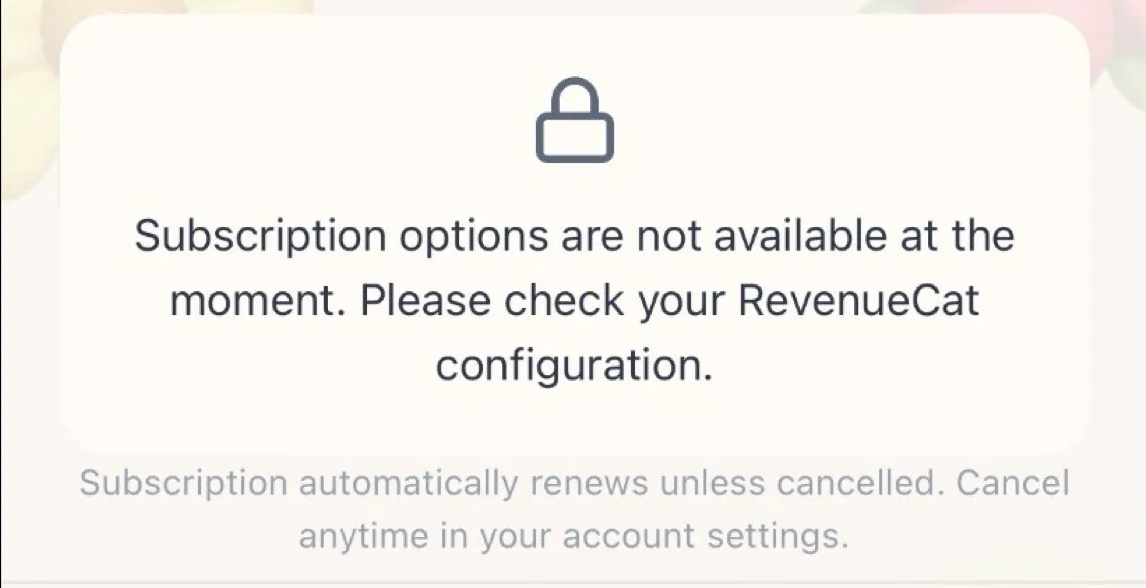
"Subscription options are not available at the moment"
This error appears when the SDK cannot fetch any purchasable products to display on the paywall. The full message reads: "Subscription options are not available at the moment. Please check your RevenueCat configuration."
Root Causes (in order of likelihood)
- No Current Offering configured: Go to RevenueCat Dashboard → Product Catalog → Offerings. Verify that one offering is marked as Current. If no offering is set as current, the SDK returns empty offerings and the paywall cannot render any products.
- Offering has no packages or products: The offering exists but has no packages attached, or the packages have no store products linked. Open the offering and verify each package contains a valid product identifier.
- Store products not available:
- iOS: Products must be in "Ready to Submit" or "Approved" state in App Store Connect. Products with "Missing Metadata" or "In Review" status are not fetchable.
- Android: Products must be Active (not Draft) in Google Play Console. The app must be published to at least a closed testing track.
- Wrong API key or bundle ID mismatch: Verify you are using the correct platform-specific public API key (iOS key for iOS, Android key for Android). A common mistake is using the key from the wrong project or the wrong platform. Also check that your app's bundle identifier exactly matches what is configured in RevenueCat.
- Paid Applications Agreement expired (iOS): In App Store Connect → Agreements, Tax, and Banking, verify the Paid Applications Agreement is signed and in active status. An expired agreement makes all products unavailable.
- Propagation delay: New products in App Store Connect can take up to 24-48 hours to propagate. Google Play products are usually faster but can still take a few hours after first activation.
- Testing account not configured:
- iOS: Must be signed into a Sandbox Apple ID on the device (Settings → App Store → Sandbox Account). On Simulator, a StoreKit Configuration file is required.
- Android: The Google account on the test device must be added as a license tester in Google Play Console → Settings → License testing.
Debugging Steps
- Enable debug logging:
Purchases.logLevel = .debug(iOS) orPurchases.logLevel = LogLevel.DEBUG(Android). - Look for
"Offerings"in the log output. It will show exactly what the server returned and whether products were fetched from the store. - Check the RevenueCat Dashboard → Customers page for the
app_user_idto verify the customer profile exists. - Test fetching offerings directly via the REST API to isolate whether the issue is server-side or client-side.
"No products found in store" but your dashboard configuration looks correct, the issue is almost always related to store product availability or testing account setup, not RevenueCat configuration.